
Virtual camera for Mac

Step away. Nobody notices.

CamHold loops a clip of you listening, freezes, hides or degrades your camera in Zoom, Meet, FaceTime and Teams. One shortcut and you are gone: you get up, your picture stays.

Mac only.

  • Free to download
  • macOS 14 or later
  • No account
Weekly sync4 on the call
Live
What the call sees
The real you

Others see your live cameraYou, in real time.

Auto demoTap any control to take over
⌥⌘F
⌥⌘L

Blurs gradually, like weak Wi-Fi

Runs in your browser only. Nothing is sent.

Works where you already take calls

  • Zoom
  • Google Meet
  • FaceTime
  • Microsoft Teams

and any app that lets you pick a camera

Made for real life

The meeting goes on. So does life.

  • The doorbell rang

    Turn on Loop and go answer it. The call keeps seeing you there, listening closely.

    Loop
  • Coffee ran out

    Freeze, walk to the kitchen and come back. To the call, the video just stalled.

    Freeze
  • Someone walked in

    Hide instantly and sort it out in peace, off camera.

    Hide
  • Not camera-ready

    Degrade on purpose: the picture gets worse like a weak connection and nobody catches the details.

    Degrade

Features

Control what they see.

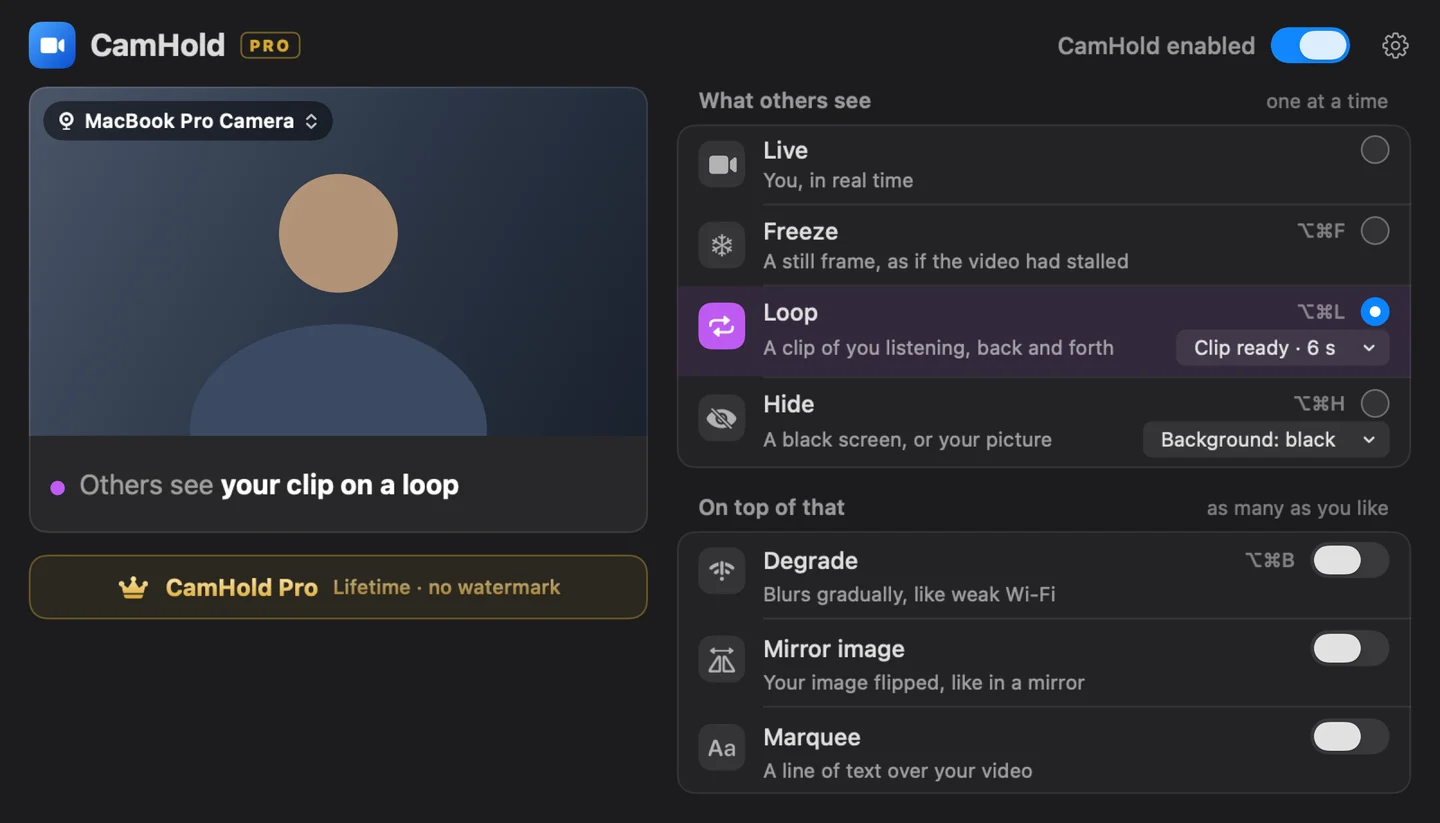
One mode at a time: live, frozen, looping or hidden. On top, as many effects as you like.

CamHold running on the Mac

LoopNew

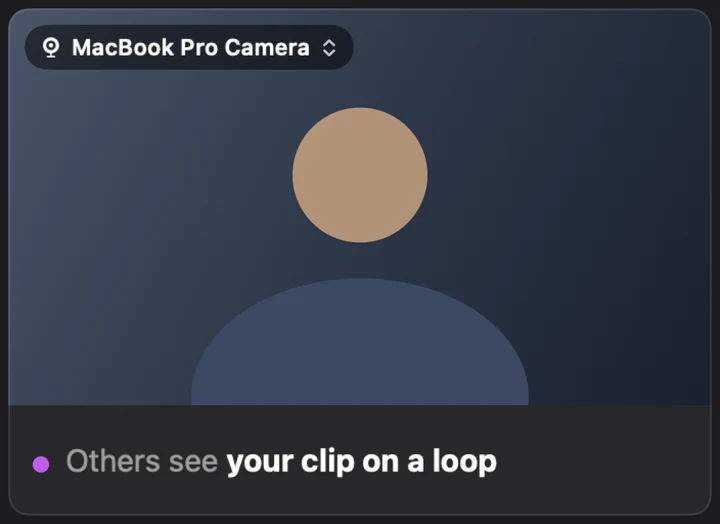
Record a few seconds of yourself listening. CamHold plays the clip back and forth in place of your live camera, with a soft crossfade in and out, so you still look present after you step away.

  • A 3-second countdown, then up to 8 seconds of clip. Video only, no audio.
  • No clip yet? Press Loop and it records on the spot, then starts.
  • Freezing while Loop is on pauses on the clip, never on the live camera.
CamHold running on the Mac

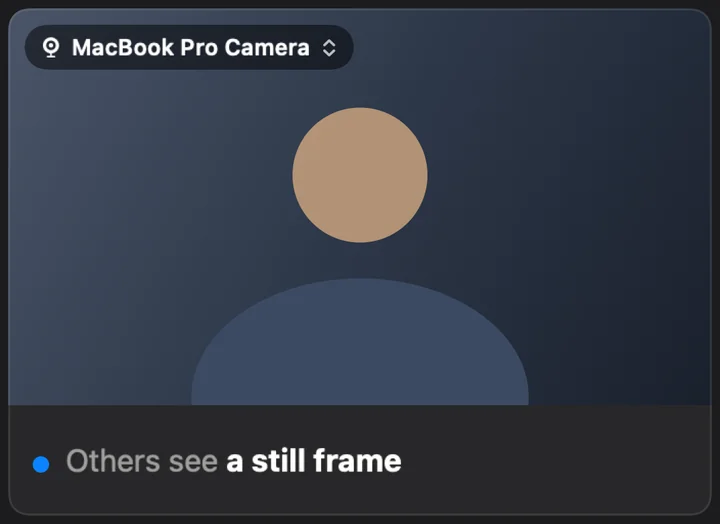
Freeze

Hold the last frame, as if the video had stalled, while you step away.

CamHold running on the Mac

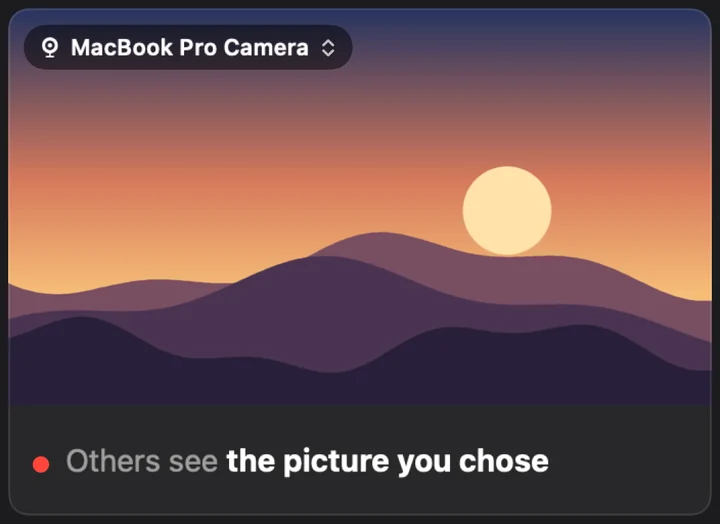
Hide

Cut the feed instantly. Go black, or show a picture of your choice.

CamHold running on the Mac

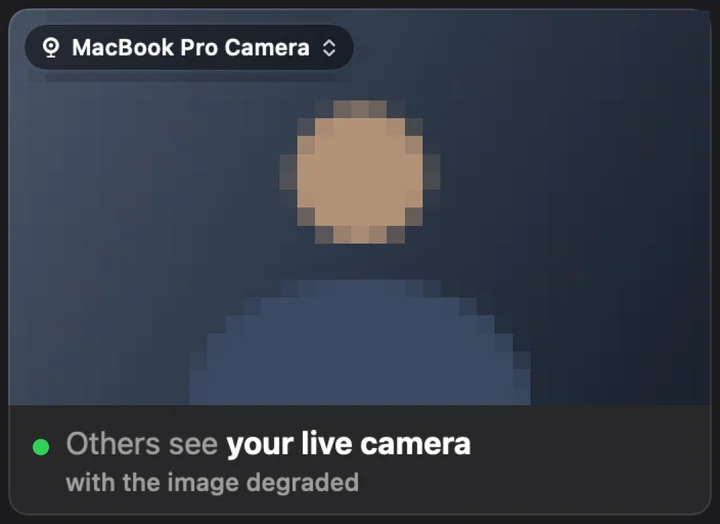
Degrade

Fake a weak connection: the image gets worse little by little, blurred or pixelated, at three levels, and recovers the same way. It stacks with Freeze and Loop.

CamHold running on the Mac

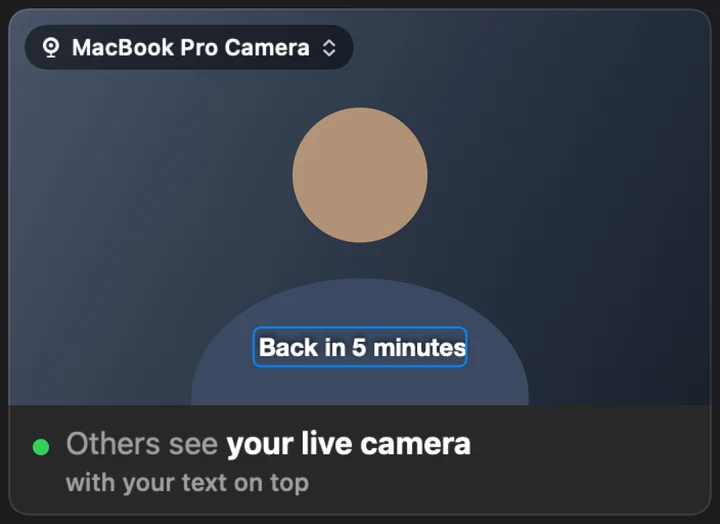
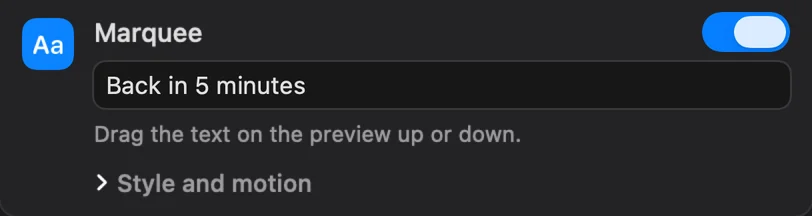
MarqueePro

Put words on your video: type a note, drop it anywhere on the frame, let it scroll.

Always one click away

There when you need it.

No hunting for a window mid-meeting. CamHold lives where your hand already goes.

Menu bar

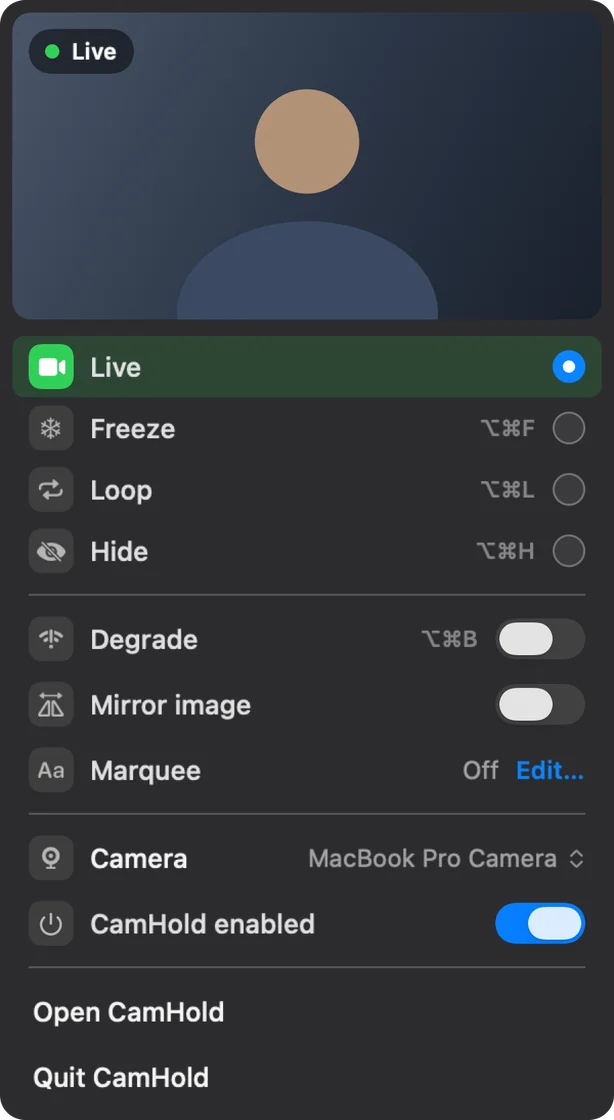
Every mode and effect, with a live preview, without opening a window.

CamHold running on the Mac

Global shortcuts

⌥⌘F freeze, ⌥⌘L loop, ⌥⌘H hide, ⌥⌘B degrade, ⇧⌥⌘L record a new clip. They work with any app in front. Your hands never leave the keyboard.

Control Center

A Freeze control next to Wi-Fi and brightness, on macOS 26.

Mirror

Flip your image back when an app insists on showing it backwards.

Light on calls

Freeze and Hide draw the frame once and hold it. Your CPU says thanks.

Speaks your language

English, Portuguese, Spanish, French, German and Japanese.

How it works

Ready in three steps.

  1. 1

    Install CamHold

    A short guide explains each macOS request before it appears: nothing pops up until you click. You approve the camera extension once.

  2. 2

    Pick “CamHold” in the call

    In Zoom, Meet, FaceTime or Teams, choose CamHold as the camera.

  3. 3

    Decide what they see

    Loop, Freeze, Hide or Degrade, from the window, the menu bar or a shortcut. One sentence always tells you what the others see right now.

Privacy

What happens on your Mac stays on your Mac.

Everything is processed on the device. No account, no analytics, no network requests: nothing is sent anywhere, and live video is not recorded. The only video CamHold keeps is the short Loop clip you record, and it never leaves your Mac.

Read the privacy policy

Data sent by CamHold

0bytes

since forever

  • No account

    Open it, use it. No sign-up, no login.

  • No analytics

    No third-party SDKs, ads or trackers.

  • No network

    The app makes no requests. It works offline.

  • Only the Loop clip

    Live video is not recorded. The Loop clip exists only if you record it: it stays on your Mac, is replaced by the next recording and can be removed in the app.

Pricing

Free to use. One purchase to make it yours.

No subscription, no renewal, no catch.

Free

$0Forever

  • Loop, Freeze and Hide
  • Degrade and Mirror image
  • Menu bar, shortcuts and Control Center
  • Small “CamHold — free” mark on the video

CamHold Pro

One-time purchaseLifetime

  • Everything in the free version
  • Clean video, no watermark
  • Marquee: your note on the video
  • Pay once, keep it forever

Download for free and unlock inside the app.

FAQ

Questions everyone asks.

Do people on the call notice that I left?

To the call, your camera is still on and sending video as usual. With Loop it sees a clip of you listening, played back and forth, with a soft crossfade in and out. With Freeze the picture holds on the last frame, as if the video had stalled.

How does Loop work?

You record a short clip of yourself listening: a 3-second countdown, then up to 8 seconds, video only, no audio. Loop plays that clip back and forth in place of your live camera. With no clip yet, pressing Loop records on the spot and then starts. ⌥⌘L toggles Loop, ⇧⌥⌘L records a new clip.

What is Degrade?

An effect that fakes a weak connection. Switch it on (⌥⌘B) and the image gets worse little by little, over a few seconds, and recovers the same way when you switch it off. It has three levels (Light, Medium and Strong) and two styles (Blurred or Pixelated), and it stacks on top of Freeze and Loop instead of replacing them.

Which apps does it work with?

Zoom, Google Meet, FaceTime, Microsoft Teams and any other app that lets you pick a camera. Just choose “CamHold” from the list.

Is my video recorded or sent anywhere?

Nothing is sent: CamHold makes no network requests. Live video is processed on your Mac, in real time, and is not recorded. The only recording is the Loop clip, made only when you ask for it: it is kept only on your Mac, replaced by the next recording and can be removed in the app.

Why does macOS ask me to approve an extension?

CamHold installs a camera extension, which is what creates the virtual camera. macOS asks for your approval once, in System Settings, and the setup guide explains each request before it appears.

What is the difference between free and Pro?

The free version adds a small “CamHold — free” mark to the video. One purchase removes it forever and unlocks the Marquee.

Is it a subscription?

No. It is a one-time, lifetime purchase made inside the app.

What do I need to use it?

A Mac running macOS 14 or later. The Control Center control is available from macOS 26.

  • BE RIGHT BACK
  • GETTING COFFEE
  • ONE MINUTE
  • STILL LISTENING
  • BACK IN 5
  • ANSWERING THE DOOR

Put your camera on pause.

The meeting goes on. You decide what it sees.

Free to download · macOS 14 or later · No account