 CamHold
How to put text on your video in a Zoom, Meet or Teams call
A "back in 5" note or your name right on your picture. What Zoom, Meet and Teams let you do for free, and how to write on your camera with CamHold.
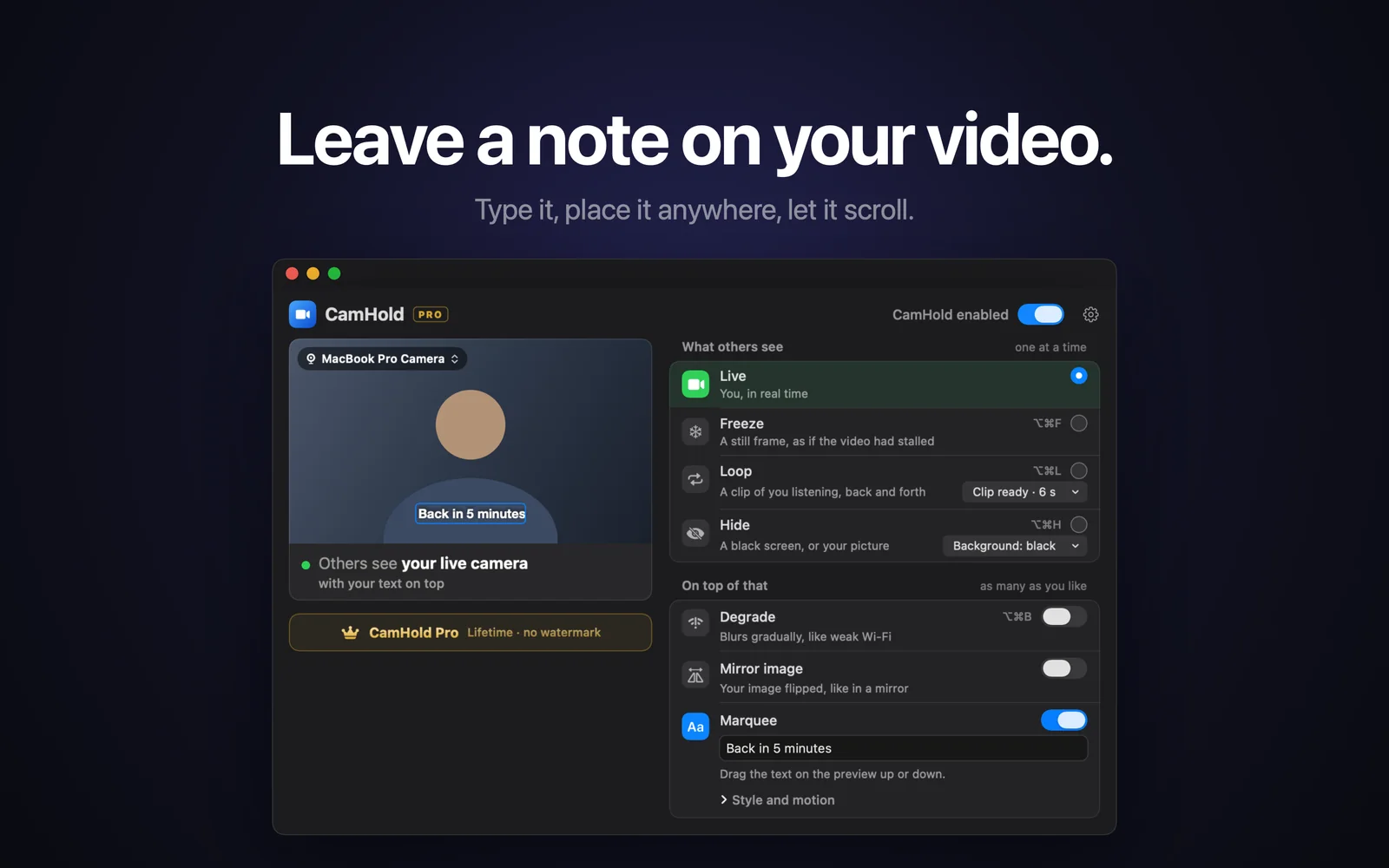
If you want to put text on your video in a call, say a "back in 5" note or your name and title, Zoom, Google Meet and Microsoft Teams give you less than you would expect. In the help pages I could find, none of them has a box where you type any text you like over your own camera in a regular meeting. You can get close for free by renaming yourself or by using a background image with words on it. To get text on top of the picture, wherever you want it, the call app has to receive video that already has the text in it, and that is a job for a virtual camera.
What Zoom, Meet and Teams let you do for free
For a simple notice, one of these may be enough.
Rename yourself for this meeting. In Zoom, open Participants, hover over your name, click the three dots and choose Rename. It is only there if the host allows participants to rename themselves. In Teams, the option is Edit display name, in the menu next to your name in the People pane, as long as the organizer turned it on in the meeting options. In both apps the new name lasts only for that meeting and shows on your tile. Typing "Back in 5" as your name gets the message across, but the label is small, sits in a corner and sometimes gets cut off.
As far as I could confirm, Meet has no way to rename yourself inside a meeting. If you join with a Google account, Meet shows the account name, and changing that changes it across every Google service.
Use a background image with text on it. All three apps take your own image as a background: virtual backgrounds in Zoom, the backgrounds and effects panel in Meet, and video effects in Teams, where you add a new image (JPG, PNG or BMP). Make the image in Keynote or any editor and keep the text near the top, where your head will not cover it. It works well for a name and title. The catch: the text sits behind you, the cutout around your body is still there, and changing the wording means making another image. In Meet and in work accounts on Teams, an admin may have turned custom backgrounds off.
If the text looks backwards in your own preview, check the mirror setting. In Zoom, Mirror my video only changes how you see yourself; everyone else reads the text the right way round.
Post in the chat. A message in the meeting chat reaches everyone. It is the most direct option, but only people watching the chat will see it.
Paid Zoom webinars. In Zoom Webinars and Zoom Events, the host can put name tags with a name and description on panelists' video. It needs a paid license and does nothing for your own note in a regular meeting.
Text over your video with a virtual camera
A virtual camera shows up in Zoom, Meet and Teams as one more webcam. It takes the picture from your real camera, draws whatever it needs on top, and hands the result to the call app, which just sees video arriving. If you want the longer version of how that works on macOS, see virtual cameras on a Mac.
CamHold is the virtual camera I make, and its Marquee effect is built for this: you type a note, place it anywhere on the frame and, if you like, let it scroll. Because it is an effect, it sits on top of whatever mode is on: live, frozen, looping or hidden.
Marquee comes with CamHold Pro, a one-time, lifetime in-app purchase with no subscription. The free version has every mode plus the Degrade and Mirror image effects, and adds a small "CamHold — free" mark to the video. Pro removes the mark and unlocks Marquee.
How to put text on your camera with Marquee
1. Install it and approve the extension. Get CamHold from the Mac App Store and open it. It needs macOS 14 or later. macOS asks you once to approve the camera extension; on macOS 15 or later that lives in System Settings › General › Login Items & Extensions › Camera Extensions. The app's setup guide explains each prompt before it shows up.
2. Pick "CamHold" as your camera in the call. In Zoom, click the arrow next to the video button. In Meet, the arrow next to the camera button. In Teams, the arrow next to the Camera button. If CamHold is not in the list, quit the call app completely (⌘Q) and open it again.
3. Turn on Marquee and write your note. With Pro unlocked, switch the effect on, type the text and place the note where you want it. There is nothing to set up in Zoom, Meet or Teams, because the text is already part of the video.
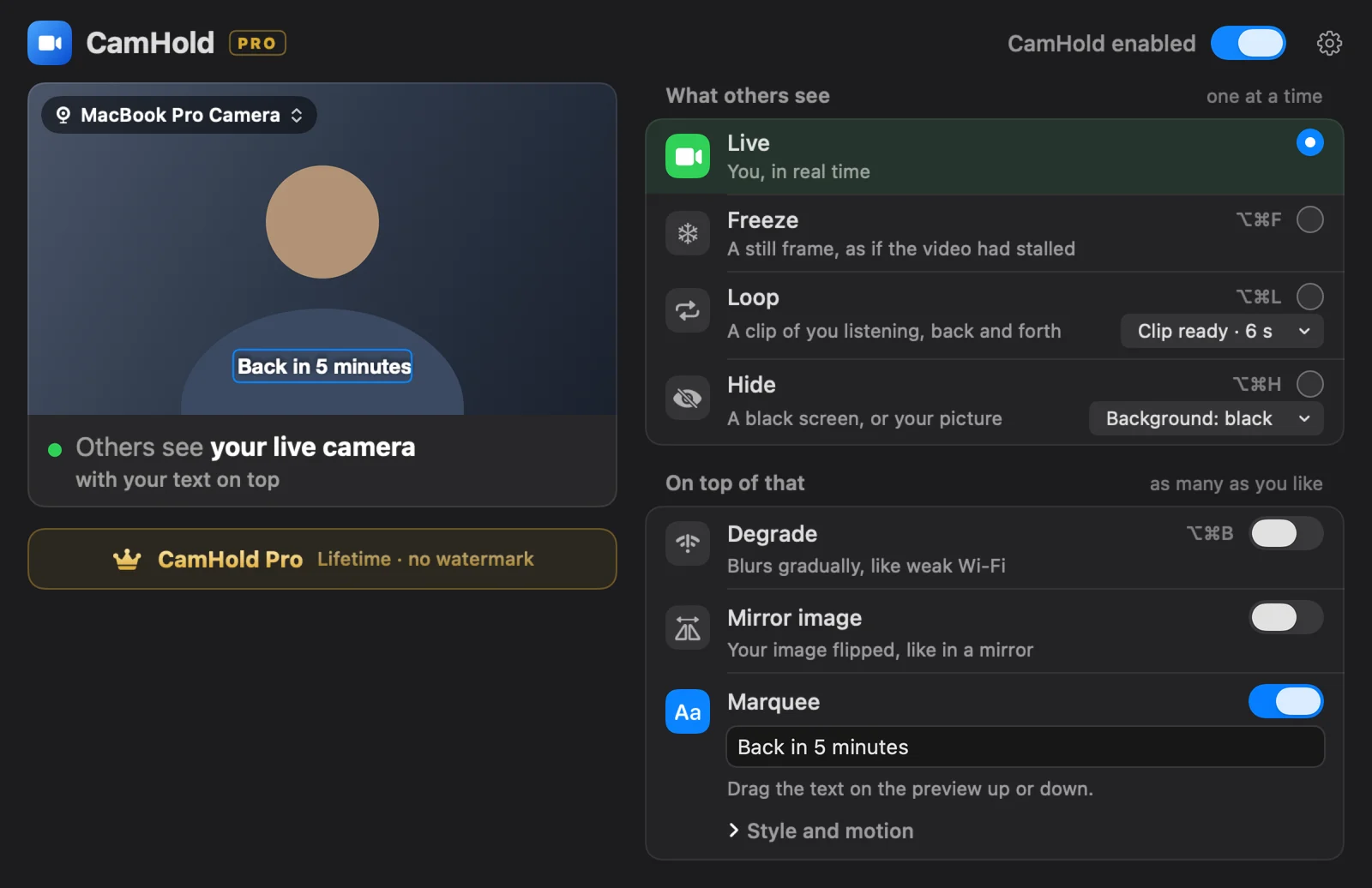
You can close the window during the meeting. The menu bar dropdown has a live preview, the modes and the effects.
Where it comes in handy
Back in 5. Turn on Marquee with the note and get up. If you freeze the picture too, the note explains why it is not moving. CamHold only handles video, so mute in the call app before you leave. To slip out without anyone noticing, see how to step away from a Zoom meeting unnoticed. For when a heads-up is worth it and when it is not, I wrote about stepping away from a video call.
Name and title. One line in a corner, like a lower third on the news. Useful for a class, a talk, or a meeting with people who do not know you yet.
A notice for the room. "Recording", "No audio", "Starting at 10". Short things.
Making the text easy to read
Keep it short. If the text scrolls, people get a few seconds to read it. "Back in 5" beats a full sentence.
Keep it off your face. Put the note along the bottom or in a corner. Words sliding across your forehead are more distracting than informative.
Check the preview. Your tile on other people's screens is usually small, and smaller still in a crowded gallery. If the note is hard to read in CamHold's preview, it will be worse in the call.
Everyone sees it. The text is part of your video for everyone on the call, and it ends up in any recording of the meeting. Write only what you would be fine leaving on display.
For a long break, a note over a frozen frame will not hold up on its own. Loop plays a short clip of you listening, and a moving picture draws less attention. How to record a clip that passes is in how to loop a video of yourself on Zoom.
Quick answers
Is Marquee paid? Yes. It is part of CamHold Pro, a one-time purchase. The rest of the app is free, with the "CamHold — free" mark on the video.
Does it work with Meet in a browser? Yes. The browser lists CamHold alongside your other cameras. It needs camera permission in macOS and for the Meet site.
Can people tell it is a virtual camera? To the call app, CamHold is one more camera in the list. The people on the other end see your video with the note, and that is it.
Does CamHold send my video anywhere? No. It has no account, no analytics and makes no network requests at all. Live video is processed on the Mac and never recorded.