 CamHold
Virtual cameras on a Mac: how they work, and what to do when Zoom doesn't show one
What a virtual camera is on macOS, why the system asks you to approve an extension, and what to check when it is missing from Zoom, Meet or Teams.
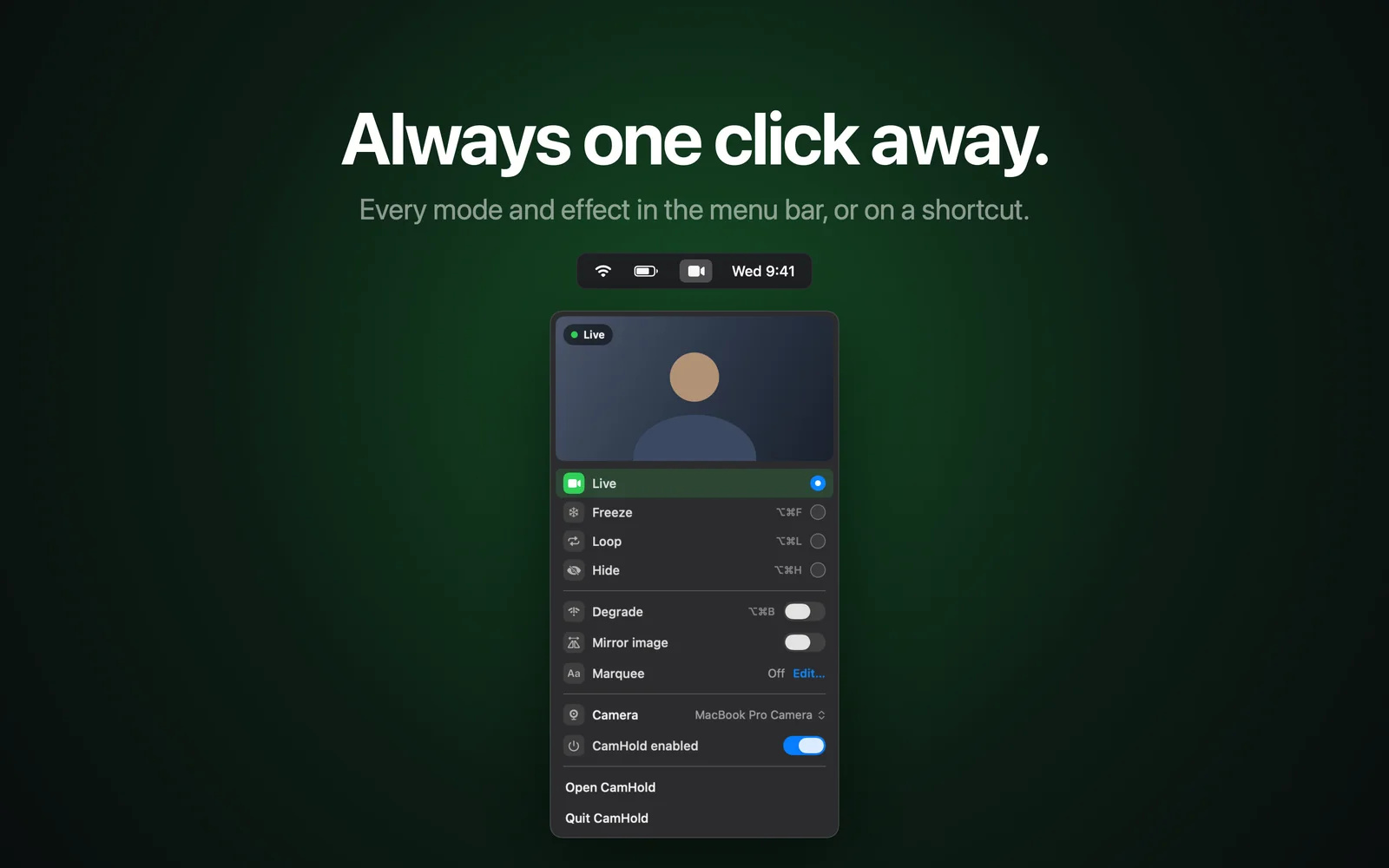
A virtual camera is a program that presents itself to your Mac as a webcam. Zoom, Meet, Teams and FaceTime cannot tell the difference: it shows up in the camera list next to your MacBook camera or your iPhone, and the app uses whatever video it delivers.
What it delivers depends on the program. It might be your webcam with an effect, a scene built in OBS, the feed from a proper camera, or in CamHold's case, your webcam live, frozen, looping, hidden or degraded.
How it works on macOS today
For years, virtual cameras on the Mac were plug-ins that the system loaded inside every call app. That caused security problems and crashes, and Apple replaced the model with camera extensions. Recent versions of macOS no longer load the old plug-ins, which is why some older virtual cameras simply vanished from the list after an update.
A camera extension runs on its own, isolated by the system, apart from the apps that use it. That is why macOS asks for your approval before it runs for the first time.
How to approve the extension
The place depends on your macOS version:
- macOS 15 or later: System Settings › General › Login Items & Extensions › Camera Extensions. Turn the app on there. macOS may ask for your password.
- macOS 14 Sonoma: you get a notice that an extension was blocked. Click Open System Settings, and under Privacy & Security, click Allow.
You only do this once. CamHold's setup guide walks you through each step before the macOS prompt appears.
The virtual camera is missing in Zoom, Meet or Teams
It is nearly always one of these. Go through them in order:
1. Quit the call app and open it again. Most apps only look for cameras when they launch. If you installed the virtual camera with Zoom already open, Zoom will not see it. Use Quit (⌘Q), not just closing the window.
2. In a browser, quit the whole browser. That goes for Meet in Chrome, Safari or Edge. Also check that the site has camera permission, in the padlock next to the address.
3. Make sure the extension is on. Go back to the place from the previous section and check the switch. After a macOS update it sometimes needs approving again.
4. Check the virtual camera app's own camera permission. It needs to see your real webcam to pass the picture on. Under System Settings › Privacy & Security › Camera, it must be turned on. Without that, it appears in the list but shows an empty picture.
5. Update the call app. Very old versions of Zoom and Teams do not recognize camera extensions.
6. Restart your Mac. After updating a virtual camera, the system sometimes keeps the old version of the extension running until a restart.
The picture is mirrored
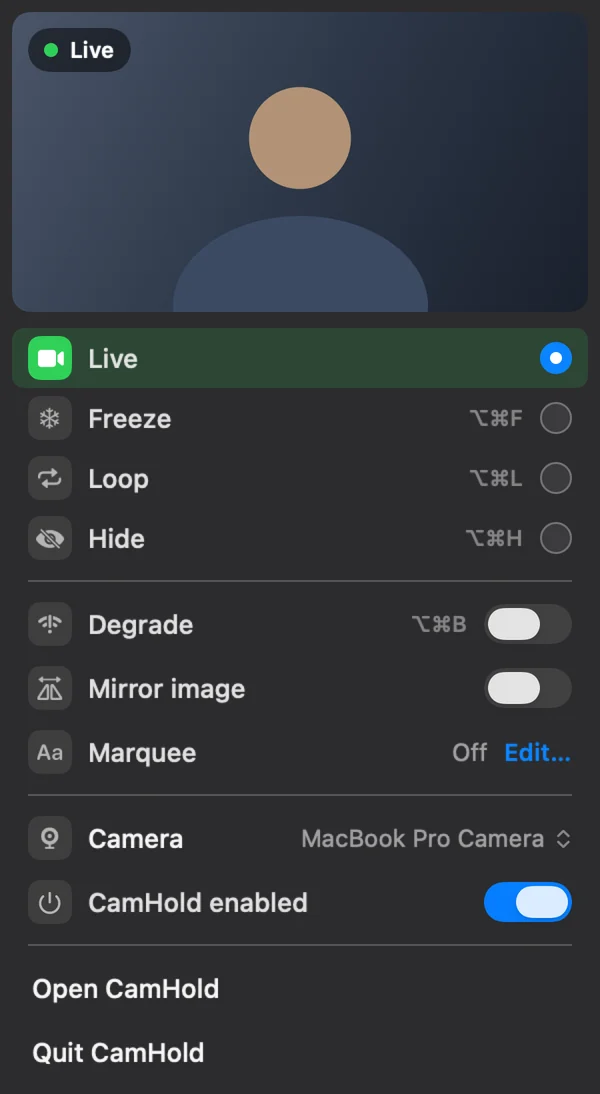
Some apps show you mirrored to yourself and correctly to others. Some do the reverse, and the text on your shirt reads backwards. In CamHold, Mirror image fixes that at the output of the virtual camera, whatever each app does.
Can a virtual camera see or record what I do?
Technically it receives your webcam's video, so the question is fair. What matters is what the app does with it. Read the privacy policy and the privacy label on the App Store before installing any of them.
For CamHold: no account, no analytics and no network requests at all. Live video is processed on your Mac and never recorded. The only video kept is the short Loop clip, which exists only if you record one and never leaves your Mac. It is all in the privacy policy.
If you came here wanting to pause your picture during a meeting, the next steps are in how to freeze your camera and how to loop a video of yourself.