 CamHold
A FreezingCam alternative for Mac without a subscription
FreezingCam freezes, loops and fakes a bad connection, but only on a subscription. Here is what it costs and which Mac alternatives you pay for once.
Most people looking for a FreezingCam alternative on a Mac are trying to get away from one thing: the subscription. FreezingCam does what it says and has been around since 2021, but it costs $49 a year or $9.99 a month, and there is no free plan. Other apps do the same job for a one-time price, and one of them is the one I make, CamHold. Keep that in mind as you read. Everything I say about FreezingCam comes from its own site.
What FreezingCam does and what it costs
FreezingCam is a Mac app with three tricks: it freezes your camera, plays a looping video of you in place of the live feed, and adds a stutter that looks like a bad connection. Its site names Zoom, Google Meet, Microsoft Teams and Webex among the call apps it works with. You download a .dmg from the site, and the app needs a license to run. A Windows version is listed as upcoming.
The plans, from its pricing page:
- Yearly: $49 a year, with a 7-day free trial.
- Monthly: $9.99 a month, no trial.
The site says outright that there is no free tier, and it lists no one-time purchase, so the 7-day trial on the yearly plan is the only way to use it without paying.
Subscription vs one-time purchase: the math
Over three years the yearly plan adds up to $147. A full year on the monthly plan is close to $120. If you freeze your camera every day, that may be worth it. If you use it once or twice a week, for a long meeting or a call you need to step out of for a minute, it is a lot of money for a feature that is switched off most of the time.
The monthly plan has one good use: you need this for a few weeks and then you don't. $9.99 covers that, as long as you remember to cancel.
The options side by side
These come from each app's own site or App Store page, checked in October 2026. Prices change, so look again before you buy. For the full breakdown, see CamHold vs FrostCam vs CamLoop vs FreezingCam.
| App | Where to get it | How you pay | What it does |
|---|---|---|---|
| FreezingCam | Its own site | $49/year or $9.99/month; 7-day trial on yearly only | Freeze, loop, stutter |
| CamHold | Mac App Store | Free with a mark on the video; one-time Pro | Freeze, loop up to 8 s, hide, bad connection; macOS 14 or later |
| FrostCam | Mac App Store | Free with a watermark; Pro $14.99 one-time | Freeze and a short looping clip; macOS 13 or later |
| CamLoop | Its own site and Setapp | Free with 1 clip up to 10 s; Pro $49 lifetime or $4.99/month | Loop, simulated lag, live effects; macOS 14 or later |
| Faux Pause | Mac App Store | Free Freeze up to 30 minutes a day; Pro $4.99 one-time | Freeze, Bad Connection, Full Loop; macOS 13 or later |
Where the others beat CamHold: FrostCam and Faux Pause run on macOS 13, and CamHold needs 14. CamLoop records clips up to 10 seconds against CamHold's 8, and lets you choose between paying once and paying monthly. FreezingCam has a Windows version on the way, and CamHold is Mac only.
A FreezingCam alternative with no subscription
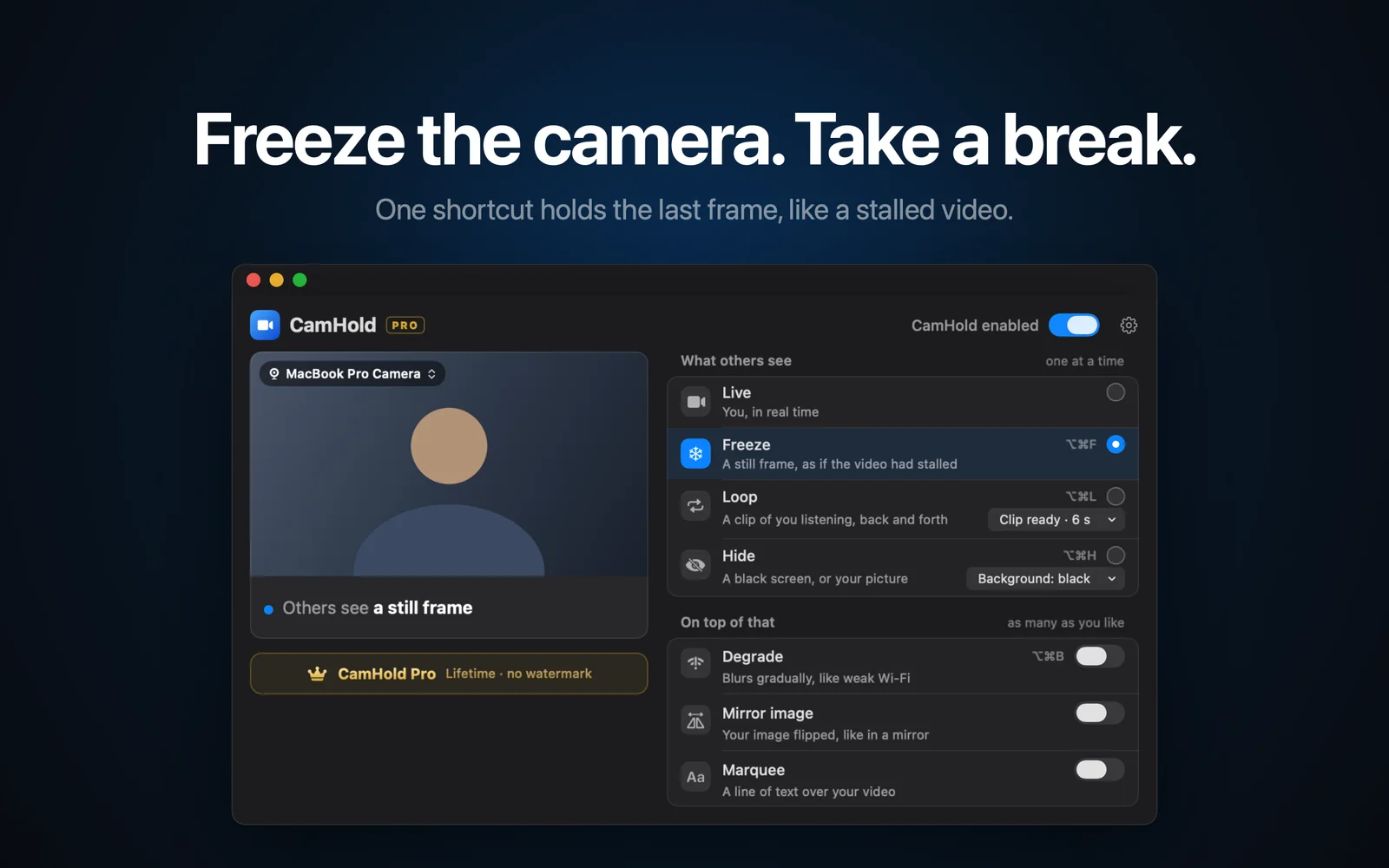
CamHold is a virtual camera. You pick "CamHold" as the camera in Zoom, Meet, Teams or FaceTime once, then control it with shortcuts or from the menu bar without touching the call app.
- Freeze (⌥⌘F): holds the last frame, like video that stalled.
- Loop (⌥⌘L): plays a clip of you listening, up to 8 seconds, back and forth, with a smooth transition in and out. If there is no clip yet, it records one on the spot.
- Hide (⌥⌘H): shows black or a picture you choose.
- Degrade (⌥⌘B): fakes a weak connection, getting worse over a few seconds and recovering the same way.
Each mode is walked through in how to freeze your camera on Zoom, Google Meet and Teams and how to loop a video of yourself on Zoom.
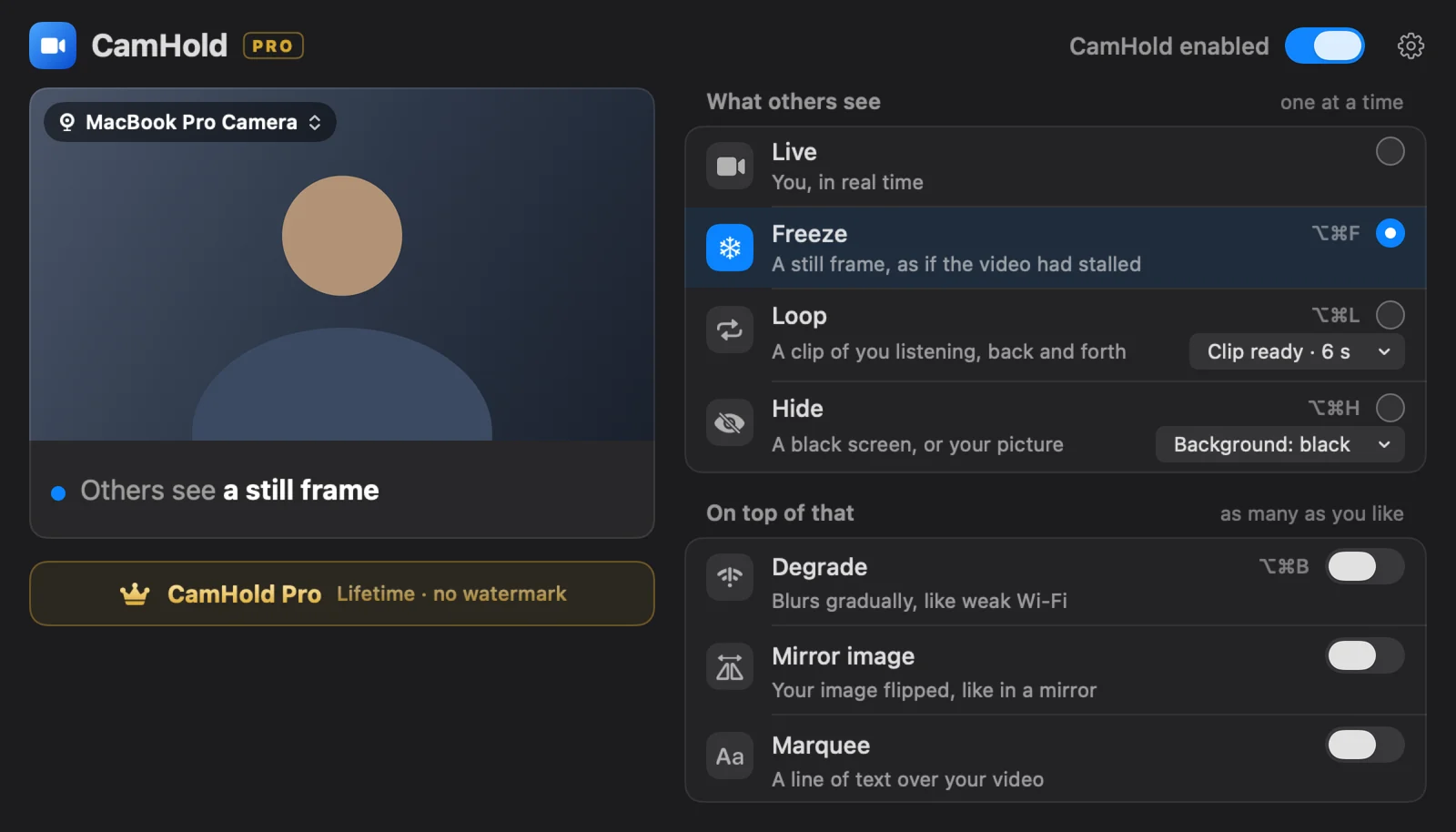
CamHold is free on the Mac App Store. The free version has every mode and puts a small "CamHold — free" mark on the video. CamHold Pro is a one-time in-app purchase that removes the mark and unlocks Marquee, a note you type and let scroll across the picture. You pay once and that is it.
There is no account, no analytics and no network access at all. Live video is processed on the Mac and never recorded. The only video kept is the Loop clip, recorded only when you ask, and it never leaves the Mac.
If you don't want to pay anything
Sometimes you don't need an app. Turning your camera off in Zoom, Meet or Teams is free and fine when nobody minds seeing your name or photo instead of video.
If you want a frozen or looping picture for free, OBS Studio is free, open source and has a virtual camera. You can build a scene with a video of yourself on repeat, but the setup takes a lot longer and switching scenes mid-call takes some care. The steps are in OBS Virtual Camera on a Mac.
How to choose
- You want to try one for free: CamHold, FrostCam, CamLoop and Faux Pause all have a free version, each with a different limit.
- You don't want a subscription: CamHold, FrostCam and Faux Pause are one-time purchases. CamLoop lets you choose.
- You'd rather buy from the developer, outside the App Store: FreezingCam or CamLoop.
- You're still on macOS 13: FrostCam or Faux Pause.
- You only need it for a few weeks: the monthly plan of FreezingCam or CamLoop.
Quick answers
Is FreezingCam free? No. There is a 7-day trial on the yearly plan, and the monthly plan has no trial.
Does anything change when I switch apps? Only the camera you pick in the call app. If the new one is missing from the list, quit the call app and open it again. More on that in virtual cameras on a Mac.
Can I keep two installed? Yes. Each shows up as its own camera in the list, and the call uses whichever one you pick.
Does it touch my microphone? Not CamHold. It only handles video; audio goes straight from the mic to the call app, so you still mute there.