 CamHold
How to freeze your camera in Webex on a Mac with a shortcut
Webex can blur your background or stop your video, but it cannot hold a frame. Here is how to pick a camera in Webex and freeze or loop your video on a Mac.
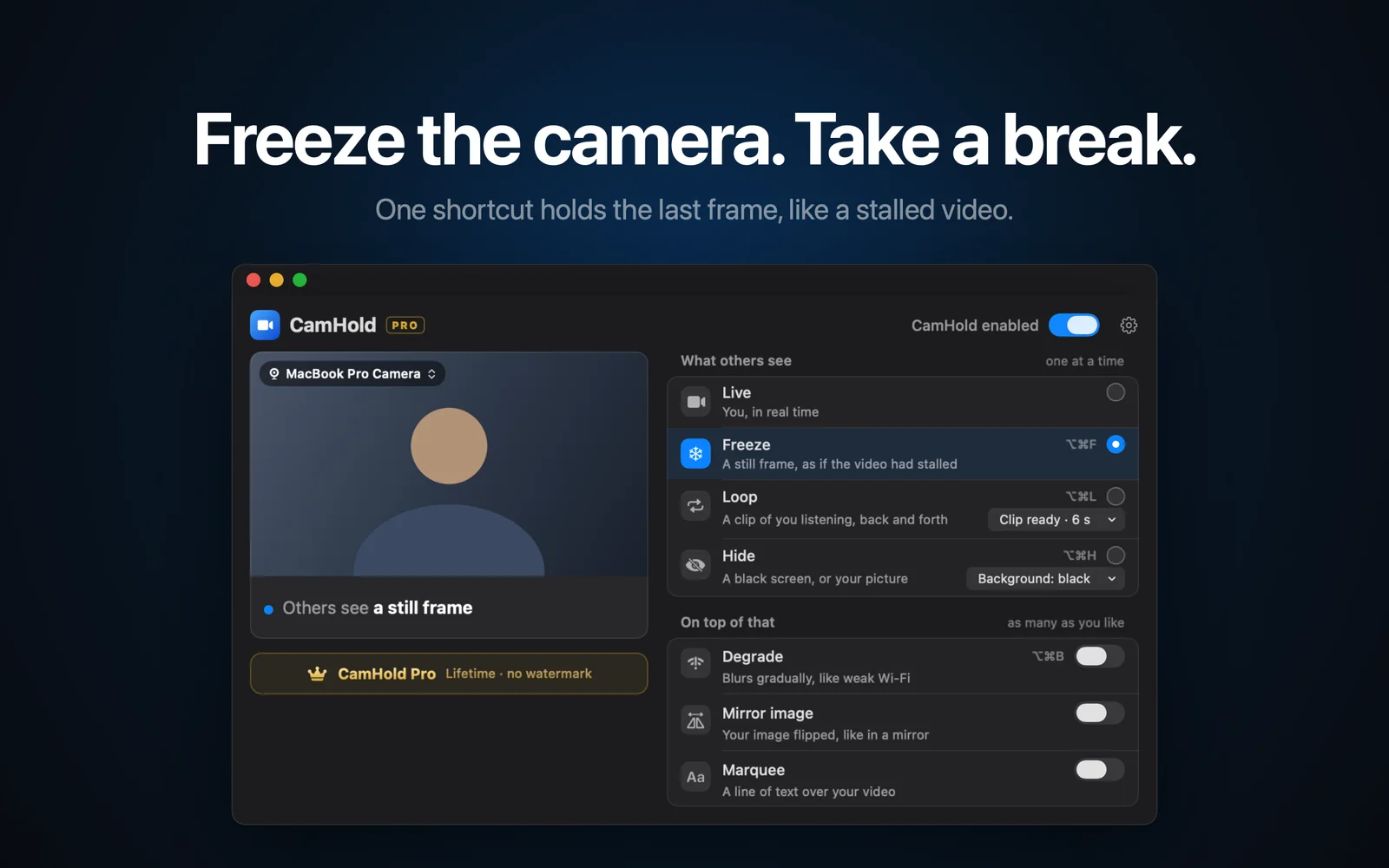
To freeze your camera in Webex on a Mac, you need a virtual camera. Webex's video settings cover the camera picker, backgrounds, mirroring and lighting, but its help pages show no way to hold the picture still. What it does have is Stop video, which puts your name or picture where your camera was, and everyone notices. A frozen frame usually just reads as a connection hiccup.
Below: what Webex handles on its own, where to switch cameras, what to check when a virtual camera is missing, and how to freeze or loop your video.
What Webex handles on its own
- Stop video. Turns the camera off right away. Fine if you don't mind people seeing that you stepped out.
- Blurred or virtual background. In Settings (the cog in the sidebar), under Video › Background, you can blur, pick a built-in background or upload your own image or video. During a meeting the same choice sits in the video options. The background goes away, you stay in the shot, and if you get up, the empty chair shows. If the room is the real problem, there are more ideas in how to hide a messy room on a video call.
- Picture adjustments. The same Video screen has mirror view for your self-view, lighting correction, touch up appearance, and brightness and contrast. If you are wondering whether others see you flipped, I went through that in Mac camera mirrored.
None of these freezes the frame. For that, Webex has to receive video from a camera you can tell to stop.
How to choose your camera in Webex
Webex's help says virtual camera software and external webcams can be selected the same way as the built-in camera.
- Outside a meeting: click Settings (the cog in the sidebar), then Video.
- During a meeting: hover over your self-view, click More options, then Video Settings.
- Pick the camera you want from the Camera drop-down.
Exact labels shift a little between Webex versions.
When a virtual camera is missing in Webex
Restart Webex. A camera installed while Webex is open often only shows up after you quit with ⌘Q and reopen it.
Check the permission. If Webex has no camera access, macOS blocks the video. The switch is in System Settings › Privacy & Security › Camera.
Your company may have turned it off. On a Mac, your organization's Webex admin can disable third-party virtual cameras in Control Hub. Cisco's help says so and notes the setting only applies to macOS. If that is the case, no virtual camera will appear in the list, and it is IT's call.
How to freeze your camera in Webex with CamHold
CamHold is the virtual camera I make for the Mac. The free version has every mode and adds a small mark to the video.
1. Install it and approve the extension. Get it from the Mac App Store and open it. macOS asks once to approve the camera extension, and the app's setup guide shows where to click before the prompt appears. It needs macOS 14 or later.
2. Pick "CamHold" as your camera in Webex, using the steps above. You only do this once.
3. Freeze with ⌥⌘F. The shortcut works whatever app is in front, so you don't have to find the CamHold window mid-meeting. Press it again to go back to live. You can also click Freeze in CamHold's menu bar dropdown or, on macOS 26, in Control Center.
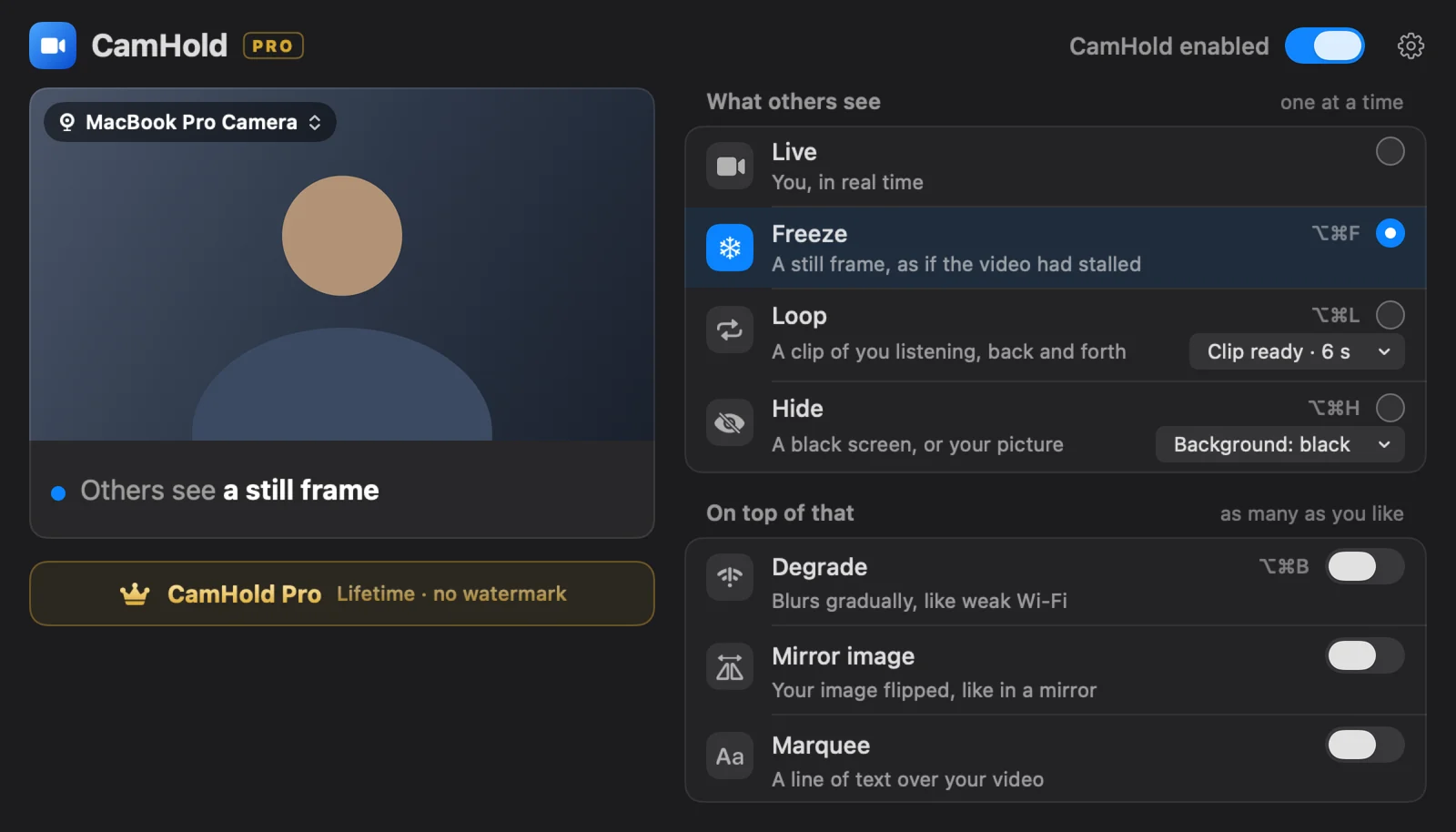
Webex can't tell the difference: it keeps receiving video from a camera that is on. For how that works underneath, see virtual cameras on a Mac.
Loop for longer breaks
A freeze holds up for a few seconds, maybe a minute. Ten minutes in exactly the same pose starts to look odd. For longer breaks, Loop plays a short clip of you, up to 8 seconds, back and forth, with a smooth transition in and out. The shortcut is ⌥⌘L. If you press it with no clip recorded, the app records one on the spot after a 3 second countdown. Recording a clip that looks natural is covered in how to loop a video of yourself on Zoom, and the same steps apply in Webex.
Before you step away
Mute first. CamHold only touches video. Audio goes straight from your mic to Webex, so mute in Webex.
Pick your frame. What freezes is the picture at the moment you press the shortcut. Look at the screen, hold still for half a second, then press.
Check your self-view when you're back. After switching to live, glance at your own video in Webex. If it is still frozen, that is what everyone else sees too.
Use some judgment. An interview, your own presentation, or a meeting where someone needs you: stay. Answering the door in the middle of a long call is what it's for. The same approach for other apps is in how to freeze your camera on Zoom, Google Meet and Teams.
Quick answers
Does it work with Webex in a browser? In a browser, the camera list comes from the browser itself, which lists virtual cameras like any webcam. The browser needs camera permission in macOS and on the Webex site. If CamHold is missing, quit the whole browser and reopen it.
Do I have to pay? Not to freeze or loop. The free version adds a "CamHold — free" mark to the video. CamHold Pro is a one-time, lifetime purchase that removes the mark and unlocks Marquee. No subscription.
What does CamHold store? No account, no analytics, no network requests at all. Live video is processed on the Mac and never recorded. The only video kept is the Loop clip, recorded only when you ask, replaced by the next recording and deletable in the app. It never leaves your Mac.