 CamHold
Mac camera mirrored on calls: what others actually see
Your video looks flipped on a call? Here is what others really see, how to turn off mirroring in Zoom, Teams and Webex, and when to flip the camera output.
If your Mac camera looks mirrored on a call, it is almost always just your own preview. Video apps show you the way a mirror would, so moving your hand to the right feels natural, and send everyone else the unflipped picture. That is why the logo on your shirt or a note you hold up reads backwards to you and correctly to everyone else.
Most of the time there is nothing to fix. If the flipped preview bothers you, the call app can usually turn it off, for free.
How to check what others see
Write a word on a sheet of paper and hold it up to the camera. If it reads backwards in your preview, the preview is mirrored, and the rest of the call is most likely reading it fine.
To be sure, ask someone on the call to read it out. On your own, record a test meeting and watch it back.
The same goes for a virtual background with a logo or text on it: backwards for you, correct for them.
How to fix a mirrored Mac camera in each app
Names move around between versions, so if something is not exactly where I say, look in the app's video settings.
| App | Where it is | Changes what others see? |
|---|---|---|
| Zoom | Settings › Video & effects › Video | No, only your preview |
| Microsoft Teams | In a meeting: More › Video effects and settings › Settings tab. Outside: Settings › Devices | No, only your view |
| Webex | In a meeting: More options on your self-view › Video settings. Outside: Settings › Video | No, only your self-view |
Zoom. The check box is "Mirror my video preview", and it flips your preview horizontally. Zoom's help says plainly that it only affects how you see your own video. On a phone it is called "Mirror my video".
Microsoft Teams. Look for the "Mirror my video" switch. In a meeting, open More (the three dots), then Video effects and settings, and it is on the Settings tab. Outside a meeting, it sits under Settings › Devices. Microsoft's page notes that changing it only changes the view for you.
Webex. The Webex app calls it "Mirror my video view". In a meeting, hover over your self-view, click More options, then Video settings. Cisco's help confirms other people see your video unmirrored either way.
Google Meet. I could not find a mirror option on Google's own help pages, so I am not going to invent a menu path. There are Chrome extensions that unmirror the preview, but they are not from Google.
FaceTime. Apple's help does not list a mirror option either. The Mac's video effects (Center Stage, Portrait, Studio Light, Reactions, Background) live under the video icon in the menu bar while an app is using the camera, and mirroring is not one of them. I cover those effects in Mac video effects: Portrait, Studio Light and more.
Photo Booth. If a test photo came out flipped, Photo Booth has Edit › Flip Photo for one picture and Edit › Auto Flip New Items for the next ones.
If the real problem is a camera that is missing or black, that is a different fix, covered in Mac camera not working in Zoom.
When the outgoing picture is what needs flipping
Every option above only touches your preview. Sometimes it is the picture other people receive that should be flipped:
- A glass board. If you teach by writing on glass between you and the camera, the camera sees the text backwards. Only flipping the output makes it readable for the class.
- A camera pointed at a mirror, or a video source that already delivers a mirrored picture.
- You would rather others see what you see in the mirrored preview, your face the way you know it from the bathroom mirror.
For these, the flip has to happen before the call app, in a virtual camera: the app receives a picture that is already flipped and passes it on as is. I explain how that works in virtual cameras on a Mac.
How to mirror your camera with CamHold
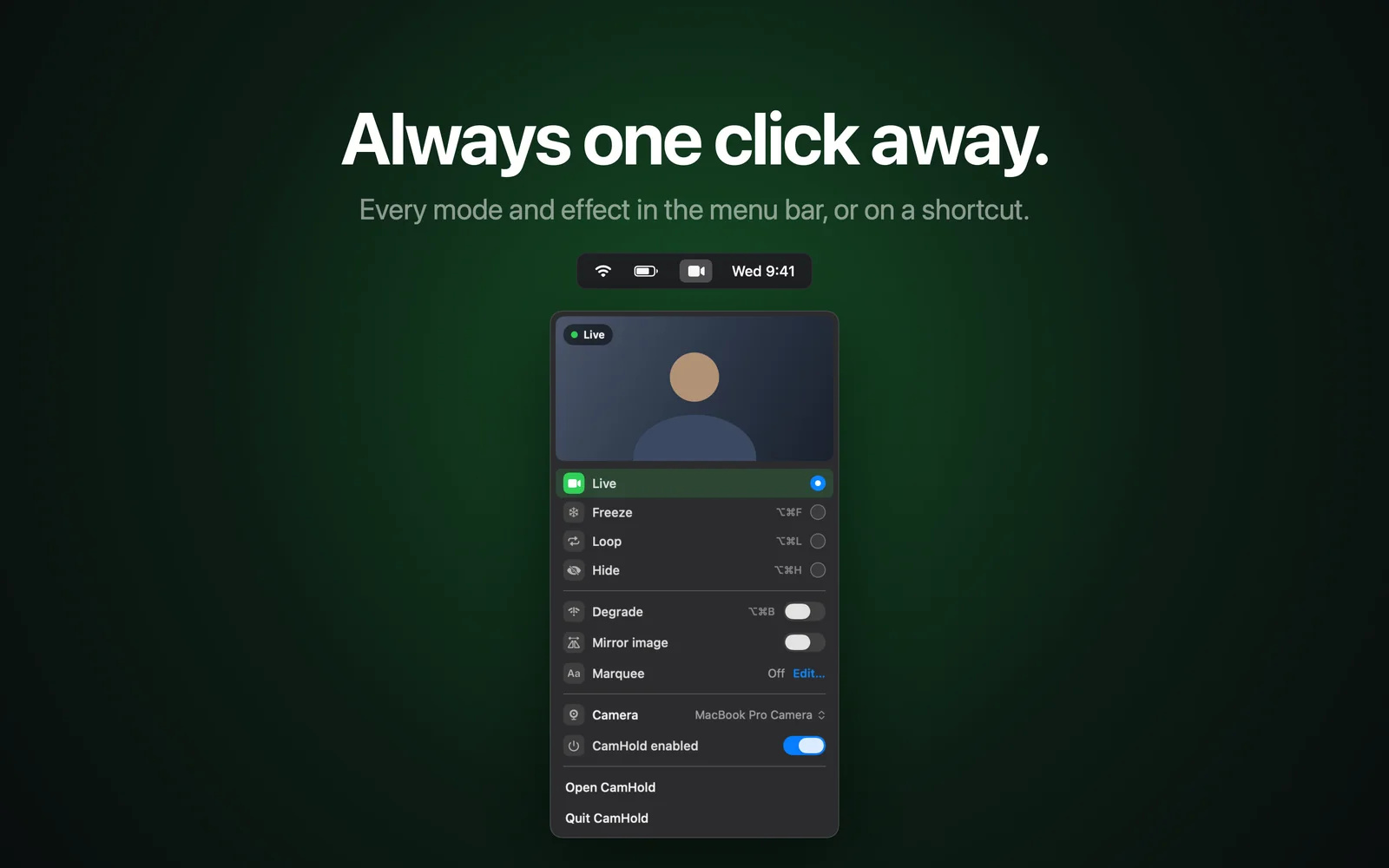
CamHold is the virtual camera I make for the Mac. One of its effects is Mirror image, which flips the video at the camera output, so it applies in any app where you pick CamHold.
- Get CamHold from the Mac App Store (macOS 14 or later). The first time, macOS asks you to approve the camera extension and to allow camera access. The app's setup guide explains each prompt before it shows up.
- In Zoom, Meet, Teams, FaceTime or Webex, choose "CamHold" as the camera. You do this once.
- Turn on Mirror image in the CamHold window or the menu bar dropdown.
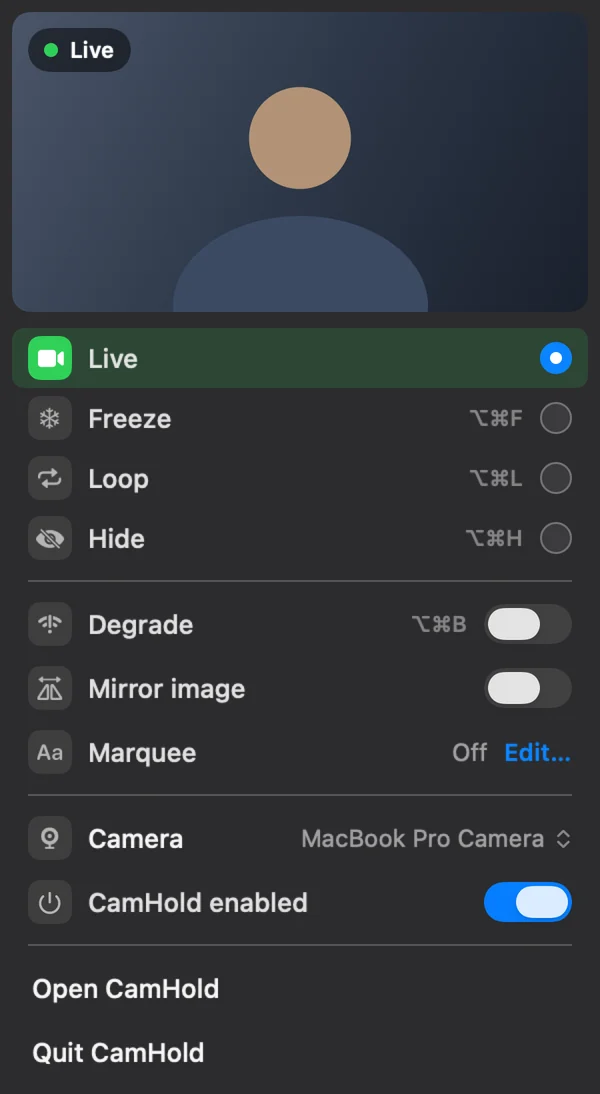
Because it is an effect, it sits on top of whichever mode is active (Live, Freeze, Loop or Hide) and combines with the other effects.
One thing that trips people up: if the call app keeps mirroring your preview, the two flips cancel out, so you see yourself unmirrored while everyone else gets the flipped picture. To make your preview match what goes out, turn off preview mirroring in the call app. The paper test still works.
Mirror image works in the free version, which puts a small "CamHold — free" mark on the video. Pro is a one-time purchase that removes the mark and unlocks Marquee, a note you place anywhere on the frame and let scroll. I show how in how to put text on your video in a call.
Quick answers
Do other people see me flipped? In Zoom, Teams and Webex, no: each one's help says mirroring is only for your preview. In any other app, ask someone to read your sheet of paper.
Does turning off mirroring change the recording? These apps' option only changes your own screen, so it should not. With CamHold's Mirror image on, the app gets the flipped picture as if it came from the camera. Record a short test in the app you use to see how it comes out.
Do I need to install anything? Not to fix the preview: use the call app's own setting. A virtual camera only makes sense when the outgoing picture has to change.
Does it affect audio? No. CamHold handles video only, and your microphone goes straight to the call app.