 CamHold
Mac video effects in calls: Portrait, Studio Light and more
Where to find Portrait, Studio Light, Center Stage, Background and Reactions on a Mac, which Macs support each one, and what changes with a virtual camera.
Mac video effects (Portrait, Studio Light, Center Stage, Background, Reactions and, from macOS 26.2, Edge Light) live in the Video menu in the menu bar, and that menu only shows up while an app is using the camera. They are part of macOS, so they work in FaceTime, Zoom, Teams and the browser you run Google Meet in, with nothing to install. The catch is that each effect has its own requirements, and on an Intel Mac almost none of them appear.
The requirements below come from Apple's support page on video effects and mic modes on Mac and the macOS 26 Mac User Guide. Apple revises both with each release, so check there if something does not match what you see.
Where to find Mac video effects
- Join the call with your camera on, in any app.
- In the menu bar, near the top-right corner, click the green camera icon. That is the Video menu.
- If more than one app is listed at the top, click the one you are in the call with. macOS keeps effects separately for each app.
- Click an effect to turn it on or off. Portrait, Studio Light and Edge Light have an arrow next to them that opens a strength slider.
If the icon is missing, no app is using the camera at that moment. On macOS Ventura the path was different: Control Center, then Video Effects.
When you share your screen, the screen sharing menu in the menu bar also offers Presenter Overlay, which puts you on top of what you are sharing (macOS Sonoma or later, Mac with Apple silicon).
What each effect does and which Macs get it
| Effect | What it does | With the Mac's camera | With an iPhone as webcam |
|---|---|---|---|
| Portrait | Blurs the background | Mac laptop with Apple silicon | iPhone XR or later |
| Studio Light | Lights your face and dims the background | macOS Sonoma 14 or later, Mac laptop with Apple silicon | iPhone 12 or later |
| Background | Replaces the background with a color, an Apple image or your own photo | macOS Sequoia 15 or later, Mac with Apple silicon | iPhone 12 or later on iOS 18 |
| Reactions | Balloons, hearts, fireworks and other 3D effects triggered by hand gestures | macOS Sonoma 14 or later, Mac with Apple silicon | iPhone 12 or later |
| Center Stage | Keeps you in frame as you move | Studio Display, iMac with M4, MacBook Air or MacBook Pro with M4 or later | iPhone 11 or later |
| Edge Light | Lights a bright border around the screen to light your face | macOS 26.2 or later, Mac with Apple silicon | Apple does not say |
For Portrait and Studio Light, the support page says a Mac laptop using its built-in camera, while the macOS 26 Mac User Guide just says "Mac computers with Apple silicon." On a desktop Mac, the fastest way to find out is to open the Video menu during a call and see whether the effect is there.
On an Intel Mac, the way in is your iPhone. With Continuity Camera, the iPhone becomes the webcam and brings the effects the Mac itself lacks.
When each one helps
Portrait is the quick fix for a messy room. If that is your situation, the guide on how to hide a messy room on a video call also compares the blur in Zoom, Meet and Teams and covers camera angle.
Studio Light helps when the light is behind you, like a window over your shoulder. It brightens your face, but it cannot save a dark room.
Edge Light turns the screen itself into a lamp. It helps when the room is dim and there is no other light in front of your face.
Background swaps out everything behind you. The cutout happens in real time, so the edges can slip when you move fast or stand up.
Center Stage follows you when you move around or talk standing up. If you want a fixed frame, turn it off. With it off, some Macs let you zoom and adjust the framing by hovering over the preview in the Video menu.
Reactions catch people off guard the most, because a thumbs up is enough to drop an emoji over your video. If balloons or hearts showed up without you asking, see how to turn off gesture reactions on a Mac.
Mac video effects with a virtual camera
When you pick a virtual camera in Zoom or Teams, the call app stops reading the Mac's camera. The virtual camera's app is the one using the real camera, and the call app gets the finished picture. Since macOS keeps effects per app, the Video menu may list a different app or camera than you expect, and the effect you turned on for Zoom may never reach the picture, or show up through an entry you never looked at.
Apple does not document how each effect behaves along that path, and I have not tested every combination of app and macOS version. So test it before an important meeting:
- Pick the virtual camera in the call app and open its video preview.
- Open the Video menu and see which apps and cameras are listed at the top.
- Turn the effect on for each listed entry and watch whether the preview changes.
If nothing changes, use the blur and background built into Zoom, Meet or Teams. They run inside the app, on whatever video arrives from the camera you picked. For the path the picture takes, see virtual cameras on a Mac.
Quick answers
My Mac is Intel. Any way out? Two. The blur and background in Zoom, Meet and Teams do not depend on Apple's requirements, though each app has its own. And an iPhone as a webcam brings the macOS effects with it.
Do other people see the effect? Yes. It is applied to the video leaving your Mac, so everyone in the call sees it, in any app.
If I turn it on in FaceTime, is it on in Zoom too? No. Each app has its own settings in the Video menu. Repeat for every app you use for meetings, and for your browser if you use Meet.
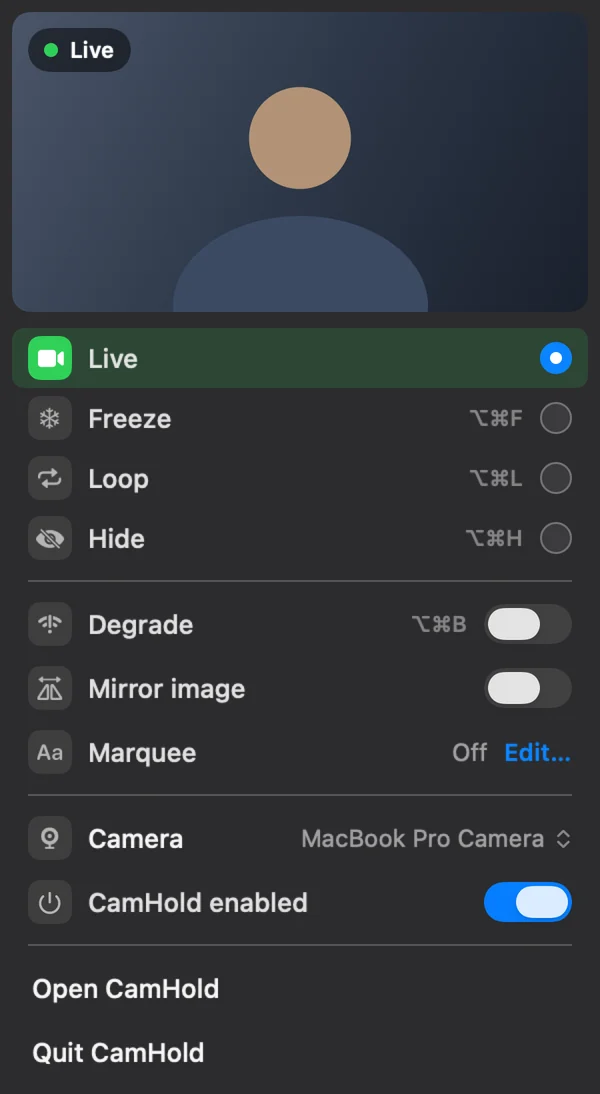
Do I need CamHold for any of this? No. The Mac effects work with nothing installed. CamHold, the virtual camera I make, does a different job: freezing your picture, looping a clip of you or hiding the video with a shortcut, in any app that lets you choose a camera.