 CamHold
How to use your iPhone as a webcam on a Mac (Continuity Camera)
Continuity Camera turns your iPhone into a Mac webcam with nothing to install. Requirements, setup, Desk View, Center Stage and picking it in Zoom, Meet, Teams.
You can use your iPhone as a webcam on a Mac without installing anything. The feature is called Continuity Camera and it is built into macOS and iOS: mount the iPhone near your screen with the rear cameras facing you, and it shows up as one more camera in Zoom, Meet, Teams and FaceTime. Those rear cameras usually give a sharper picture than a laptop webcam, and they unlock a few effects the built-in camera may not have.
What you need
Apple lists the requirements on its Continuity Camera support page:
- An iPhone XR or later on iOS 16 or later.
- A Mac that runs macOS Ventura 13 or later.
- The same Apple Account on both, with two-factor authentication.
- Both devices close to each other, with Bluetooth and Wi-Fi on.
- The iPhone not sharing its cellular connection, and the Mac not sharing its internet connection.
- Wireless: the Mac cannot be using AirPlay or Sidecar. Over USB: the iPhone has to trust the Mac.
It works with one iPhone and one Mac at a time. The feature is on by default; if you want to check, it is the Continuity Camera switch on the iPhone in Settings › General › AirPlay & Continuity (AirPlay & Handoff on older iOS).
How to use your iPhone as a webcam, step by step
1. Mount it. Put the iPhone on a stand or a monitor mount, locked, steady, rear cameras toward you and nothing covering them. Landscape is the orientation to aim for, because that is when apps can switch to the iPhone on their own. Portrait works too, you just pick it by hand.
2. Open the call app. If it does not switch to the iPhone by itself, choose the iPhone from the app's camera menu (table below). In FaceTime, it is in the Video menu in the menu bar.
3. Plug it in for long calls. Wireless works, but a cable to the Mac or a charger keeps the battery up. The Mac warns you when the iPhone battery runs low.
4. Leave the microphone alone. Your call keeps using the Mac's mic or your headset. You only need the iPhone mic if the Mac has no other one. Some call apps have their own mic setting; otherwise it is System Settings › Sound › Input.
Where to pick the iPhone in each app
| App | Where to switch cameras |
|---|---|
| Zoom | In a meeting, the arrow next to Start Video or Stop Video. Outside a meeting, the Video & effects tab in settings |
| Google Meet | The arrow next to the camera button, or More options › Settings › Video › Camera |
| Microsoft Teams | Settings and more › Settings › Devices › Camera, or the arrows next to the camera button in a meeting |
| FaceTime | The Video menu in the menu bar |
The iPhone is listed under its own name. Menu names shift a little between versions, so if yours look different, search the app's settings for "video" or "devices". If the iPhone is not on the list, quit the call app and open it again, since most apps look for cameras when they launch. For Meet, quit the whole browser.
If the camera problem is in Zoom itself and has nothing to do with the iPhone, I go through the usual causes in Mac camera not working in Zoom.
Desk View, Center Stage and the other effects
Using the iPhone gives the Mac effects that older built-in cameras do not have. On macOS Sonoma or later they live in the Video menu in the menu bar, which appears while an app is using the camera. On Ventura, it is Control Center › Video Effects. Apple's requirements, per effect:
| Effect | What it does | iPhone needed |
|---|---|---|
| Center Stage | Keeps you in frame as you move | iPhone 11 or later, not SE |
| Desk View | Shows an overhead view of your desk next to your face | iPhone 11 or later, not SE or 16e |
| Portrait | Blurs the background | iPhone XR or later |
| Studio Light | Brightens your face and dims the background | iPhone 12 or later |
| Reactions | Hand gestures trigger on-screen animations | iPhone 12 or later, macOS Sonoma or later |
With the iPhone, Center Stage has an arrow next to it in the menu where you choose the Main or Ultra Wide rear camera.
Desk View works differently from the others. Choosing it opens a separate window with a setup step: you adjust the zoom and angle, then click Start Desk View. FaceTime shares it for you. In Zoom, Meet or Teams you share it through screen sharing and pick the Desk View window. To stop showing the desk, close that window and your face stays on.
Which Macs get which effect with their own camera is covered in macOS video effects in calls.
When it does not work
The iPhone does not show up. Same Apple Account on both, Bluetooth and Wi-Fi on, Personal Hotspot off, and the Mac not using AirPlay or Sidecar. Over a cable, unlock the iPhone and tap Trust if it asks.
The iPhone dropped off Wi-Fi. When used wirelessly, the iPhone may disconnect from Wi-Fi to give Continuity Camera priority and use cellular for background tasks. Apple's fix is to plug it into the Mac or turn off cellular data on the iPhone.
A call came in on the iPhone. Video and audio pause until you hang up. Then lock the iPhone and mount it again. If the call came in on the Mac, you may have to select the iPhone again in your app.
You want to stop or pause. Unlock the iPhone and tap Pause or Disconnect on its screen. Moving it out of Bluetooth range also disconnects it. To reconnect, plug it into the Mac and mount it again.
You would rather have something fixed on the monitor. A USB webcam needs no pairing and no battery. See how to use an external webcam on a Mac.
Using the iPhone as CamHold's source
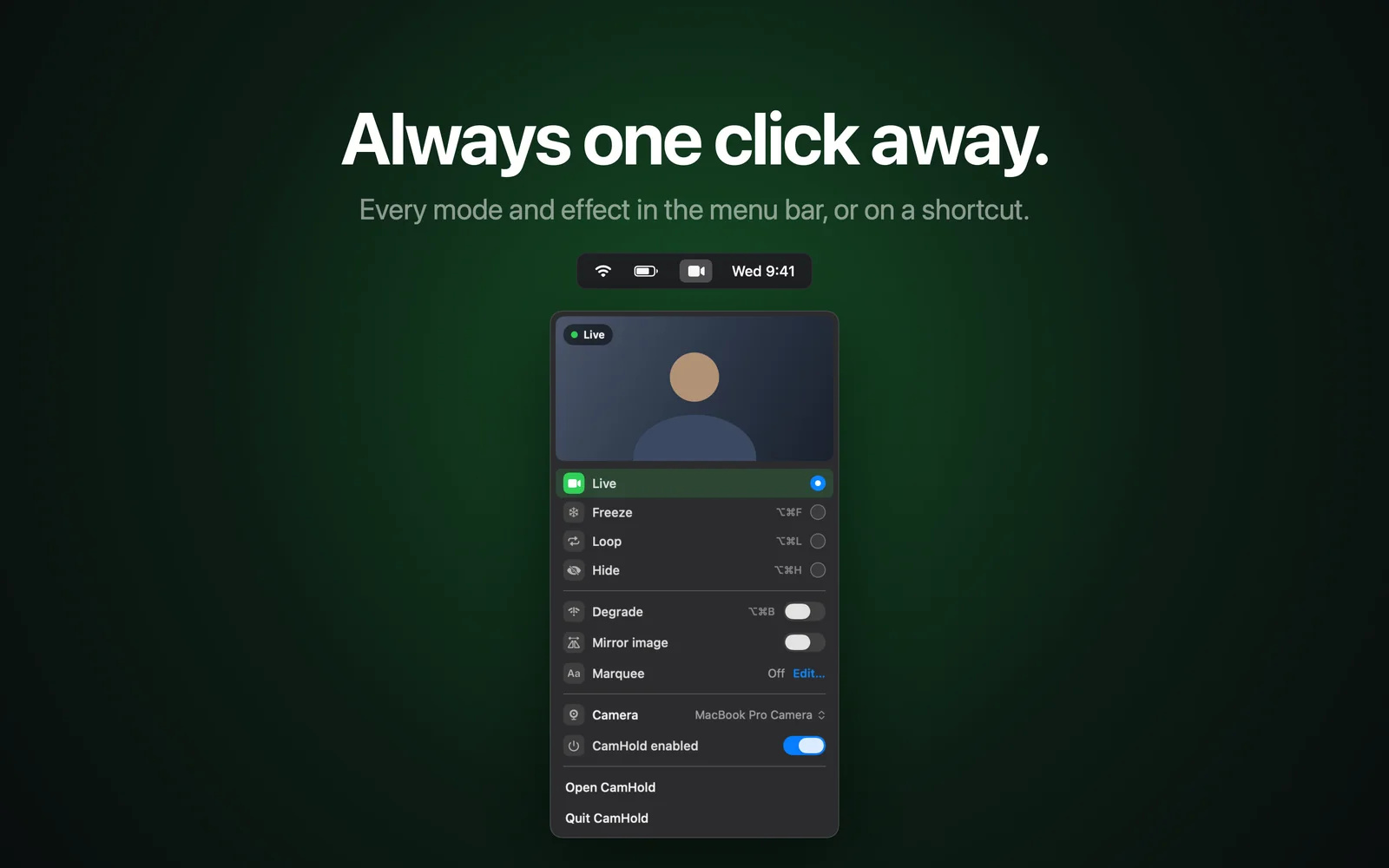
CamHold is the virtual camera I make for the Mac. It takes any camera the Mac can see as its source, and that includes an iPhone through Continuity Camera. Pick the iPhone in CamHold's camera picker, then pick "CamHold" as the camera in the call. The call gets the iPhone's picture, and you can freeze it, loop a short clip of yourself or hide it with a shortcut. How that works in each app is in how to freeze your camera on Zoom, Meet and Teams.
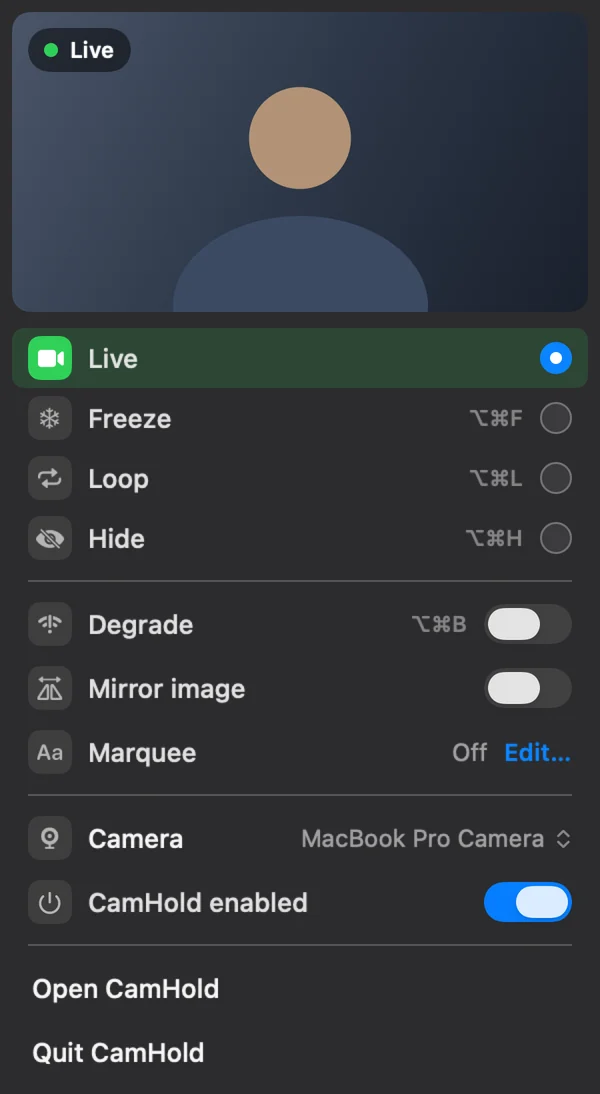
Two caveats. CamHold needs macOS 14 or later, a newer floor than Continuity Camera's. And I have not checked how every Video menu effect behaves when CamHold sits between the iPhone and the call, so if you rely on Center Stage, test it before an important meeting. Desk View is unaffected, since it goes out as a shared window.
CamHold is free on the Mac App Store. The free version adds a small "CamHold — free" mark; a one-time Pro purchase removes it. If all you want is the iPhone's better picture, Continuity Camera alone does that.