 CamHold
Mac camera not working in Zoom: how to fix it
Camera missing or black in Zoom on your Mac? The usual causes, from macOS camera permission to another app holding the camera, and how to fix each one.
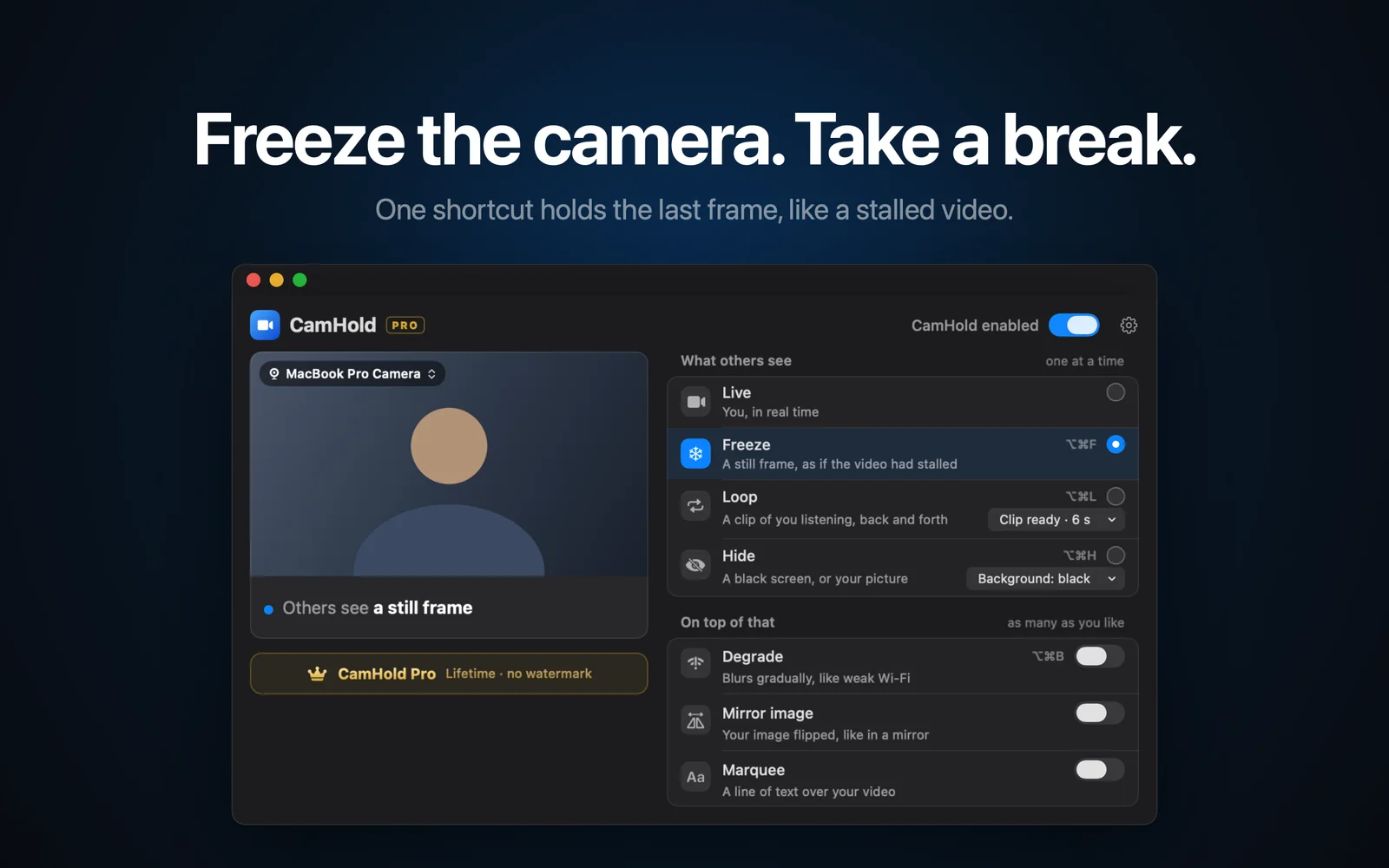
When your Mac camera is not working in Zoom, it is almost always one of four things: macOS has not given Zoom camera access, another app is holding the camera, Zoom is set to the wrong camera, or the app needs a relaunch or an update. Check them in that order, most common first.
To test without bothering anyone, join Zoom's test meeting at zoom.us/test. It exists for exactly this: checking your camera, mic and connection before a real meeting.
1. Camera permission in Privacy & Security
If Zoom never asked for camera access, or you clicked Don't Allow without noticing, you get a black tile or a message that no camera was found. The setting is here:
- Apple menu › System Settings › Privacy & Security.
- Click Camera.
- Turn on the switch next to Zoom.
If Zoom was open, it asks you to restart it before the change takes effect. If Zoom is not in the list at all, it has not asked yet: start a meeting, try to turn on your video, and the macOS prompt shows up. Apple covers this panel in its Mac help. If the prompt never appears, my guide to Mac camera permissions shows how to reset the permission from Terminal.
If you join Zoom from a browser, the browser's permission is the one that counts. Chrome or Safari has to be switched on in that same Camera list, and the Zoom site needs camera access in the browser's own settings.
2. Another app is using the camera
Zoom's article on the "unable to detect a camera" error says to close anything that might be using the camera: built-in camera apps, other video call apps, and websites with the camera on. In practice, quit FaceTime, Photo Booth, any Meet tabs, Teams, and recording apps.
To see what has the camera right now, look at the menu bar. While the camera is in use, a green dot sits next to the Control Center icon, and opening Control Center shows the name of the app. I went into more detail in the green light next to the Mac camera.
Then test the camera in Photo Booth. If it works there and only fails in Zoom, the problem is Zoom or its permission. If it fails everywhere, skip to the section on what to do when nothing works, further down.
3. Pick the right camera in Zoom
If your Mac has more than one camera (the built-in one, an external webcam, your iPhone as a webcam, a virtual camera), Zoom may be using the wrong one. In a meeting:
- Click the arrow next to Start Video or Stop Video.
- Choose Video Settings.
- Under Camera, pick the right one from the drop-down.
The same arrow also lists your cameras under Select a Camera, so you can switch without opening the settings. Outside a meeting, click your profile picture, then Settings, then the Video & effects tab, which shows a preview of the selected camera.
Two cases come up a lot. A webcam you just plugged in that Zoom does not show yet: quit and reopen Zoom, and if it is still missing, how to use an external webcam on a Mac covers the rest. A virtual camera you picked last time that is not running now: the tile goes black, and switching back to the built-in camera fixes it.
4. Quit Zoom properly and update
Closing the window does not quit Zoom. Press ⌘Q and open it again. That alone fixes a lot of cases after a permission change or a newly plugged-in camera.
Then check the version: click your profile picture in the top right and choose Check for Updates. On work Macs that option is sometimes missing, because IT handles updates.
Keep macOS current too. People who updated to macOS Sequoia 15.1 had video and audio problems in Zoom, and Zoom says the fix came in macOS 15.2.
If the Mac camera is still not working in Zoom
Go one level deeper:
- Screen Time. In System Settings › Screen Time › Content & Privacy, under the app restrictions, Camera has to be allowed. If it is off, no app can use the camera.
- Security software. Zoom notes that antivirus and other security tools can block camera access. If your employer installed one, ask IT.
- Reinstall Zoom. Zoom's support recommends a full uninstall, then the latest version from its download page.
- Restart the Mac. On Apple silicon, Apple says to restart. On an Intel Mac, reset the SMC.
If the built-in camera still does not work in Photo Booth after all that, it is a job for Apple Support. If it is an external webcam, try another cable and another port before blaming the Mac. The official pages are Apple's If the built-in camera isn't working on your Mac and Zoom's Troubleshooting camera issues during a meeting and Granting macOS permissions for Zoom.
When the missing camera is a virtual one
A virtual camera shows up in Zoom as one more camera, so everything in step 3 applies to it. CamHold is the one I make: you pick "CamHold" as the camera in Zoom and can freeze your picture, loop a short clip of yourself, or hide your video. It needs macOS 14 or later, comes from the Mac App Store, and the free version adds a small mark to the video.
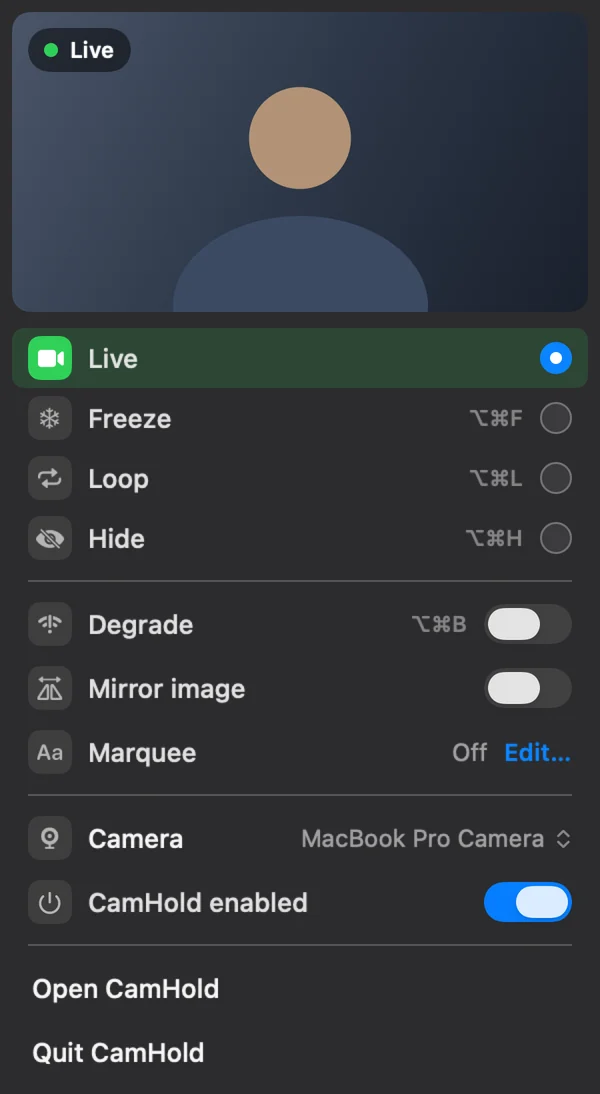
If it is not listed in Zoom, check that its camera extension was approved. On macOS 15 or later that is in System Settings › General › Login Items & Extensions › Camera Extensions. Then quit Zoom with ⌘Q and reopen it. The post on virtual cameras on a Mac covers the other reasons a virtual camera goes missing.
Quick answers
The camera works in FaceTime but not in Zoom. Why? FaceTime is Apple's own app and already has camera access. Zoom needs the permission from step 1, so it is almost always that or the wrong camera in step 3.
Zoom finds the camera but the picture is black. Check that the selected camera is not a virtual camera that is switched off, and that no security software is blocking it.
What about Google Meet? Same idea, but Meet runs in the browser, so the site permission matters more. I wrote a separate guide for when the camera is not working in Google Meet.