 CamHold
Camera not working in Google Meet on a Mac? How to fix it
Meet says your camera is blocked or your tile stays black on a Mac? Check site permission in Chrome and Safari, macOS camera access and Meet's camera picker.
When your camera is not working in Google Meet on a Mac, the cause is almost always one of four things: the site permission in your browser, the macOS permission for that browser, another app holding the camera, or the wrong camera selected in Meet. Check them in that order and it usually takes a few minutes.
Meet runs in the browser, so there are two gates. The browser decides whether the site can use the camera, and macOS decides whether the browser can. Both have to be open.
1. Site permission in Chrome
When Chrome blocks the camera, a crossed-out camera icon shows up in the address bar. Click it, allow the camera for Meet on every visit rather than just this once, and reload the page.
If that does not do it, type chrome://settings/content/camera in the address bar:
- Under "Default behavior", select the option that lets sites ask to use your camera.
- If Meet is in the list of sites not allowed to use the camera, delete that entry. Chrome will ask again next time.
- If it is already in the allowed list and still fails, Google's Meet help says to delete the
https://meet.google.com:443entry and allow camera access again.
A work or school Chrome is a different story. According to Chrome Help, your network administrator can set the camera permissions, and then you cannot change them yourself. Only IT can fix that one.
2. Site permission in Safari
In Safari, choose Safari › Settings › Websites and click Camera in the sidebar. Next to meet.google.com, pick Allow (or Ask, if you want a prompt each time). With Meet open there is a shortcut: the Page menu button on the left of the Smart Search field, then Website Settings.
One detail from Apple: privacy-sensitive settings like Camera and Microphone are not shared across your devices. What you allow here applies to this Mac only.
3. macOS permission for the browser
With the site allowed, macOS can still block the whole browser. Open System Settings › Privacy & Security › Camera and make sure Chrome (or Firefox, or Edge) is switched on. The list only shows apps that have asked for the camera at some point, so a browser that never asked will not be there at all.
If you changed that switch while the browser was open, quit it properly with ⌘Q and reopen it before testing. I wrote a full guide to that screen in camera permissions on a Mac.
4. Another app is using the camera
Meet's help page says to close other apps that use the camera, then reload Meet. That covers Zoom, Teams, Photo Booth, OBS and even another tab with a call open. Some apps keep running in the menu bar after you close their window, so quit them with ⌘Q.
To see who has the camera, look at the menu bar: a green dot near the Control Center icon means the camera is in use, and opening Control Center shows which app it is. There is more on that in the green light next to the Mac camera.
Google also suggests a quick test: open the camera in another app, like Photo Booth. If you show up there and only Meet fails, the problem is the browser or its permissions. If you show up nowhere, check that an external webcam does not have a privacy shutter or switch closed, then suspect the Mac or the camera itself.
5. Pick the right camera in Meet
A black tile with the camera button on usually means Meet is pointed at another camera: an external webcam you unplugged, your iPhone, a virtual camera. During a meeting, click the arrow next to the camera button and pick the right one from the list. Before you join, the same picker sits on the preview tile. You can also go to More options › Settings › Video.
Choose your Mac's built-in camera (the name varies by model, something like "FaceTime HD Camera") or the webcam you mean to use. If the problem is a virtual camera that vanished from the list, that is a different fix, covered in virtual cameras on a Mac.
If the camera still isn't working in Google Meet
What is left is the basics. They are not on Google's list, but they fix a lot:
- Quit the browser completely and reopen it.
- Try Meet in another browser. If it works in Safari and fails only in Chrome, the problem is in Chrome.
- Restart the Mac.
- Update the browser and macOS.
If Chrome has access, the camera works in other apps and Meet still says it cannot use your camera, Meet's known issues page describes exactly that Chrome bug. The fix means turning on experimental Chrome features, so follow the steps on that page rather than poking around.
If your camera fails in Zoom rather than Meet, the checklist is similar and lives in Mac camera not working in Zoom.
Once the camera is back
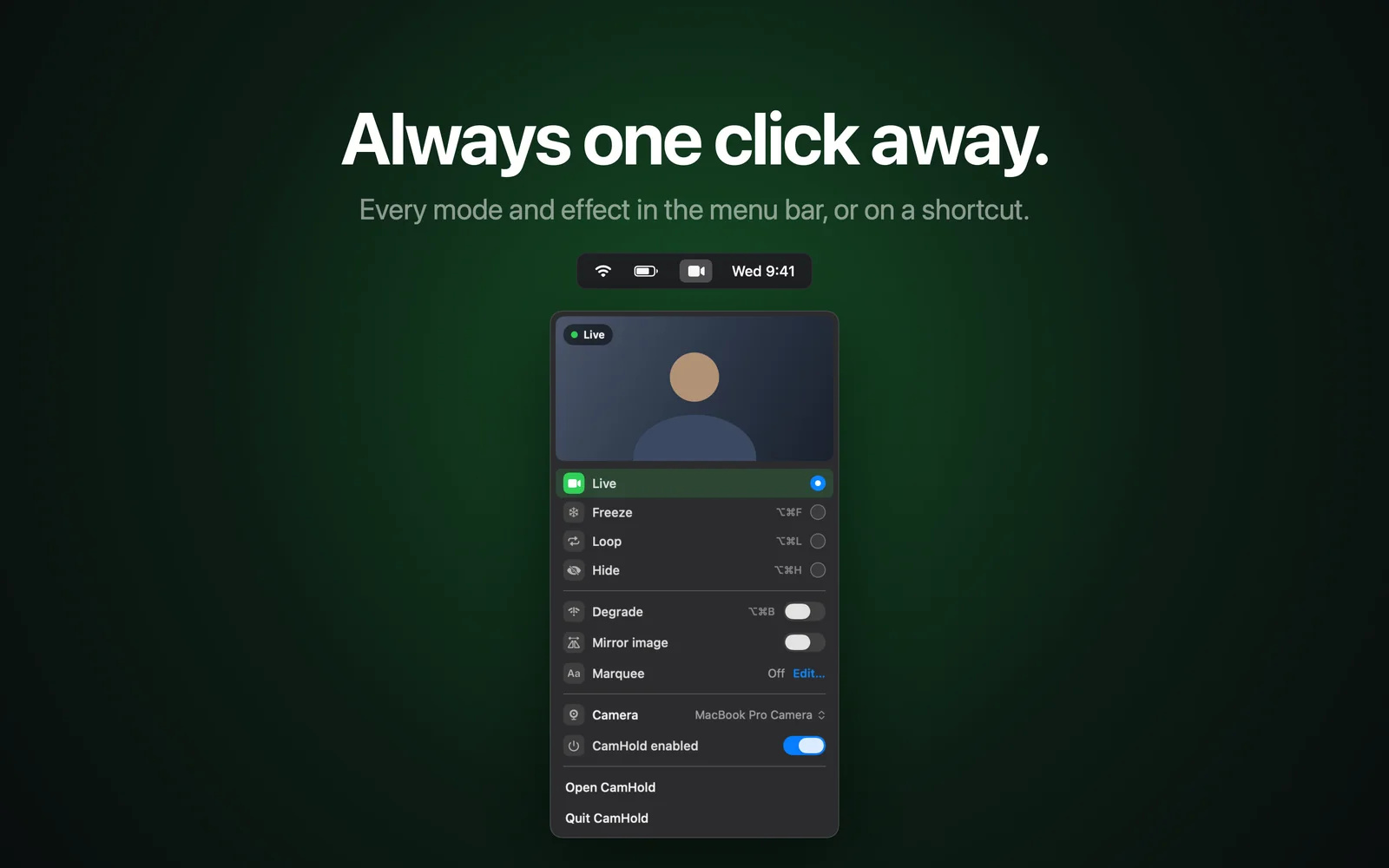
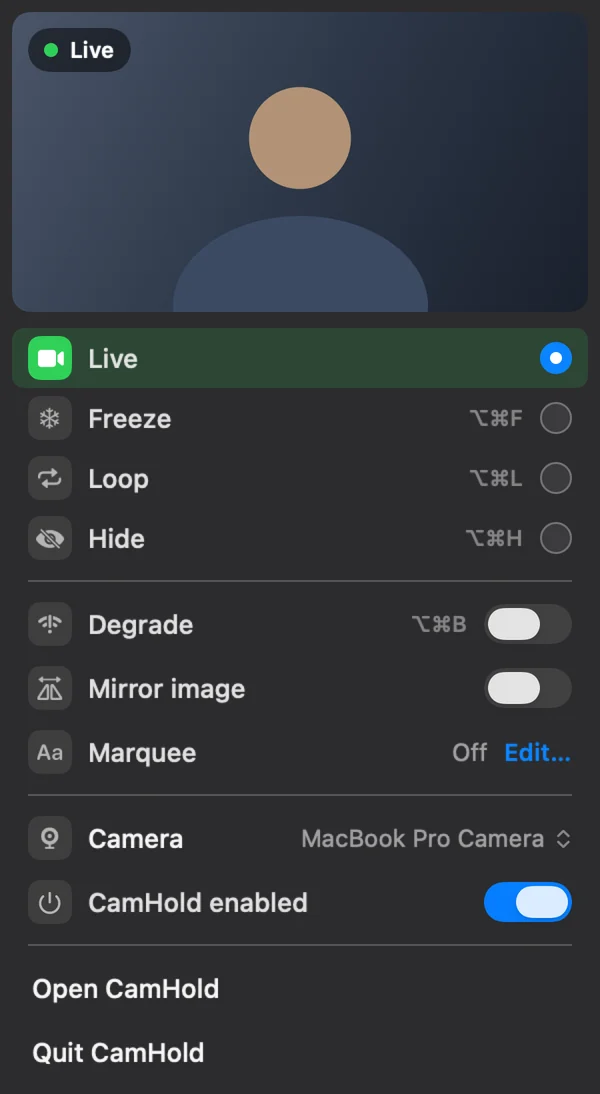
In Meet, the camera is on or off and that is it. If you want to hold your picture still for a few seconds without turning video off, CamHold, the virtual camera I make for the Mac, shows up in Meet's camera list like any webcam. The browser permission you just sorted out covers it too. The steps are in how to freeze your camera in Google Meet.
Quick answers
I clicked Block on Meet's camera prompt by accident. Now what? In Chrome, click the crossed-out camera icon in the address bar, or delete the entry in chrome://settings/content/camera. In Safari, change it under Safari › Settings › Websites › Camera.
The camera works in Photo Booth. Does that mean permissions are fine? Not necessarily. FaceTime and Photo Booth come with camera access and never ask for it. Working there proves the camera is fine, but the browser still needs its own permission. Go back to steps 1, 2 and 3.
Meet works on my phone but not on my Mac. Then your account and the meeting are fine, and the problem is the Mac or the browser. Start with step 3.