 CamHold
How to freeze your camera in Google Meet on a Mac
Google Meet runs in the browser and has no freeze button. How to pick another camera in Meet, fix the permission, and hold your video still with a shortcut.
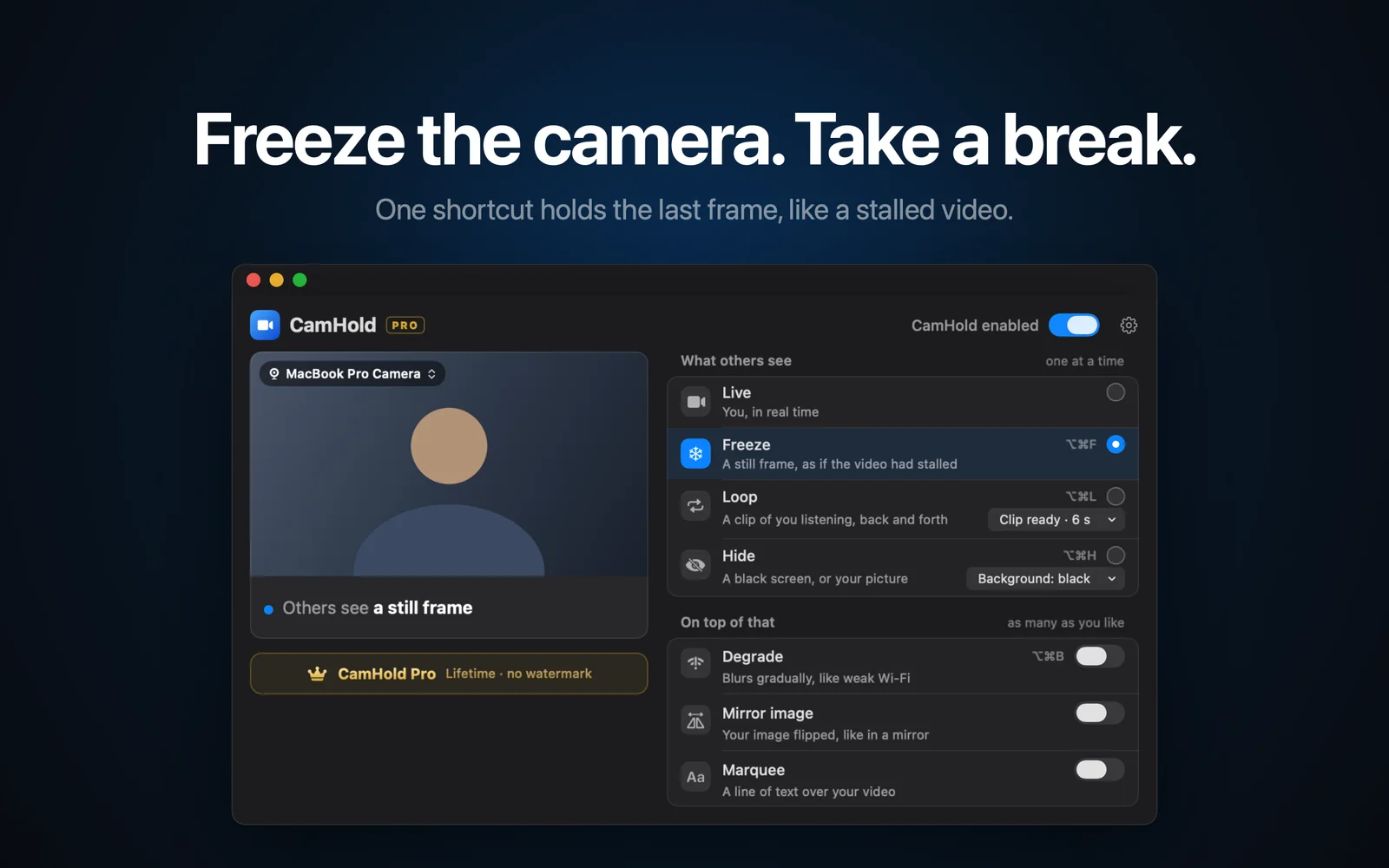
There is no button to freeze your camera in Google Meet. There is one to turn it off, and then your tile shows your name or profile picture instead of video, which everyone notices. To hold a still picture, Meet has to get its video from somewhere else: a virtual camera, picked inside the call like any other webcam.
Because Meet runs in the browser, there is one extra wrinkle compared with Zoom: two camera permissions are involved, the site's and macOS's.
Why Meet is different
With Zoom or Teams you open an app. With Meet you open a tab in Chrome, Safari, Edge or another browser, and the browser is what asks for the camera. Two things follow:
- You pick the camera inside Meet, but the list only shows what the browser can see.
- Permission has two layers. The browser needs macOS permission to use the camera, and meet.google.com needs permission from the browser.
If CamHold, or any camera, is missing from Meet's list, the cause is almost always one of those two layers.
How to pick your camera in Google Meet
Before you join: on the preview screen, click the arrow next to the camera below your picture and choose the device. This is the best moment to switch, since nobody sees anything.
During a meeting: click the arrow next to the camera button. A small pop-up shows your current camera, with another arrow to pick a different one. The longer route is More options › Settings › Video.
Google describes both in the Meet help center. Meet's layout changes now and then, but the picker always sits next to the camera button or in the video settings.
Browser camera permission
The first time, the browser asks whether meet.google.com can use your camera. If you blocked it by accident, you can undo that.
In Chrome: click View site information, the icon to the left of the address, then Site settings, and set Camera to Allow. To see every site at once, go to Settings › Privacy and security › Site settings › Camera. Chrome's help page walks through both.
In Safari: choose Safari › Settings, click Websites and pick Camera in the sidebar. Each site can be set to Ask, Deny or Allow. Apple's guide explains the screen.
In macOS: under System Settings › Privacy & Security › Camera, Chrome, Edge or whichever browser you installed has to be switched on. Without that, no site gets video. If your camera does not work in Meet at all, I wrote a separate guide: camera not working in Google Meet on a Mac. For what each permission screen controls, see Mac camera permissions.
What you can do without installing anything
If you only need to disappear for a minute, Meet has you covered: ⌘E turns the camera on and off and ⌘D does the same for the mic. It is free and honest, since your tile turns into a picture or initial and everyone can see it.
You can also get a still image without paying, using OBS, which is free, open source and has a virtual camera. It is built for streaming, though: you set up a scene, add an image, and start the virtual camera. It works, but it is a lot of setup for something you want on a shortcut mid-meeting.
How to freeze your camera in Google Meet with CamHold
CamHold is the virtual camera I make for the Mac. It shows up in Meet as one more webcam and passes along the picture from your real camera. When you freeze, it holds the last frame. As far as Meet can tell, the camera is still on and still sending video.
1. Install it and approve the extension. Get CamHold from the Mac App Store and open it. macOS asks once to approve the camera extension, and the app shows you where to click before the prompt appears. CamHold also needs the macOS camera permission.
2. Pick "CamHold" in Meet. Ideally on the preview screen, before you join. If it is not listed, quit the whole browser (⌘Q, not just the window) and reopen it. Browsers tend to look for new cameras only when they launch.
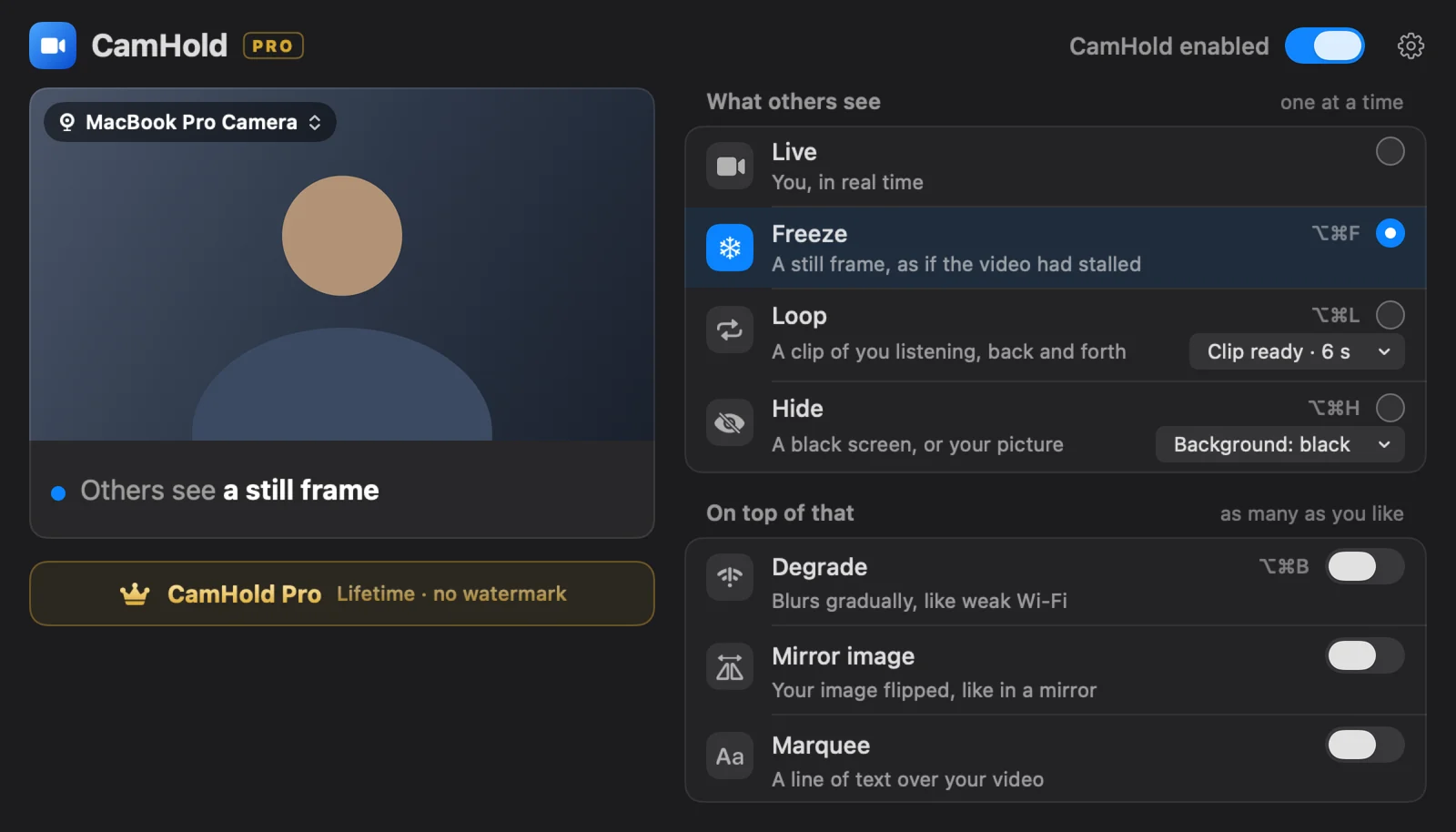
3. Freeze with ⌥⌘F. The shortcut works with any window in front, including the browser running Meet. Press it again to go back to live. You can also click Freeze in CamHold's menu bar dropdown.
Details that matter
Pick your moment. The frozen frame is the last one before you press the shortcut. Look at the screen, hold still for half a second, then press.
Mute in Meet. CamHold only touches video. Audio goes straight from your microphone to Meet, so if you are getting up, press ⌘D or the mic button in the meeting.
A long freeze gets noticed. A few seconds looks like a bad connection. Ten minutes in the same pose does not. For longer breaks, Loop plays a short clip of you back and forth, so the picture keeps moving. Recording one that looks natural is covered in how to loop a video of yourself on a call.
The same shortcut works in every call app. The step by step for Zoom and Teams is in how to freeze your camera on Zoom, Meet and Teams.
Quick answers
Does it work in Safari, Chrome and Edge? Yes, CamHold shows up in the list like any webcam. If one of them does not show it, quit that browser completely and check its macOS camera permission.
Will people see that I switched cameras? To Meet, CamHold is a webcam like any other. If you pick it before joining, there is no switch during the meeting at all.
Do I have to pay? Not to freeze. The free version has every mode and adds a small "CamHold — free" mark to the video. CamHold Pro, a one-time purchase, removes it. There is no subscription.
Which macOS? macOS 14 or later, on Apple Silicon or Intel Macs.