 CamHold
How to loop a video of yourself on Zoom, Meet or Teams
The trick of using a recording of yourself as your Zoom background went viral in 2020, and it has problems. Here is a way that works in any app, and how to record a clip nobody will notice.
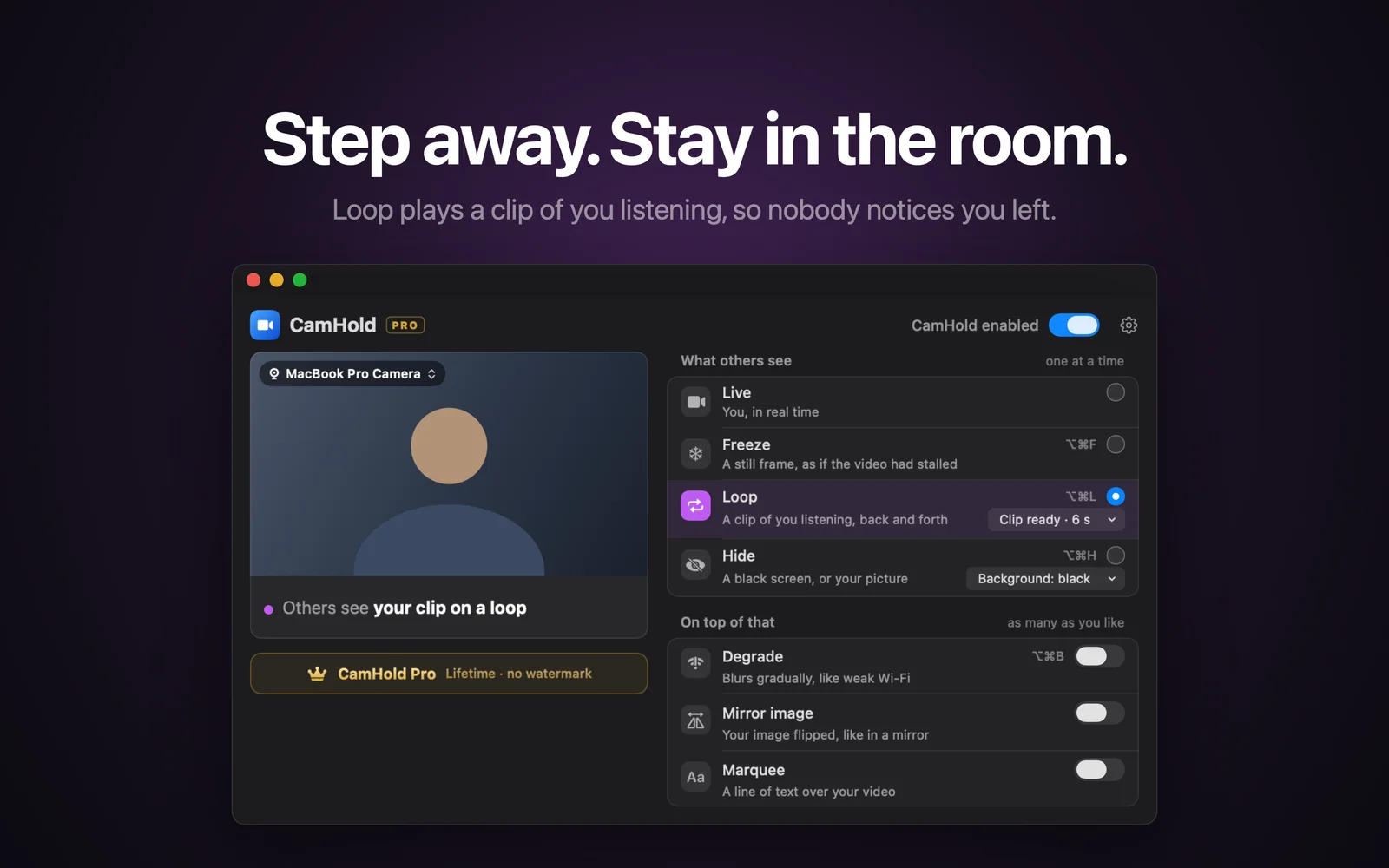
In 2020, when everyone ended up in Zoom meetings all day, a trick spread on TikTok and made it into tech sites: record a few seconds of yourself paying attention, set that recording as your virtual background, and get out of frame. Zoom then shows the background video, which is you.
It works, sort of. Anyone who tried it knows where it falls apart.
What is wrong with the virtual background trick
- It is Zoom only. Meet and Teams let you upload a picture as a background, not a video of yourself.
- You have to leave the frame first. The background only shows in full once you are not in front of it. Until then, the call watches you stand up while the cut-out tangles with your body.
- It jumps on every loop. The recording ends and starts again from the top. If your head was slightly turned at the end and straight at the start, your head "teleports" every few seconds.
- Coming back is awkward. You sit down, the cut-out kicks in again, and only then can you switch the background off. A few strange seconds.
The way that works: swap the camera, not the background
Instead of hiding a video behind you, a virtual camera replaces the whole picture. You pick the virtual camera in Zoom, Meet or Teams once, and it decides what goes to the call: your live webcam or the looping clip.
That is how CamHold's Loop mode works. A few things it does on purpose:
- Back and forth. The clip plays forward, then backward, then forward again. Since the last frame of one pass is always the first of the next, there is no jump.
- Smooth in and out. Switching on and off crossfades for a moment instead of cutting.
- Global shortcut. ⌥⌘L toggles Loop whatever app is in front. ⇧⌥⌘L records a new clip.
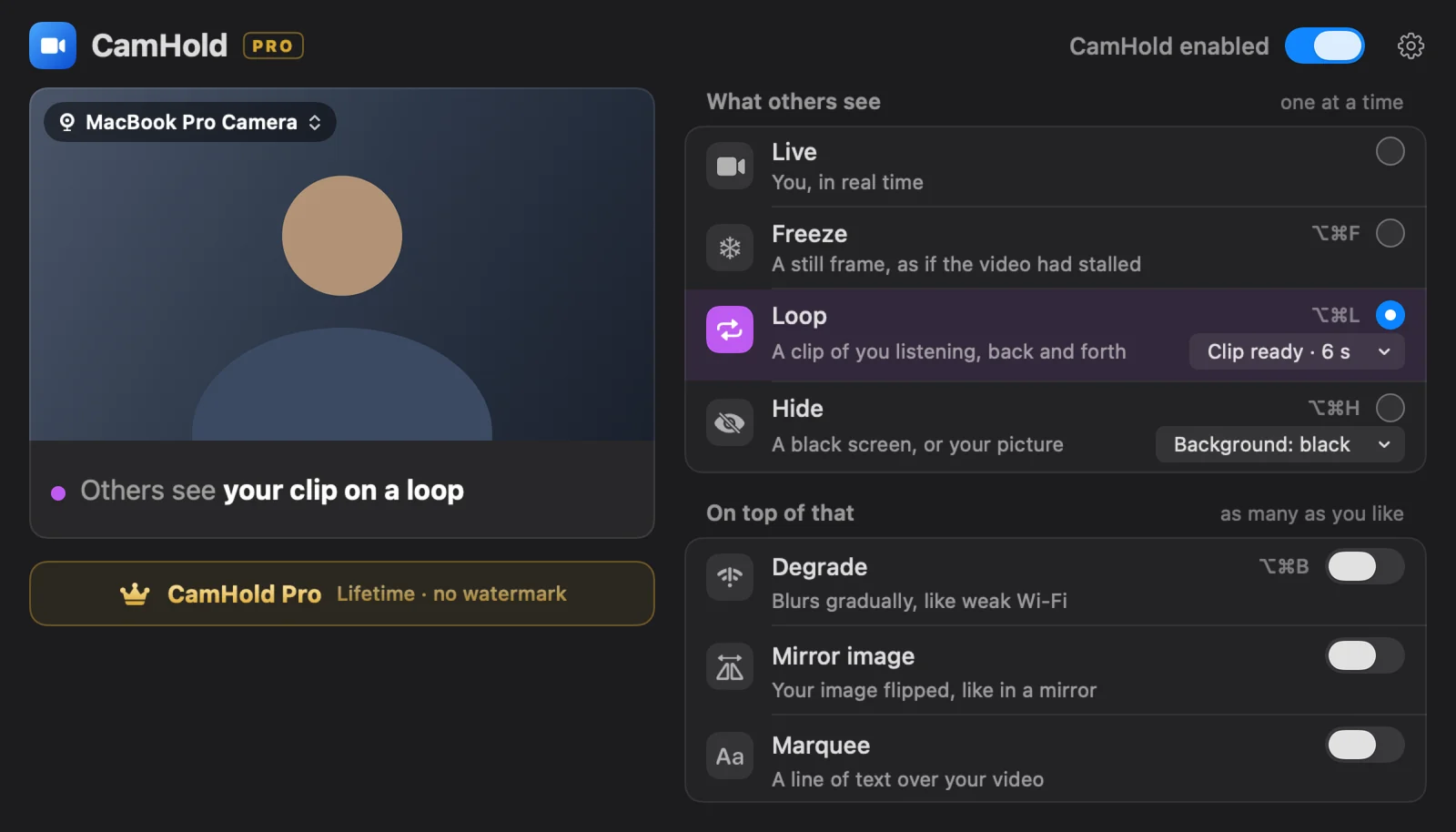
How to record a clip nobody notices
The clip is what sells it. There is a 3-second countdown, then up to 8 seconds of recording, video only, no audio. This is what makes the difference:
Look like you are listening, not posing. Look at the screen, not the lens. Blink normally. A small nod halfway through helps a lot. Sitting perfectly still looks odd.
Do not talk. A moving mouth with no sound gives a loop away faster than anything.
Keep your hands out of frame, or still. Scratching your nose in the clip means scratching your nose every 8 seconds for the rest of the meeting.
Record in the same light as the meeting. This is the most common mistake. A clip recorded in the morning with sun coming through the window does not match the same meeting at six in the evening with the ceiling light on. If the light changed, record again. It takes ten seconds.
Check what is behind you. Someone walking past or the cat climbing a shelf becomes a scene that repeats. Watch the clip before you use it.
If you press Loop with no clip at all, CamHold records one on the spot and starts. Handy, but for a meeting that matters, record one calmly beforehand.
Leaving and coming back
- Mute your microphone in the call app. CamHold does not touch audio.
- Press ⌥⌘L and wait for the crossfade to finish before you stand up.
- When you are back, sit the way you sat in the clip and press ⌥⌘L again.
If someone says your name while you are away, the clip will not answer. Loop covers the doorbell, the coffee and the kid calling from the other room. It does not cover a direct question.
Where is the clip stored?
Only on your Mac. CamHold has no account, sends nothing over the network and never records your live video. The only video it keeps is that short clip, which is replaced by the next recording and can be deleted in the app.
For very short breaks, freezing the picture may be enough. The difference is in how to freeze your camera on Zoom, Meet and Teams.