 CamHold
How to look attentive on camera in long meetings
Camera height, eye line, posture, small nods and framing: simple changes that make you look engaged in long meetings, plus how to record a natural Loop clip.
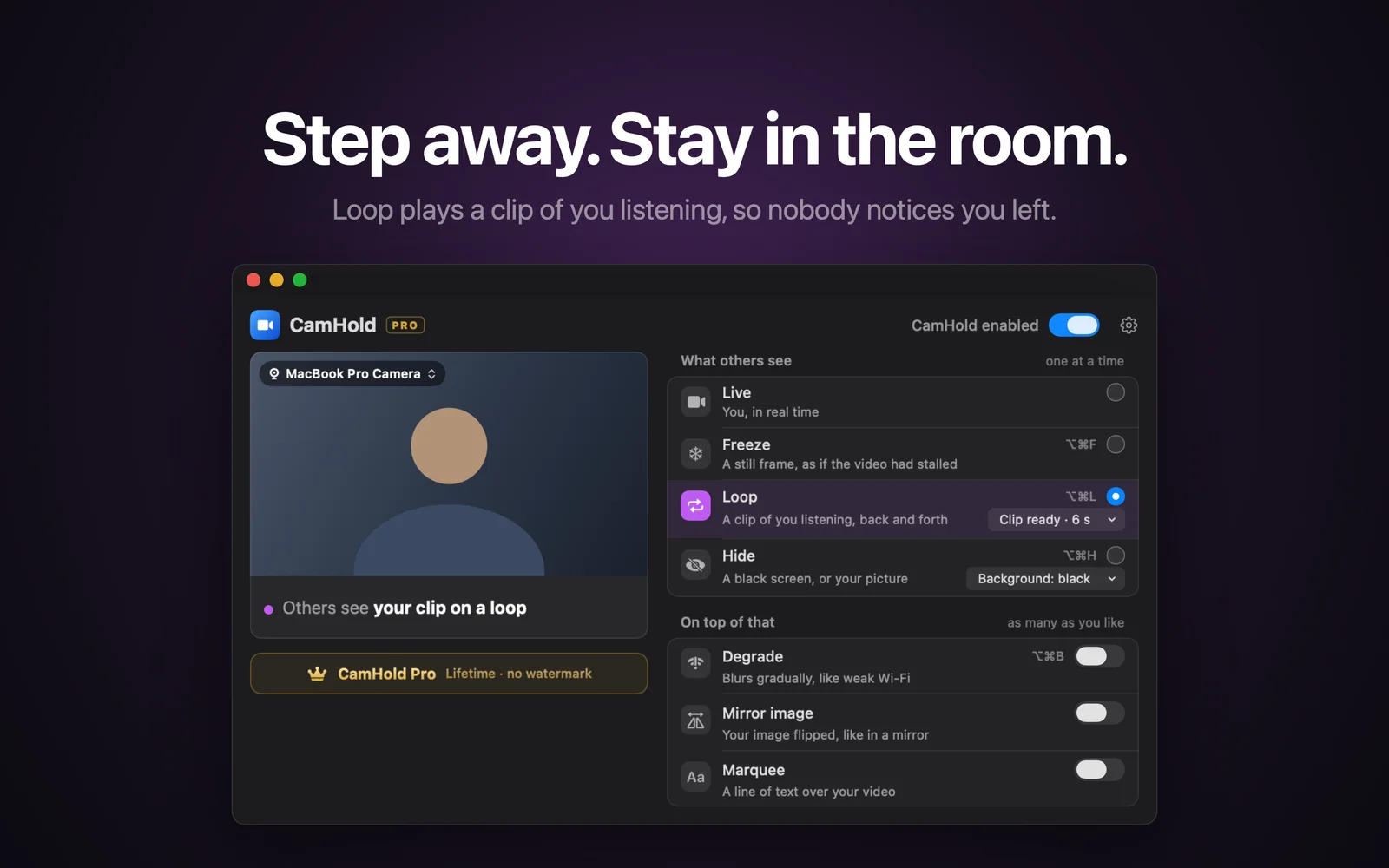
Looking attentive on camera comes down to a few things: the camera at eye level, your face well framed, a posture you can hold for an hour, and small signs that you are following along. Most of it gets settled before the meeting starts, by moving things around on your desk.
Start with camera height
A laptop sitting flat on a desk puts the camera below your eyes and films you from underneath. Your chin takes over the frame, your eyes seem to drift toward the keyboard, and you look checked out even when you are fully focused.
The fix that changes the most is raising the laptop until the camera sits roughly at eye level. A stack of books or a stand does it. If you type on the laptop keyboard, you will need an external one, which pays off on meeting-heavy days.
With an external monitor, the camera usually sits on top of the screen, which already helps. A separate webcam lets you put the camera wherever looks best, and I covered the setup in how to use an external webcam with a Mac. Your iPhone can do the job too, as I explained in how to use your iPhone as a webcam on Mac.
Where to look
Looking at faces on your screen and looking into the camera are two different things, and people on the other end can tell when your eyes are always a little low. Two ways to shrink the gap:
- Move the call window up to the camera. Park the meeting window at the top of the screen, right under the lens. When you look at people, the angle is small.
- Look into the lens at key moments. When you start talking, when you agree with something, when you wrap up a point. Staring at the lens for minutes on end looks odd.
When you are only listening, looking at the screen is natural. What looks bad is a gaze that wanders sideways, to another monitor or to your phone. If you need to check something else, keep it close to the meeting window.
A posture you can keep
Nobody sits bolt upright for a whole hour. Aim for a position that looks awake without taking effort:
- Back against the chair, shoulders loose.
- Head slightly forward, without craning your neck toward the screen.
- Elbows on the desk. Resting your chin on your hand for a long stretch looks like boredom.
If you catch yourself sliding down the chair, the screen is probably too far away or too low. Move it so you do not have to lean in to read.
Framing
Show yourself from mid-chest up, with your head in the upper third of the picture and a little room above your hair. A face cut off at the top, or a tiny one in the middle of a big room, feels distant.
Face the camera squarely. Someone sitting at an angle, turned toward a second monitor, looks distracted even while paying attention. Keep the meeting window on the screen that has the camera and the problem goes away.
Your Mac can help here. With a call app using the camera, click Video in the menu bar. On Macs with the 12MP Center Stage camera, on Studio Display, and with an iPhone as the webcam, Center Stage keeps you in the frame as you move. With it off, wide-angle cameras let you zoom and frame the picture by hand.
Light matters too, because a dim face looks tired. In the same Video menu, Studio Light (Macs with Apple silicon) dims the background and brightens your face, though it cannot fix a bright window behind you. I wrote a whole guide on lighting for video calls using what you already have at home.
Small signs that make you look attentive on camera
Most of the attention people read from you comes from small, quiet movement:
- Short nods when you agree. One or two at a time. Constant nodding looks automatic.
- Reactions on your face, like raised eyebrows at a number or a slight smile at a joke.
- Taking a note now and then. Glancing down to write shows you are following, as long as you come back to the screen.
- A short reply, in chat or out loud, every so often if the meeting is large.
Staying perfectly still does not signal focus. Someone who does not move for minutes looks like a frozen picture.
When you need to step out for a few minutes
Long meetings always run into a coffee, a doorbell or a phone call. Turning the camera off draws more attention than it needs to. For short absences, you can use Loop mode in CamHold, the virtual camera I make for the Mac. It plays a clip of you listening, forward and then backward, with a smooth transition in and out.
How it looks depends on the clip, so record it with care:
- Record while you are in your good posture, with the camera at the right height and the same light as the meeting. A clip with different lighting or a different shirt gives itself away the moment it plays.
- Look at the screen, the way you do when listening. The clip is up to 8 s, with no audio, and starts after a 3 s countdown.
- Keep movements small. A light nod, a blink, a breath.
- Do not talk, and keep your hands still. A mouth moving with no sound gives the loop away, and scratching your nose in the clip means scratching it every few seconds.
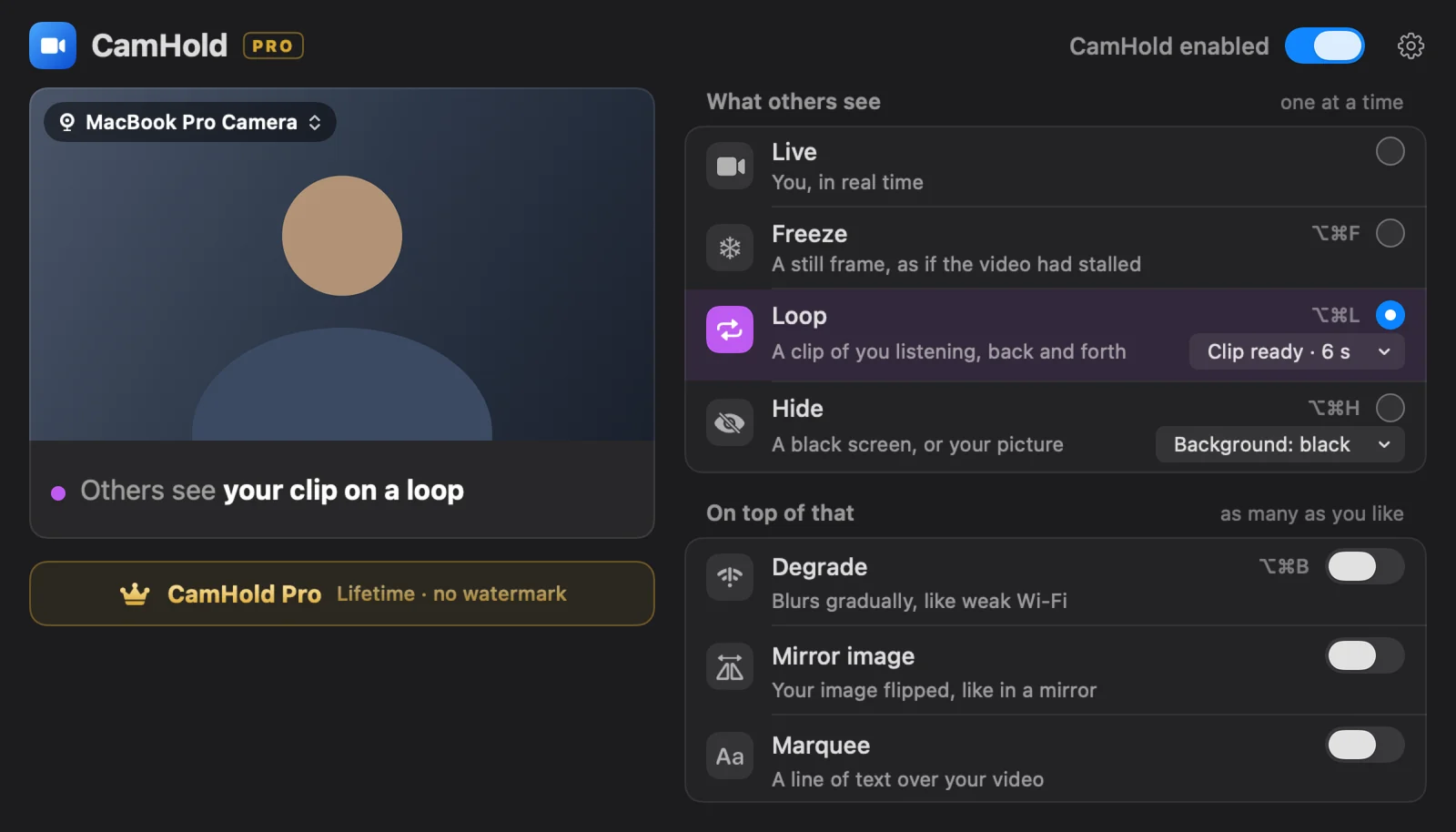
⇧⌥⌘L records a new clip and ⌥⌘L turns Loop on and off. If you press Loop with no clip recorded, it records one on the spot. The full walkthrough is in how to loop a video of yourself on Zoom.
Two caveats. CamHold only handles video, so mute your microphone in the call app before you leave. And Loop does not replace a heads-up: if you will be gone more than a few minutes, or someone may call on you, a note in the chat is safer. How to step away from a Zoom meeting unnoticed has a checklist for coming back.
A quick pre-meeting routine
- Camera at eye level.
- Meeting window right under the lens.
- Light in front of you, no window behind.
- Mid-chest up, head in the upper third.
- Something to write on.
- If you want Loop as a backup, record the clip now, with all of the above already set.
Quick answers
Do I have to look at the camera the whole time? No. Look into the lens now and then, when you talk or agree with something.
Can Loop cover a whole meeting? It is meant for short absences. A clip of a few seconds repeating for a long time ends up being noticed.
Do I have to pay? Not for Loop. The free version has every mode and adds a small "CamHold — free" mark to the video. CamHold Pro, a one-time purchase, removes it.