 CamHold
How to step away from a Zoom meeting unnoticed
How to step away from a Zoom meeting unnoticed: mute first, Freeze for seconds or Loop for minutes, what the host can see, and what to check coming back.
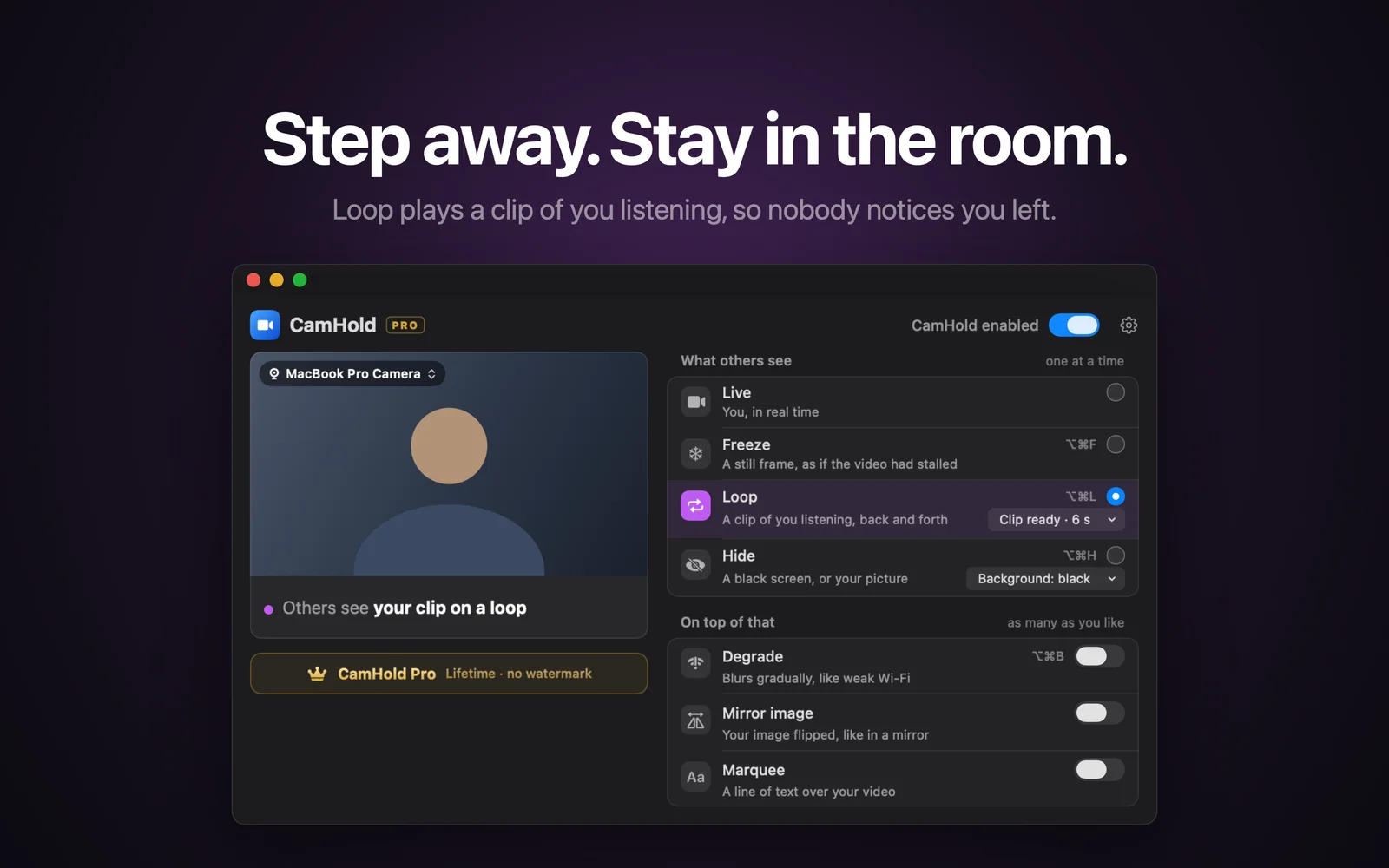
To step away from a Zoom meeting unnoticed, the order matters: mic first, picture second. Turning the camera off is the most visible option, since your tile swaps your video for your profile picture or your name. For a few seconds, a frozen picture is usually enough. For a few minutes, a looping clip of you holds up better.
Step one for stepping away unnoticed: mute
What usually gives you away is sound: a door, a kettle, someone calling your name from the next room. Your microphone goes straight to Zoom, and no virtual camera touches it.
On a Mac, ⇧⌘A mutes and unmutes you in Zoom, according to Zoom's list of keyboard shortcuts. By default it only works while the Zoom window is in focus. In Zoom's keyboard shortcut settings, some shortcuts can be checked as global so they work from any app. If in doubt, click the mic icon and make sure it shows as muted before you stand up.
Freeze or Loop: how long you will be gone
| Freeze | Loop | |
|---|---|---|
| How long it passes | Seconds, maybe a minute | A few minutes |
| What others see | A still frame, like a stalled connection | A short clip of you listening, played back and forth |
| CamHold shortcut | ⌥⌘F | ⌥⌘L |
| Prep | None | A recorded clip |
Freeze holds the last frame. It covers answering the door or grabbing a glass of water. The longer it lasts, the stranger it looks: ten minutes in exactly the same pose does not read as lag. The full walkthrough is in how to freeze your camera on Zoom, Meet and Teams.
Loop plays a clip of you, up to 8 seconds, back and forth, with a smooth transition in and out. Since the picture keeps moving, it holds up longer. The clip has no audio, one more reason to mute first. If you press Loop with no clip recorded, CamHold records one on the spot after a 3 second countdown. Recording calmly before the meeting gives a better result, and I explain how in how to loop a video of yourself on Zoom.
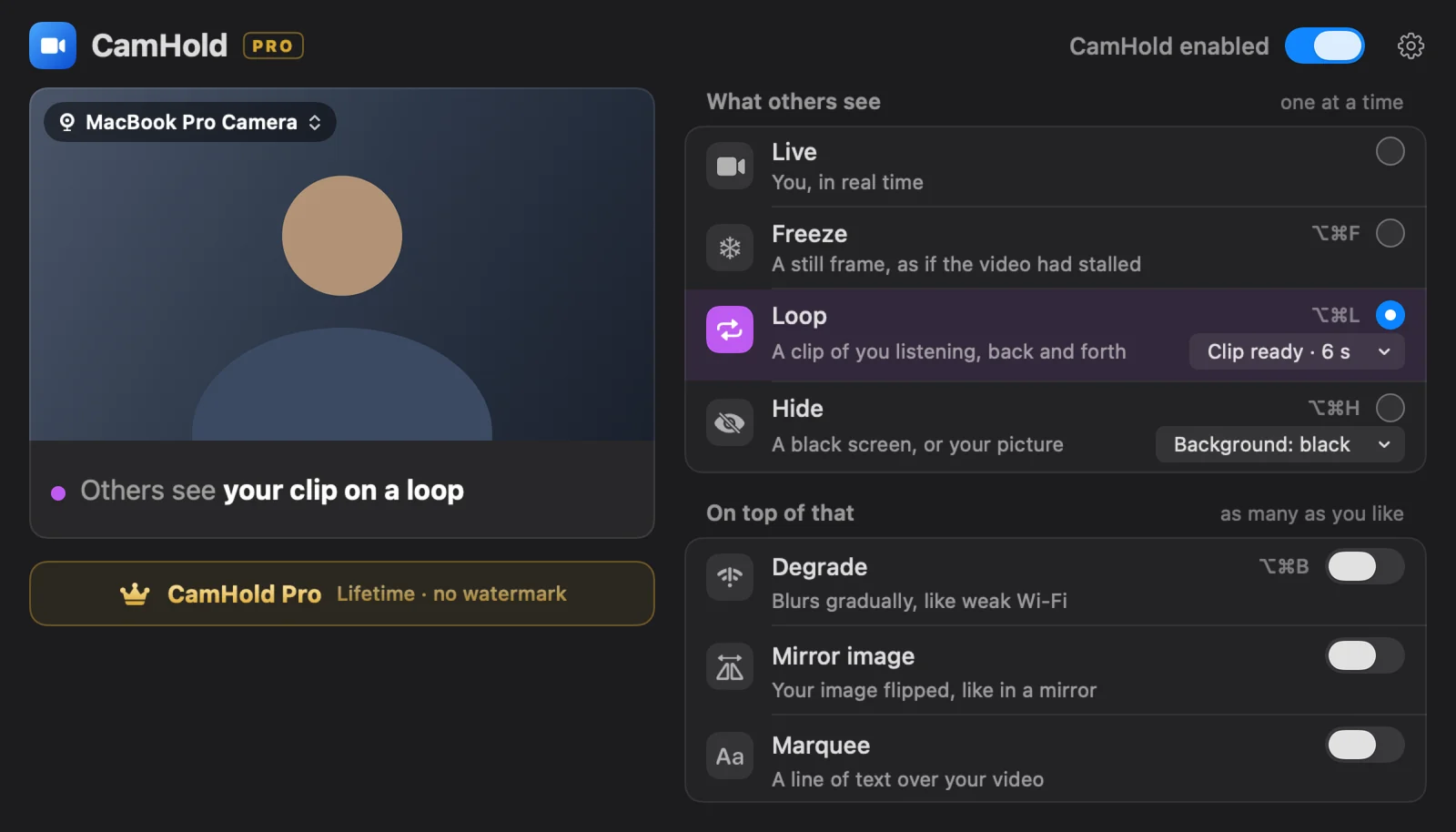
Both need Zoom to be using CamHold as its camera. Pick "CamHold" from the arrow next to the video button, or in Zoom's video settings, before the meeting starts. Switching cameras mid-call draws more attention than any shortcut.
What Zoom does and does not show
- Attention tracking. Zoom removed the feature that told hosts when someone clicked away from the meeting window. That happened on April 2, 2020, per Zoom's help page on it.
- Joining and leaving. Zoom has a setting that plays a sound when someone joins or leaves a meeting. It applies to actually leaving. If you stay in the call, nothing chimes.
- Your tile. Others see whatever video Zoom receives. To Zoom, CamHold is a camera like any webcam, so your camera stays on and video keeps arriving. Only what the picture shows changes.
- Recording. If the meeting is being recorded, what you showed is in the recording, frozen frame or loop included.
If your company runs its own monitoring tools, its policy matters more than any trick.
Checklist for coming back
- Sit down and face the screen. Settle into your chair while the picture is still held.
- Go live. Press the same shortcut again (⌥⌘F or ⌥⌘L) or click Live in CamHold. Check your self view in Zoom: if you still see the clip or the still frame, so does everyone else.
- Only then unmute, with ⇧⌘A or the mic icon.
- Read the chat. If someone asked you something while you were out, answer it before they ask out loud.
- Keep a line ready. "Sorry, I was on mute, could you repeat that?" covers most things.
The free option: say so and stop your video
A short, announced absence is often easier than a frozen picture someone notices. Type "back in two minutes" in the chat, press ⇧⌘V to stop your video and ⇧⌘A to mute. Nobody questions it, and there is nothing to install. I wrote about when to say something and how long is too long in stepping away from a video call. If you do this often, learn the Zoom, Meet and Teams keyboard shortcuts on a Mac so you are not reaching for the mouse at the worst moment.
Quick answers
Does CamHold mute my microphone? No. It only handles video. Audio goes straight from the mic to Zoom, so mute in Zoom.
Do I have to pay? Not for Freeze or Loop. The free version has every mode and adds a small "CamHold — free" mark to the video. CamHold Pro, a one-time purchase, removes it.
What if the meeting requires cameras on? As far as Zoom is concerned, your camera is on. But if the rule weighs on your day, talking about it usually works better than working around it, and I wrote about that in mandatory camera-on meetings.