 CamHold
Zoom, Google Meet and Teams keyboard shortcuts on a Mac
The Mac keyboard shortcuts to mute, toggle the camera, raise your hand and leave in Zoom, Google Meet and Microsoft Teams, checked against each vendor's docs.
Hunting for the unmute button with the mouse while someone waits for your answer is the slowest way to talk in a meeting. Zoom, Google Meet and Microsoft Teams all have keyboard shortcuts on the Mac for mute, camera and raising your hand, and all three use different keys. Below is a table for each, taken from the vendors' own help pages, with CamHold's global shortcuts at the end.
Shortcuts change between versions. If one does not respond, the full list is inside the app: ⇧? during a Meet call, ⌘. in Teams, and the Keyboard Shortcuts section of Zoom's settings.
Zoom
| Action | Mac shortcut |
|---|---|
| Mute or unmute audio | ⇧⌘A |
| Start or stop video | ⇧⌘V |
| Raise or lower hand | ⌥Y |
| Push to talk while muted | Hold Space |
| Start or stop screen share | ⇧⌘S |
Zoom's shortcut page does not list a leave or end meeting shortcut for the Mac, so there is none here.
The most useful thing in Zoom is the global shortcut. In the shortcut list in settings you can mark some shortcuts as global, and then the key works while another app is in front. Do it for mute and you no longer have to find the meeting window among everything else you have open. The same list is where you change a key if it clashes with another app.
If you want the shortcuts because you are about to step away, how to step away from a Zoom meeting unnoticed has the order that works: mute first, then everything else.
Google Meet
| Action | Mac shortcut |
|---|---|
| Mute or unmute microphone | ⌘D |
| Turn camera on or off | ⌘E |
| Raise or lower hand | ⌃⌘H |
| Show or hide chat | ⌃⌘C |
| Show or hide captions | C |
Google's list has no leave-call shortcut either.
Meet runs in the browser, so these only work while the meeting tab has focus. From another tab, ⌘D is the browser's bookmark shortcut instead. The browser in the middle also changes how you pick a camera, which I covered in how to freeze your camera in Google Meet.
Microsoft Teams
| Action | Mac shortcut |
|---|---|
| Mute or unmute | ⇧⌘M |
| Turn video on or off | ⇧⌘O |
| Raise or lower hand | ⇧⌘K |
| End the call | ⇧⌘H |
| Temporarily unmute | ⌥Space |
| Open the share content tray | ⇧⌘E |
According to Microsoft's page, the same keys work in the Teams desktop app and in Teams on the web, which helps if you use both. ⌥Space is Teams' version of push to talk: hold it to speak, let go to go back to mute. It only works after you turn on "Keyboard shortcut to unmute" in Teams under Settings › Privacy.
For the video side of Teams, how to pause your video in Microsoft Teams explains why turning the camera off and holding a still picture come across so differently to everyone else.
Zoom, Meet and Teams shortcuts side by side
| Action | Zoom | Meet | Teams |
|---|---|---|---|
| Microphone | ⇧⌘A | ⌘D | ⇧⌘M |
| Camera | ⇧⌘V | ⌘E | ⇧⌘O |
| Hand | ⌥Y | ⌃⌘H | ⇧⌘K |
| Leave | none listed | none listed | ⇧⌘H |
If you move between all three in a day, you will press the wrong one sooner or later. If you only memorize one thing, make it mute for each app. The rest can wait for the mouse.
CamHold's global shortcuts
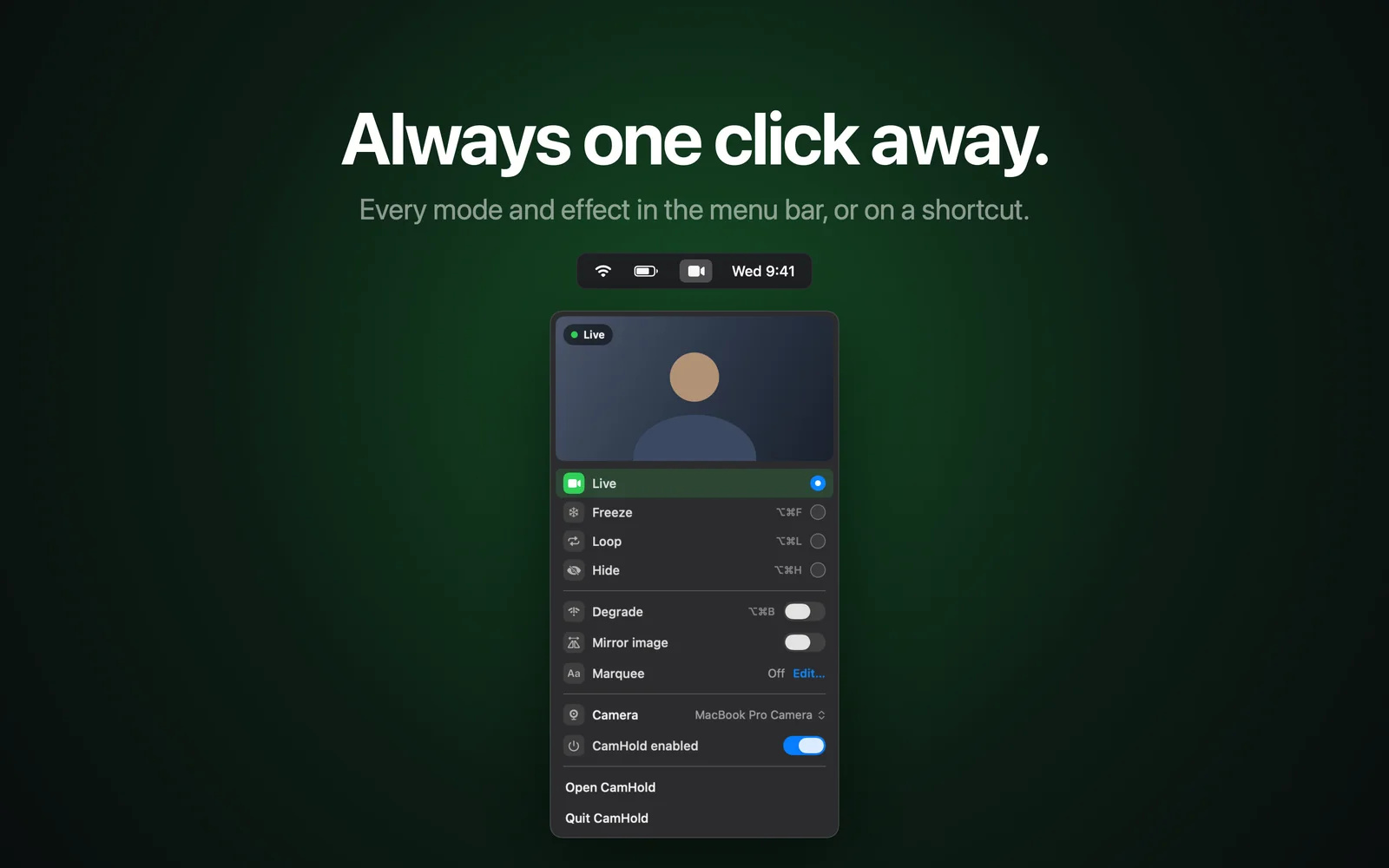
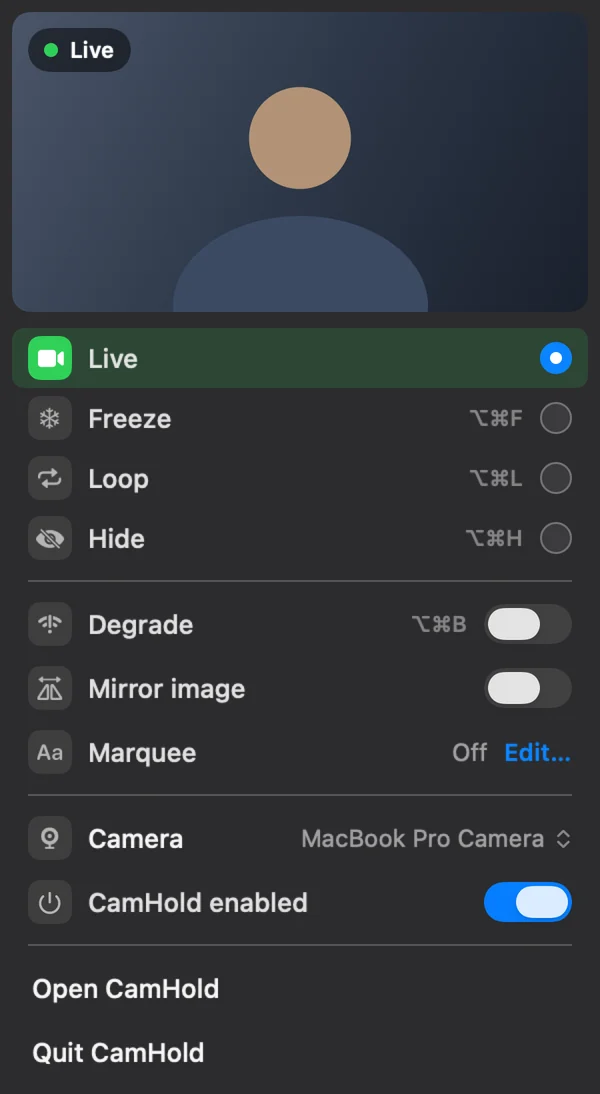
CamHold is the virtual camera I make for the Mac. Its shortcuts are global, so they work with any app in front:
- ⌥⌘F freezes the picture
- ⌥⌘L starts Loop, a short clip of you played back and forth
- ⌥⌘H hides the camera behind black or a picture you choose
- ⌥⌘B turns on Degrade, which fakes a weak connection
- ⇧⌥⌘L records a new clip for Loop
They only touch video. Audio goes straight from your microphone to the call app, so muting still happens in Zoom, Meet or Teams with the keys above. To step away for a moment, mute in the app, then press ⌥⌘F. On macOS 26 there is also a Freeze control in Control Center. The details are in how to freeze your camera on Zoom, Meet and Teams.
Quick answers
Can I change the shortcuts? In Zoom, yes, in the Keyboard Shortcuts section of its settings. Google's and Microsoft's pages do not explain how to do it on a Mac, so in Meet and Teams plan on the default keys.
A shortcut does nothing. Why? Usually focus: the meeting window or tab has to be in front, unless it is a Zoom shortcut you made global. The other common cause is another app using the same combination.
Does CamHold have to be running? Yes, its shortcuts only work while the app is open. It is on the Mac App Store, and the free version has every mode, with a small "CamHold — free" mark on the video.