 CamHold
How to pause your video in Microsoft Teams on a Mac
Teams can only turn your camera on or off. Here is what it gives you for free, what background effects do, and how to hold a still frame with a virtual camera.
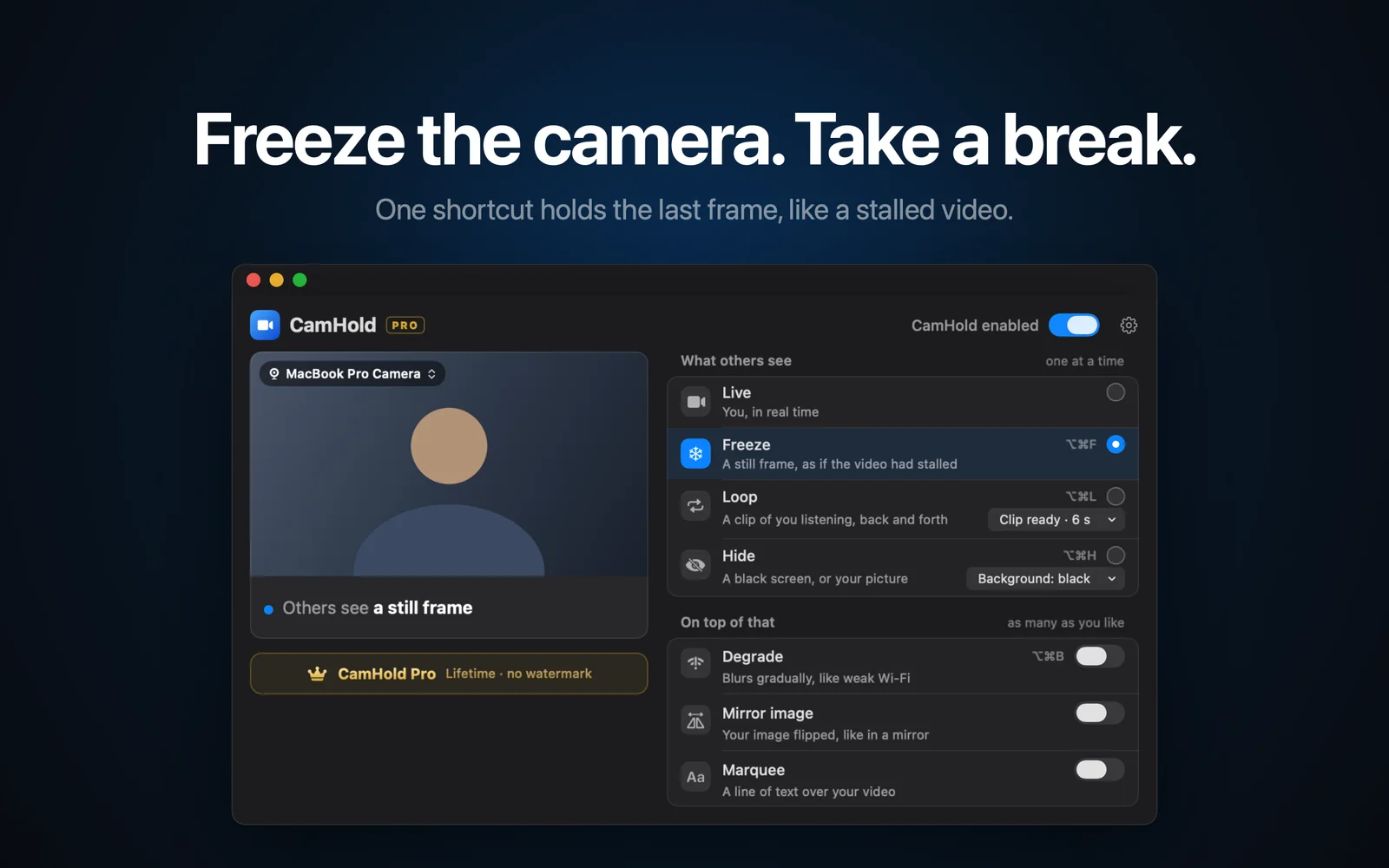
If you want to pause your video in Microsoft Teams on a Mac, Teams itself gives you one way: turn the camera off. There is no button that holds your picture still. Turning it off is fine when you do not mind people noticing, because your tile swaps the video for your profile picture. If you want the picture to stay there, just not moving, Teams has to get its video from a virtual camera.
What Teams gives you for free
Turn the camera off. In a meeting, the Camera button in the controls turns your video on and off. On a Mac the shortcut is ⇧⌘O, and ⇧⌘M does the same for your mic. Before you join, the pre-join screen has a camera toggle. With video off, Teams shows your profile picture, or your initials if you have not set one. All three big call apps' shortcuts are in one table in Zoom, Meet and Teams keyboard shortcuts on a Mac.
Turn camera and mic off when the screen locks. Teams has a setting for this in the privacy section of its settings, and it takes effect after you restart the app. If you already lock your Mac before you get up, it is the easiest way not to walk off with the camera running.
Hide me does not help here. It sits in the meeting's view options and hides your video from your own screen only. Everyone else still sees you.
If all you want is a picture in place of your face, I went through the options in how to show a picture instead of your camera.
What Teams background effects do
Before a meeting, effects are under Effects and avatars on the pre-join screen. During one, go to More actions › Video effects and settings › Video effects. You can blur the background (standard or portrait blur), pick one of the built-in images, or upload your own as a JPG, PNG or BMP. Whatever you choose stays on for later meetings and calls until you change it.
The catch is that effects only change what is behind you. You are still live in front of it, and if you get up, the empty chair shows up against the nice background. Microsoft also warns that blurring or replacing your background may not keep sensitive information from being visible to others.
Menu names move around between Teams versions. If that path is not there, look for "Video effects" near the camera button.
Pause your video in Teams with a virtual camera
A virtual camera shows up in Teams as one more webcam. You pick it, it passes along the picture from your real camera, and when you tell it to freeze it keeps showing the last frame. To Teams nothing changes: video keeps arriving and the camera button stays on. On the other end it looks like your connection hiccuped. How this works on macOS is covered in virtual cameras on a Mac.
CamHold is the virtual camera I make. It runs on macOS 14 or later, on Apple Silicon and Intel Macs, and is only on the Mac App Store. The free version has every mode (Live, Freeze, Loop and Hide) and puts a small "CamHold — free" mark on the video. Pro is a one-time purchase that removes the mark. No subscription.
Choosing CamHold as the camera in the new Teams
1. Install it and approve the extension. Get CamHold from the Mac App Store and open it. macOS asks once to approve the camera extension, and the app's setup guide explains each prompt before it appears. CamHold also needs camera permission under System Settings › Privacy & Security › Camera.
2. Pick CamHold in Teams. On the pre-join screen or in the meeting, click the arrow next to the Camera button and choose "CamHold". To make it the default, open the three dots next to your profile picture, go to Settings › Devices and change the camera there. If CamHold is not in the list, quit Teams completely (⌘Q, closing the window is not enough) and open it again.
3. Freeze with ⌥⌘F. The shortcut works whatever app is in front, so you never hunt for a window mid-meeting. Press it again to go back to live. You can also click Freeze in the CamHold menu bar dropdown and, on macOS 26, in Control Center.
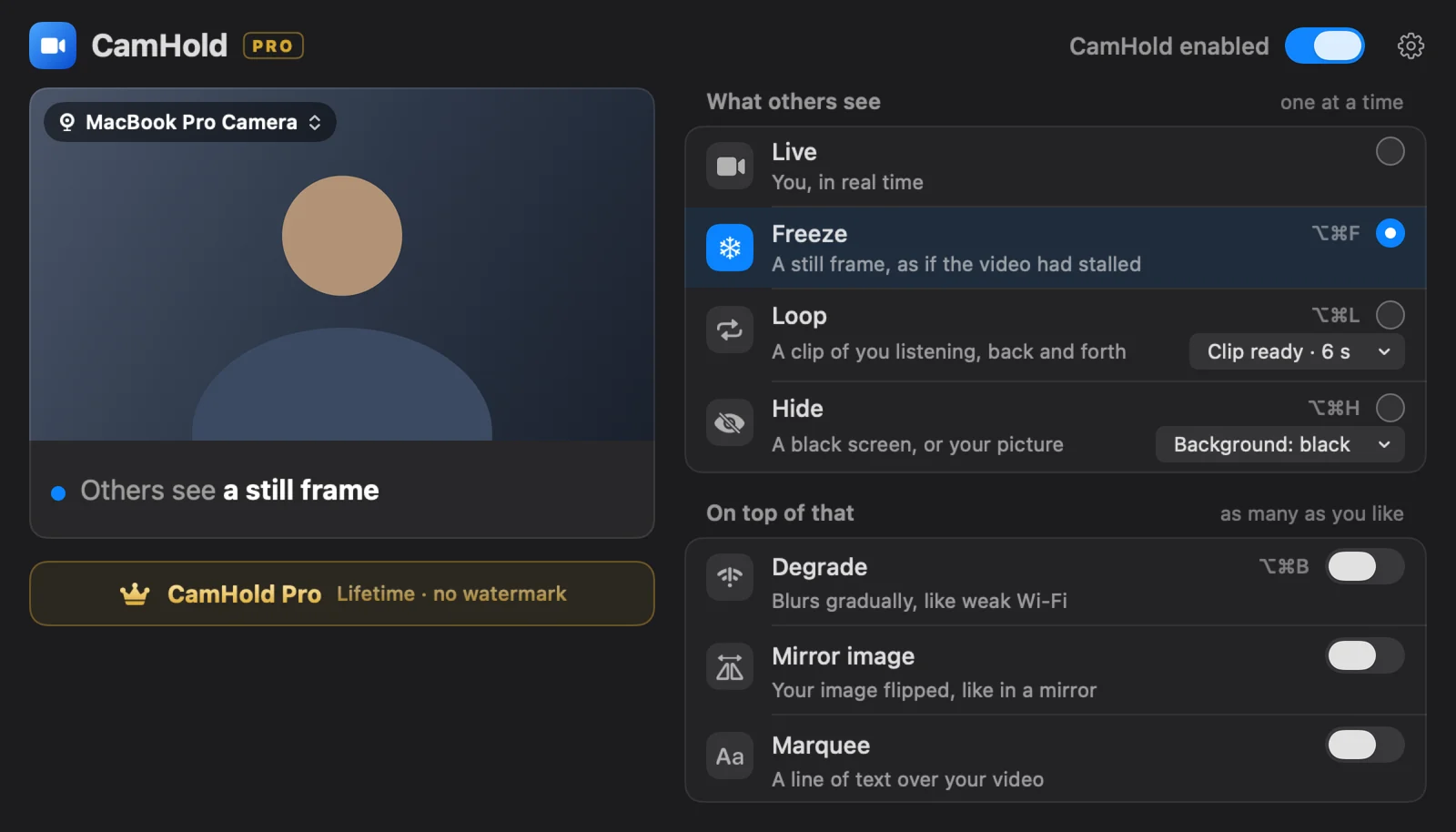
If CamHold will not show up at all, it is nearly always a missing permission or an extension that was not approved. The usual causes are in camera not working in Teams on a Mac.
If you use blur or a background in Teams, you can leave it on: Teams applies the effect to the video it gets from CamHold. If the picture looks odd, set the effect to None to rule it out.
Three things to keep in mind
Pick your moment. The frozen frame is the last one before the shortcut. Look at the screen, hold still for half a second, then press.
The microphone is separate. CamHold only touches video. Audio goes straight from your mic to Teams, so mute in Teams (⇧⌘M) before you get up.
A long freeze gets noticed. A few seconds, even a minute, passes for a bad connection. Ten minutes in the same pose does not. For longer breaks, Loop plays a short clip of you listening, back and forth, so the picture keeps moving. Zoom, Meet and Teams side by side are in how to freeze your camera on Zoom, Google Meet and Teams.
Quick answers
Does Teams tell people I am using a virtual camera? I found nothing in Microsoft's documentation saying it does. To Teams, CamHold is one more camera in the list. On a work Mac, IT may control what you can install, so check first.
Does it work with Teams in a browser? Browsers list virtual cameras alongside real ones, so CamHold should show up in the camera options in Teams on the web. The browser needs camera permission both in macOS and for the site. If CamHold is missing, quit the whole browser and reopen it.
Do I have to pay to freeze? No. Freeze, Loop and Hide are in the free version, with the small mark on the video. Pro removes the mark and unlocks Marquee.