 CamHold
How to show a picture instead of your camera in a call
Your profile picture with video off in Zoom, Meet and Teams, or an image you pick while the camera stays on. When each one fits and how to set it up on a Mac.
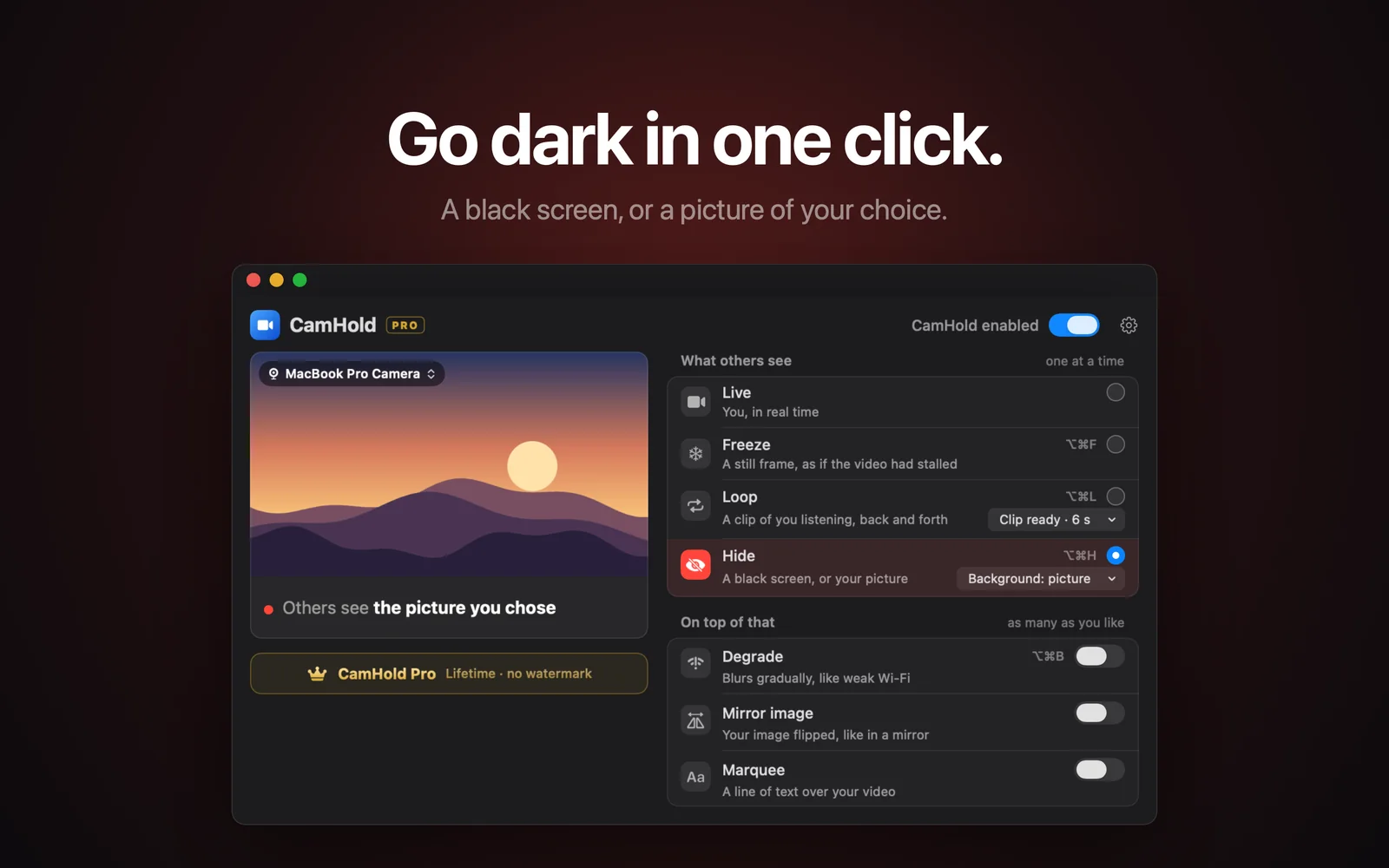
There are two ways to show a picture instead of your camera. The first is built into Zoom, Meet and Teams: turn your video off and your profile picture appears. The second keeps the camera on and sends the call an image you picked, which takes a virtual camera. If all you want is to join without being seen, the first one does it for free.
Your profile picture with video off
When your video is off, your tile stops showing the camera. If your account has a profile picture, that is what people see. Without one, you get your initials or your name. The picture comes from your account, so that is where you change it.
- Zoom. The picture lives in your Zoom account profile. You can change it in the app, starting from your picture or initials at the top right, or on the Zoom web portal under Profile. If you changed it on the web and the app still shows the old one, sign out of the app and back in. If you join a meeting without signing in, you show up with no picture at all.
- Google Meet. Meet uses your Google Account photo, the same one Gmail shows. Change it under Personal info on your Google Account page. Google says a new photo can take a while to show up across its services.
- Microsoft Teams. In Teams for work or school, select your picture at the top right, select it again, upload a new one and save. It is your Microsoft account photo, so it also changes in Outlook and the rest of Microsoft 365.
Menu names move around between versions, so if something is not exactly where I described it, look for the photo option in your profile. Two caveats apply to all three. On a work account, an admin can block photo changes. And in Zoom the host can turn on hiding profile pictures for the meeting, in which case everyone shows up as just a name.
When the profile picture is enough
For sitting in on a meeting without being on camera, it is the simplest route: video off, a decent photo, nothing to install. Everyone can see your camera is off, which is normal in plenty of meetings.
It does not help when the meeting expects cameras on, or when you want something other than your account photo, like a back-in-five card or a project logo. There is one profile picture, and it shows in every call and everywhere else your account appears.
How to show a picture instead of your camera while it stays on
Here the call app keeps receiving video, so your camera shows as on, and what arrives is the image you set. That is a virtual camera's job: an app that appears in the camera list like a webcam. I explained how they work on macOS in virtual cameras on a Mac.
There is a free way to do it. OBS Studio costs nothing, has a virtual camera and can send an image as a scene, though it takes more setup. The walkthrough is in OBS Virtual Camera on a Mac.
CamHold is the virtual camera I make, and its Hide mode exists for exactly this. By default it sends a black frame, and you can swap that for an image of your own.
1. Install it and approve the extension. Get CamHold from the Mac App Store and open it. macOS asks once to approve the camera extension, and the app's setup guide explains each prompt before it appears.
2. Pick your image. In the Hide row, click Background: black, then Choose picture…. To go back to black, use Back to black in the same menu. A landscape image works best: it fills the video frame and anything that does not fit is cropped at the edges.
3. Choose "CamHold" as your camera in the call. In Zoom, Meet and Teams that is the arrow next to the camera button, or the video settings. If CamHold is not in the list, quit the call app and open it again.
4. Turn on Hide. Use the window, the menu bar dropdown, or ⌥⌘H, which works whatever app is in front. Press it again to go back to your live camera.
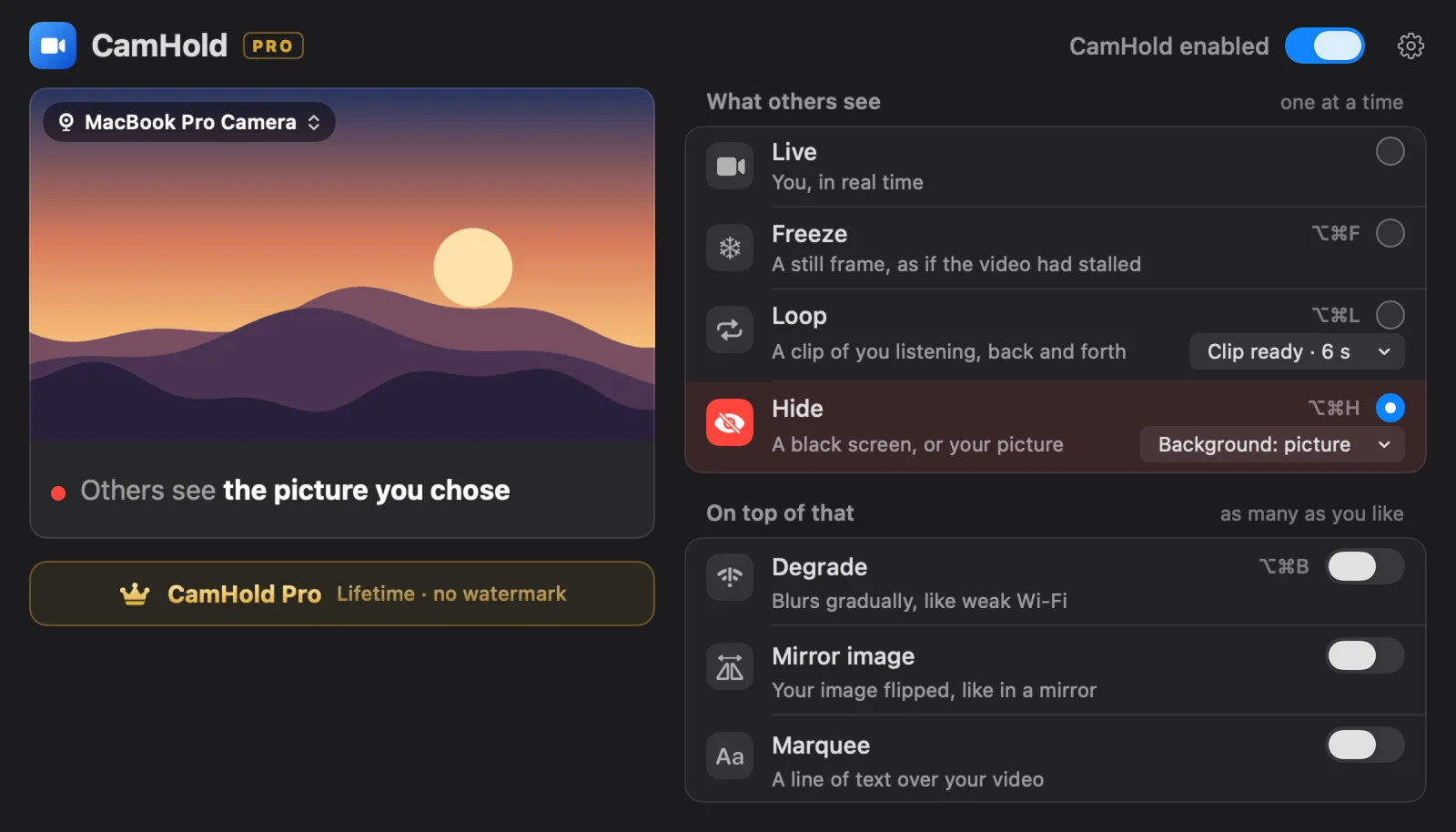
If your image has text on it, do not worry about your own preview. Most call apps show your self-view mirrored, while everyone else gets the text the right way round. More on that in Mac camera mirrored.
Which one to use
| Profile picture | CamHold Hide | |
|---|---|---|
| Camera shows as | Off | On |
| Image | Your account photo | Whatever you choose |
| Install anything | No | Yes, an app |
| Switch back to live video | Turn video on | One shortcut |
| Fits a camera-on rule | No | Depends on your company's rule |
About that last row: a still image is still a still image, and anyone who looks at your tile can tell it is not you live. If your company's rule is a face on screen, talk to whoever owns the rule before you count on this.
Before you use it in a meeting
Your mic stays live. CamHold only touches video. Audio goes straight from your microphone to the call app, so mute in Zoom, Meet or Teams.
A still image is not the best way to look present. A black frame or a fixed photo draws more attention than a few seconds of frozen video. For a short break, see how to freeze your camera on Zoom, Meet and Teams. For a longer one, a moving clip of yourself holds up better, which is what how to loop a video of yourself on Zoom covers.
Quick answers
Do I have to pay? No. The free version has every mode, including Hide with your own image, and adds a small "CamHold — free" mark to the video. CamHold Pro is a one-time, lifetime purchase that removes it. There is no subscription.
Does it work with Meet in a browser? Yes. CamHold shows up in the browser's camera list like any webcam. If it is missing, quit the browser completely and reopen it.
Does CamHold send my video anywhere? No. It makes no network requests at all, and live video is processed on the Mac and never recorded.