 CamHold
How to freeze your camera on Zoom, Google Meet and Teams on a Mac
None of them has a freeze button. Here is what the apps themselves can do, and how to hold your video on a still frame on a Mac with one shortcut.
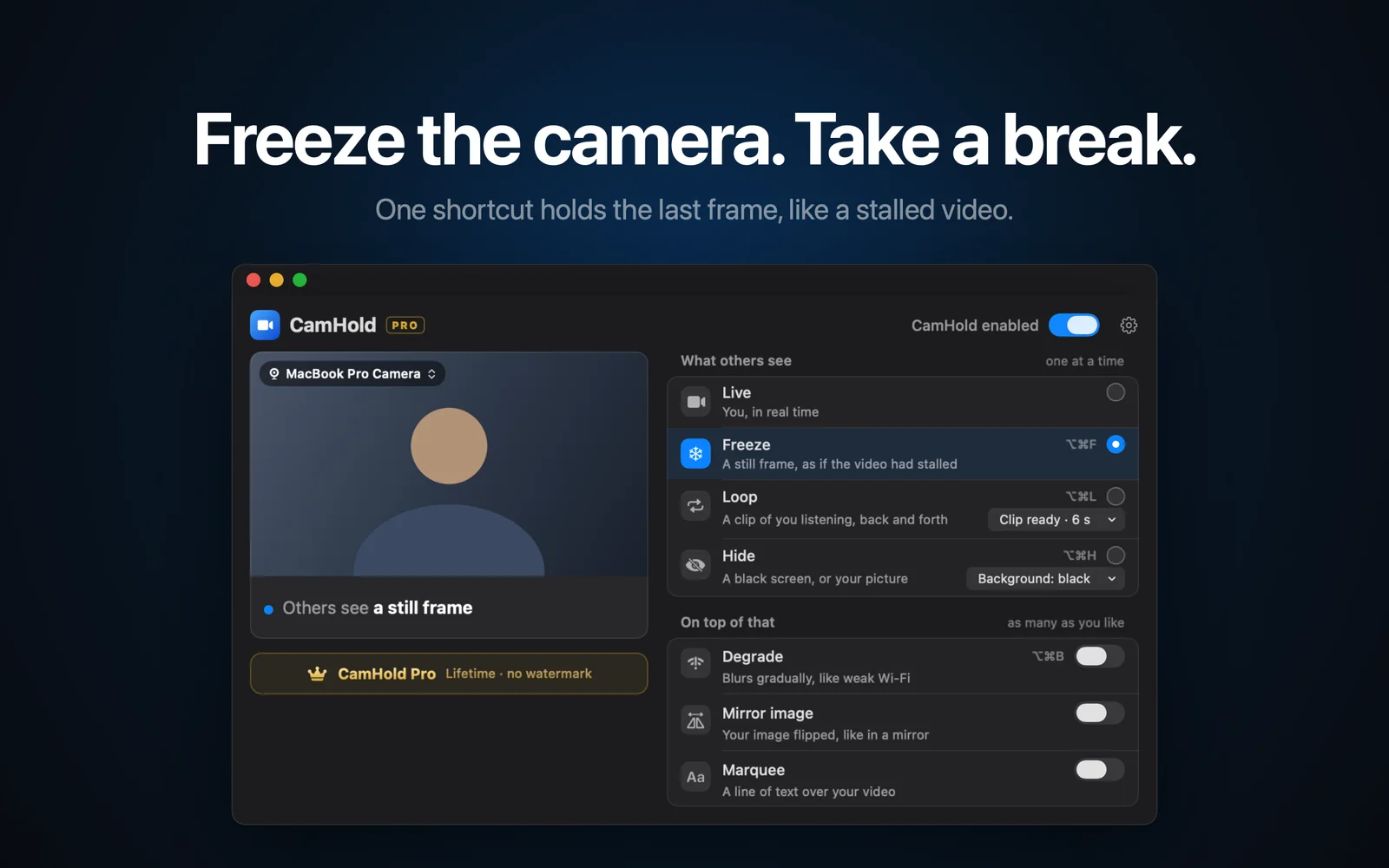
Zoom, Google Meet and Microsoft Teams all let you turn your camera off. None of them lets you freeze it. That difference matters more than it sounds. Turn the camera off and your tile becomes a black box with your name on it, and everyone in the call can see you left. Freeze the picture and the usual reaction is to assume your connection hiccuped.
Here is what each app can do on its own, and then how to actually freeze your camera on a Mac.
What the apps give you
Worth knowing before you install anything, because sometimes it is enough.
- Stop video. Works everywhere, and is the opposite of discreet. Others see your name or profile picture instead of you.
- Hide self view. Zoom calls it "Hide self view", Teams calls it "Hide for me". It hides your video from your own screen only. Everyone else still sees you, so it does nothing for stepping away.
- Virtual background. It replaces what is behind you, not you. If you get up, the empty chair shows up in front of the background.
None of these holds the picture. For that the call app has to receive a video feed that you control, which is what a virtual camera does.
How freezing works with a virtual camera
A virtual camera is a program that shows up in Zoom, Meet and Teams as one more webcam. You pick it in the call, and it passes along the picture from your real webcam. When you tell it to freeze, it stops passing new frames and keeps showing the last one.
Nothing changes for the call app. It keeps receiving video, the camera stays "on", and nobody gets a notification. If you want the longer version of how this works on macOS, I wrote about it in virtual cameras on a Mac.
Step by step with CamHold
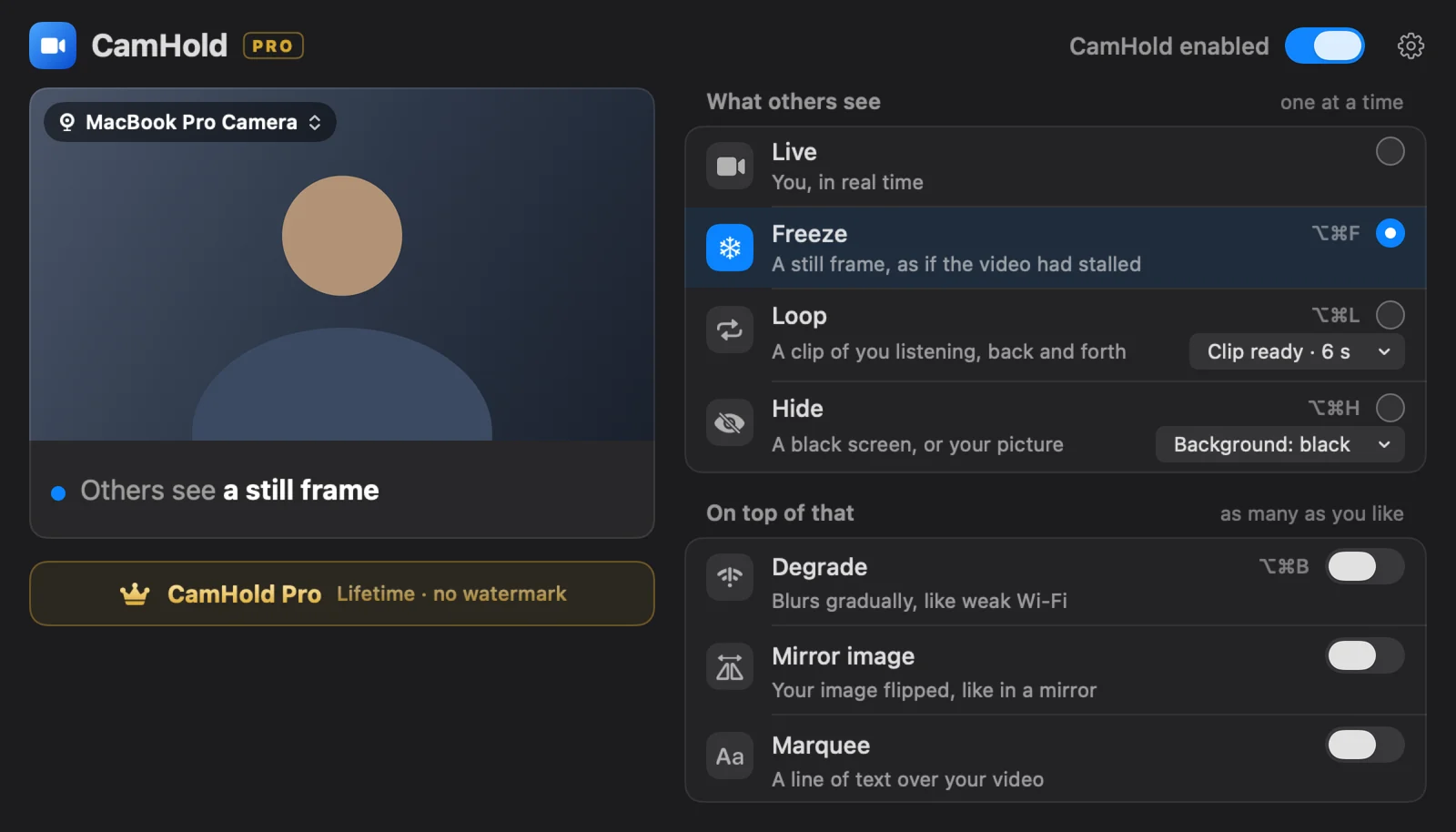
CamHold is the virtual camera I make for the Mac. The free version freezes, loops and hides, with a small mark in the corner of the video.
1. Install it and approve the extension. Get CamHold from the Mac App Store and open it. macOS asks you to approve its camera extension once, in System Settings. The app shows you where to click before the prompt appears.
2. Pick "CamHold" as your camera in the call. Each app keeps this in a different place:
| App | Where to switch cameras |
|---|---|
| Zoom | The arrow next to Start Video or Stop Video, or Settings › Video |
| Google Meet | The arrow next to the camera button, or More options › Settings › Video |
| Microsoft Teams | The arrow next to the camera button, or Settings › Devices |
| FaceTime | The Video menu in the menu bar |
If CamHold is not in the list, quit the call app and open it again. Most of them only look for cameras when they launch.
3. Freeze with ⌥⌘F. The shortcut works whatever app is in front, so you never hunt for a window mid-meeting. You can also click Freeze in the menu bar. Press the same shortcut again to go back to live.
Three details that matter
Pick your moment. The frozen frame is the last one before the shortcut. Press it mid-yawn or while turning your head and that is what stays on screen. Look at the screen, hold still for half a second, then press.
The microphone is separate. CamHold only touches the video. Audio still goes straight from your mic to the call, so if you are getting up, mute yourself in Zoom, Meet or Teams.
A long freeze gets noticed. A few seconds, even a minute, looks like a bad connection. Ten minutes in exactly the same pose does not. For longer breaks, Loop usually works better: it plays a short clip of you listening, back and forth, so the picture keeps moving. I covered how to record a good clip in how to loop a video of yourself on Zoom.
Quick answers
Does it work with Meet in a browser? Yes. Chrome, Safari and Edge list CamHold like any other webcam. If it is missing, quit the whole browser and reopen it.
Do other people get notified? No. To the call app, CamHold is just another camera.
Is it heavy on the CPU? While frozen, CamHold draws the frame once and holds it. It uses less than the live camera does.
Do I have to pay? Not to freeze. The free version has every mode and adds a small "CamHold — free" mark to the video. A one-time purchase removes it.