 CamHold
Camera not working in Teams on a Mac: how to fix it
Camera black or missing in Microsoft Teams on your Mac? Check the macOS permission, the camera picked in Teams settings, the cache and the rest, in order.

When your camera is not working in Teams on a Mac, it is nearly always one of four things: macOS has not given Teams camera access, another app is holding the camera, Teams has the wrong camera selected, or the app needs a restart. The steps below go in that order, quickest first. Clearing the cache comes last.
1. Give Teams camera access in macOS
Without this permission Teams gets no picture at all, and your video tile stays black.
- Open System Settings › Privacy & Security › Camera.
- Make sure Microsoft Teams is in the list and switched on.
- If you changed anything, quit Teams completely with ⌘Q and open it again. Microsoft's own advice is to close your apps and restart after this change.
If Teams is not in the list at all, join a meeting and try turning your camera on once. An app only shows up there after it asks for access, and that is when macOS prompts you. What each permission allows, and how to reset them, is in camera permissions on a Mac.
2. Quit other apps that use the camera
Microsoft suggests quitting apps such as FaceTime and Skype and trying again. Also look for a browser tab with another meeting, Photo Booth, or Zoom left open in the background.
To find out who has the camera, the green light next to the lens tells you it is in use, and the top of Control Center names the app. There is more on that in the green light next to the Mac camera.
3. Pick the right camera in Teams settings
With access sorted, check which camera Teams is actually using:
- Click Settings and more (the three dots next to your profile picture, at the top of the window) and open Settings.
- Go to Devices.
- In the video section, choose your built-in camera or external webcam from the Camera menu. The preview below it should show you.
The same screen has Make a test call in the audio section. Microsoft says it shows how your mic, speaker and camera are working, and it is only in the desktop app, not Teams on the web. During a meeting, the device settings also let you switch cameras without leaving the call.
A common cause of a black picture: Teams is pointed at a virtual camera that is not sending any video, for example one that needs another app to be running. Switch to the built-in camera and see if you appear. If you use a virtual camera on purpose, virtual cameras on a Mac explains how they work and what to do when one disappears from the list. If it uses your webcam as its source, its own app also needs to be allowed in the list from step 1.
4. Restart Teams and the Mac
Quit Teams with ⌘Q (closing the window leaves it running), open it again and test. If the picture still does not come back, restart the Mac. With an external webcam, unplug it and plug it back in, ideally into a different port, then check that it shows up in the list from step 3.
5. Update Teams and macOS
Microsoft also recommends keeping both up to date. Teams updates itself, but you can force it from the same Settings and more menu with Check for updates. macOS updates are in System Settings › General › Software Update.
If you still open classic Teams, switch. Microsoft ended availability of the classic client in July 2025, and every step here is for the current Teams, which you can download from Microsoft's site.
6. Clear the Teams cache
Save this for when nothing above worked. Microsoft treats clearing the cache as a targeted step for a small number of problems with the desktop app, and warns that it does nothing for chat issues like missing messages or channels that do not show up. In those cases it only deletes the logs support would need to find the cause.
For the current Teams, quit the app with ⌘Q, open Terminal and run these two commands, one at a time:
rm -rf "$HOME/Library/Group Containers/UBF8T346G9.com.microsoft.teams"
rm -rf "$HOME/Library/Containers/com.microsoft.teams2"
The paths come from Microsoft's page Clear the Teams client cache. There they appear without quotes. I added quotes because "Group Containers" has a space in its name, and without them the first command does not remove the right folder. Then open Teams. The first launch takes longer while the cache is rebuilt.
Camera not working in Teams in the browser
In a browser you need two permissions. macOS has to allow the camera for the browser, in the same place as step 1, and the browser has to allow it for the Teams site:
- Chrome: Settings › Privacy and security › Site settings › Camera.
- Safari: Safari › Settings › Websites › Camera, with Teams set to Ask or Allow.
After allowing it, reload the page. On a work or school account, some of these settings may be locked by your IT team, and then only an admin can change them.
When the camera works and you want to control the picture
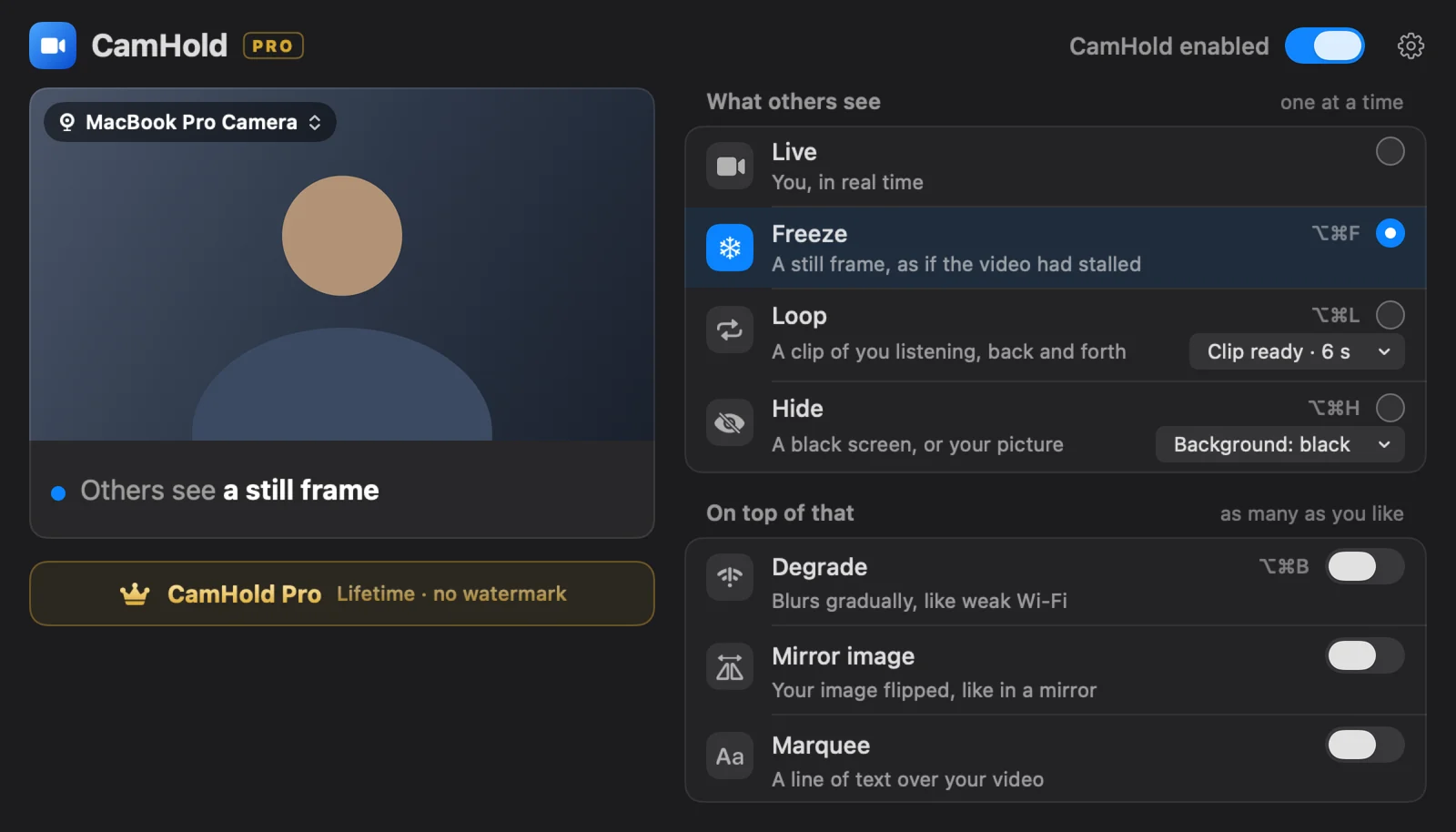
If your video already shows up and you are after something else, like holding the picture still for a few seconds, Teams has no button for that. The options are in how to pause your video in Microsoft Teams. One of them is CamHold, the virtual camera I make: you pick "CamHold" as your camera in Teams once, and then you can freeze the picture, play a clip of yourself on a loop, or hide your video. It runs on macOS 14 or later, comes from the Mac App Store, and the free version adds a small mark to the video.
And if the problem shows up in other apps too, Mac camera not working in Zoom walks through the same first steps on the Zoom side.
Quick answers
The camera works in FaceTime but not in Teams. What does that tell me? The camera and macOS are fine. That leaves Teams' permission, the camera picked in Teams, or the app itself. Start with steps 1 and 3.
It worked yesterday and not today. Quit Teams with ⌘Q, restart the Mac and check step 1 again. If it is still broken, look for a Teams update.
The green light comes on when I turn on video, but there is no picture. Teams managed to open a camera, so the permission is there. Check which camera is selected under Settings › Devices and whether the preview shows you.