 CamHold
Green light next to the Mac camera: what it means, who's using it
The green light next to your Mac camera means the camera is on. Here is what it tells you, the green dot in the menu bar, and how to see which app is using it.
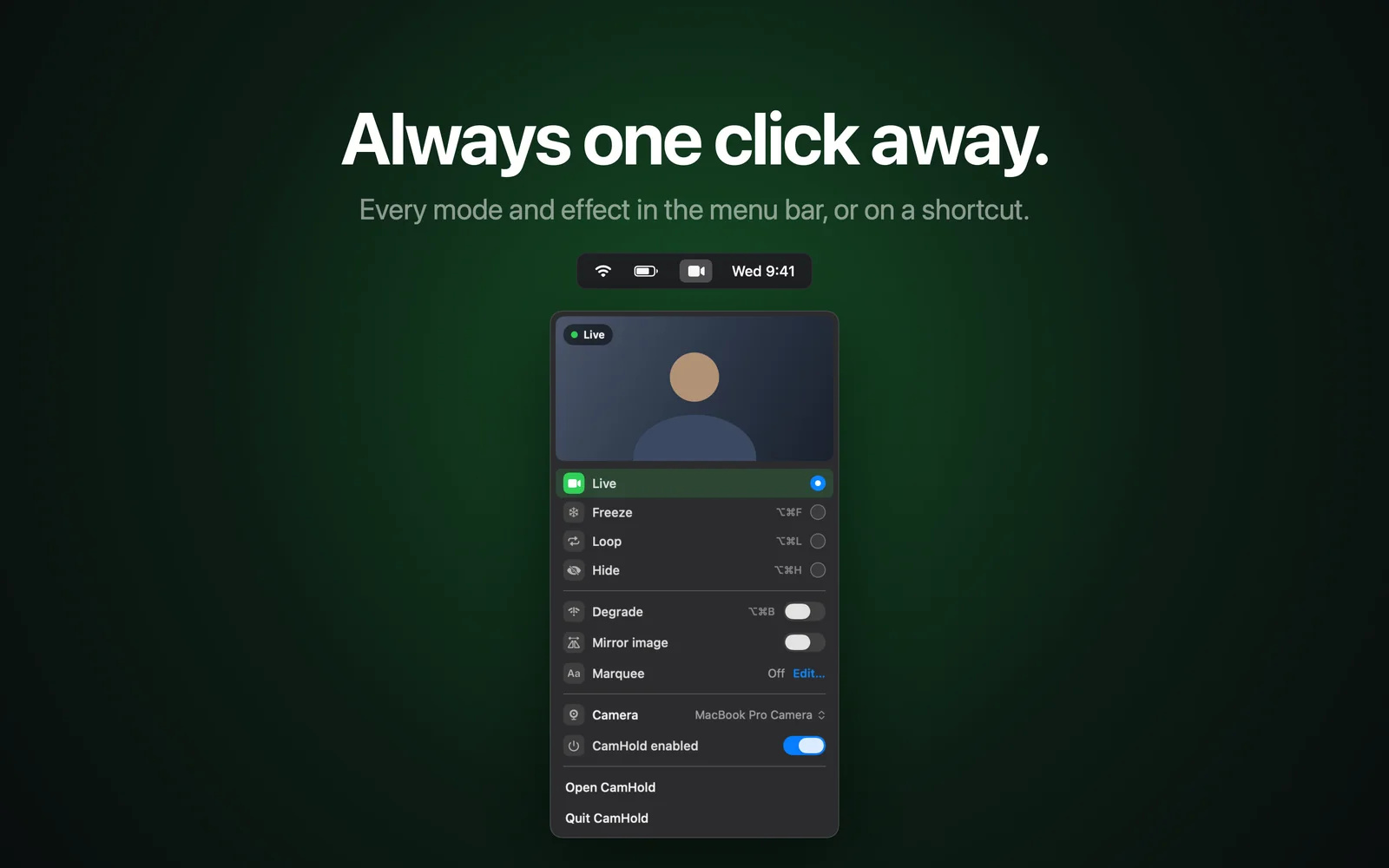
The green light next to your Mac camera glows when the camera is on. That is all it says: some app is getting pictures from the camera right now. It goes out when you close or quit every app that can use the camera. If it lit up and you are not on a call, macOS has two places that show which app is behind it.
What the green light next to the Mac camera means
Apple's wording is short: a green light beside the camera glows to indicate the camera is on. It makes no difference whether the app is sending your video to someone or only showing your face back to you. Once the camera starts capturing, the light comes on.
Virtual cameras are no exception. A virtual camera that takes your webcam as its source has to turn the real camera on to get a picture, so the light comes on as usual. I make CamHold, which is that kind of virtual camera, and it does not hide or touch the light. What it changes is the picture that reaches the call.
If the light flashes green instead of staying steady, Apple's page on the built-in camera says your Mac might need service.
Why an app cannot turn the light off
Apple states it plainly in a support article about MacBook cameras: the camera is engineered so that it can't activate without the indicator light also turning on. So there is no setting in a call app, and no virtual camera, that keeps the camera running with the light off.
For the MacBook Neo with the A18 Pro chip, Apple's Platform Security guide goes further. It describes system software working with dedicated parts of the chip, designed so that no untrusted software, even with root or kernel privileges in macOS, can engage the camera without lighting the indicator. I only found that level of detail documented for this one model, so I won't claim every Mac is built exactly the same way.
The green dot in the menu bar
Besides the light by the camera, macOS shows a dot to the right of the Control Center icon in the menu bar:
- Green dot: a camera is in use.
- Orange dot: the microphone is in use.
Apple notes that only one dot shows at a time. So the dot alone doesn't tell the whole story: with the camera on, it won't tell you whether the microphone is also live. Open Control Center to check, as in the steps below.
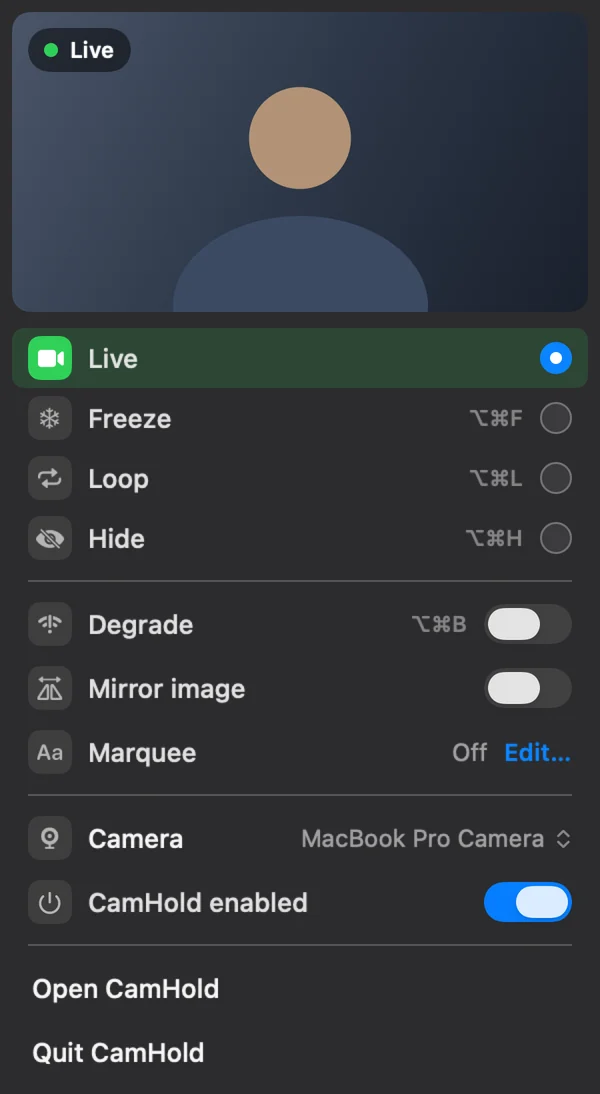
How to see which app is using the camera
- Click the Control Center icon in the menu bar.
- Look at the top of the window. When something is in use, a field may appear there listing the apps using your microphone, location, camera or system audio.
- Click that field to open the Privacy window, which has more detail.
If the field isn't there, go to System Settings › Privacy & Security › Camera. It lists the apps that have asked for camera access, each with a switch. That list shows who is allowed, not who is using the camera right now, but it helps narrow down the suspects. Turn a switch off and that app loses access. I go through this in more detail in Mac camera permissions.
One note for external displays: on macOS Sonoma 14.4 or later, you can hide the privacy indicators on an external display, only while an app is in full screen. It takes a Terminal command run from macOS Recovery, and the dots still show on the Mac's main display.
The light is on and I opened nothing
Close the apps that usually use the camera: Zoom, Teams, FaceTime, Photo Booth, and any browser with a meeting tab. The light only goes out once all of them let go of the camera. Check your tabs carefully, because a forgotten call in the browser keeps the camera open.
If the light still won't go out and Control Center shows no app name, restarting the Mac closes everything at once.
The opposite problem shows up too: you want the camera and the call app shows no picture. That case, with another app holding the camera, a denied permission or the wrong camera selected, is covered in Mac camera not working in Zoom.
Quick answers
Does the light stay on when my video is frozen? If the call app or a virtual camera is still reading the camera, yes. Freezing changes what others see, not whether the camera is in use. How to freeze in Zoom, Meet and Teams is in how to freeze your camera.
Does the green dot show with an external webcam? The menu bar dot comes from macOS and means a camera is in use. The physical light on an external webcam belongs to the webcam, and each maker handles it differently.
Can I turn the indicator off? Not in normal settings. The only exception Apple documents is hiding the dots on an external display in full screen, described above.
Does a camera cover help? It blocks the picture but doesn't turn the light off. On MacBooks, Apple says a cover should be no thicker than a sheet of printer paper (0.1 mm), because closing the lid with a thicker one can damage the display.