 CamHold
Mandatory camera-on meetings: how to handle the policy
Required to keep your camera on in every meeting? Why companies ask for it, where the fatigue comes from, and what helps: your manager, audio-only time, breaks.
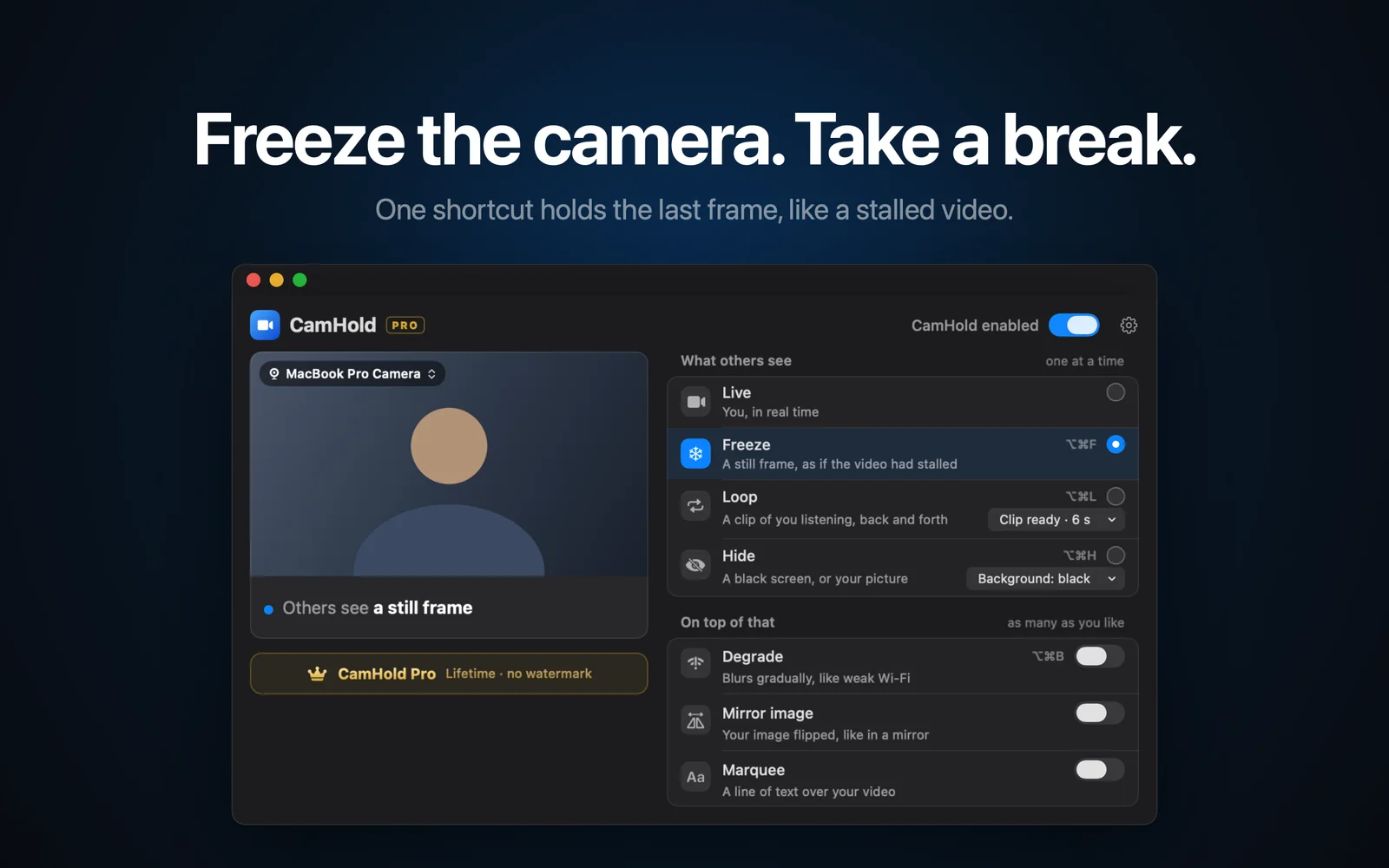
Mandatory camera-on meetings are standard at a lot of remote and hybrid companies, and being watched all day is tiring. What helps most is the least technical part: understand why the rule exists, agree with your manager on when audio only is fine, and cut back the parts of being on camera that drain you. An app on your Mac can cover the odd interruption, but it does not replace that conversation.
Why companies have mandatory camera-on meetings
The usual reasons behind the rule, worth knowing before you bring it up with anyone:
- Presence and attention. With everyone on video, the person talking can read the room, and it is harder to open another window and check out.
- Connection. On teams that never meet in person, seeing faces helps build trust. It matters more in interviews, client calls and onboarding.
- Office habit. Some companies simply carried "everyone in the room" over to remote work.
- Distrust. Sometimes management wants proof that people are working. That is the weakest reason and the one that breeds the most resentment.
Figuring out which one applies at your company changes what is worth proposing. If it is about connection, camera on at the start and in client calls may be enough. If it is distrust, the camera is a symptom of a different problem.
Where the fatigue comes from
Video call fatigue has been studied properly. Stanford's Jeremy Bailenson published a paper in 2021 naming four causes: long stretches of intense close-up eye contact with large faces on screen, seeing yourself all the time, little room to move because of the camera frame, and the extra effort of sending nonverbal signals over video. Stanford's write-up pairs each cause with a fix: shrink the meeting window, hide your self view, use an external camera set farther back so you can move, and take audio-only breaks in long meetings.
So a good part of the drain comes from the format itself, and you can reduce it without changing any rule.
What to do, in order
1. Talk to your manager. Bring a specific proposal instead of a complaint: "In check-ins and meetings that run past an hour, can I keep my camera on at the start and for my part, and go audio only for the rest?" A request with clear limits is much easier to say yes to than "can I turn my camera off?" If there is a health, connection or home-setup reason, say so.
2. Suggest audio-only moments. Meetings where you mostly listen, status updates and back-to-back blocks are the obvious candidates. A default for the whole team usually lands better than an exception for one person. You can point to the Stanford work, which recommends audio-only breaks.
3. Take short breaks. Between meetings, stand up, look away from the screen, get some water. In a long meeting, say in the chat that you are stepping out for a minute. I wrote about when that is fine, when to say something and how long is too long in stepping away from a video call.
4. Take the edge off the format. None of this needs anyone's permission:
- Stop watching yourself. In Zoom, hover over your video, click the three dots and choose Hide Self View (Zoom's help page has the steps). In Google Meet, More options on your tile has "Remove this tile", which takes you out of the grid, and "Minimize" shrinks the floating self view. In Teams, the menu on your own video tile has a similar option. In all three, everyone else still sees you as usual.
- Push the faces back. Make the meeting window smaller so faces do not fill the screen, or use an external camera a bit farther away.
- Move. Stand up or change position when you can, within the frame.
Where CamHold fits with a camera-on rule
CamHold is the virtual camera I make for the Mac. It does not solve a mandatory camera-on policy, and I am not going to pretend it does. What it does is control what the call app receives: hold a still frame, play a short clip of you listening, or swap the video for black or a picture you choose.
In practice it is for the interruptions: the doorbell, someone walking into the room, a minute you need away from the screen. For a quick step away, freezing with ⌥⌘F is usually enough, and the guide to stepping away from a Zoom meeting unnoticed walks through it, including why muting comes first. For a few minutes, Loop plays back a clip of up to 8 seconds of you listening; see how to loop a video of yourself on Zoom.
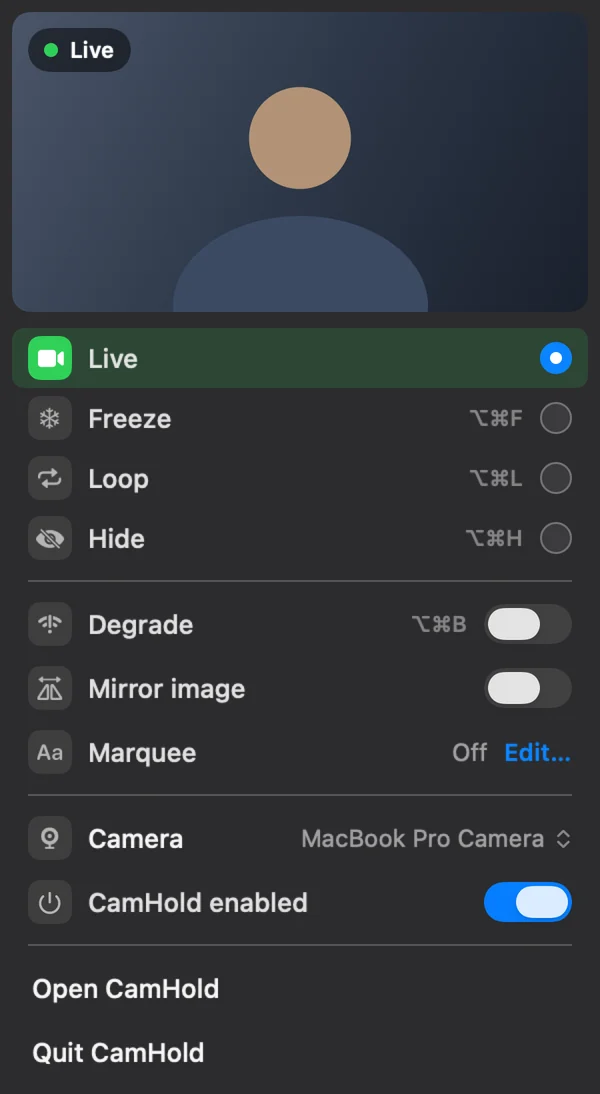
Two warnings. If your company explicitly requires live video and nothing else, using a virtual camera to look present can have consequences, and that call is yours. Talking first is safer than relying on a tool. And CamHold only handles video: audio goes straight from your microphone to the call app, so mute there.
If you just want a photo up instead of your face, the call apps already show your profile picture when the camera is off, for free. I compared that with CamHold's Hide mode in how to show a picture instead of your camera.
Quick answers
Can my employer require cameras on? It depends on your contract, company policy and the law where you work. If the rule hurts you in a concrete way, such as a health condition or a poor connection, talk to HR. I am not a lawyer and this is not legal advice.
What if the problem is my room, not the camera? A blurred background, a different angle or a tidier corner fixes most of that without asking for an exception. There is a guide on hiding a messy room on a video call.
Does an external camera really help? It lets you sit back from the screen and move around, which is one of the fixes in the Stanford work.
Does CamHold cost anything? It is free on the Mac App Store with every mode, and the free version adds a small "CamHold — free" mark to the video. CamHold Pro is a one-time purchase that removes the mark and unlocks Marquee. No subscription.