 CamHold
How to hide a messy room on a video call (Zoom, Meet, Teams)
Background blur and replacement in Zoom, Meet and Teams, Portrait and Background on the Mac, camera angle, and what to do when the mess shows up mid-call.
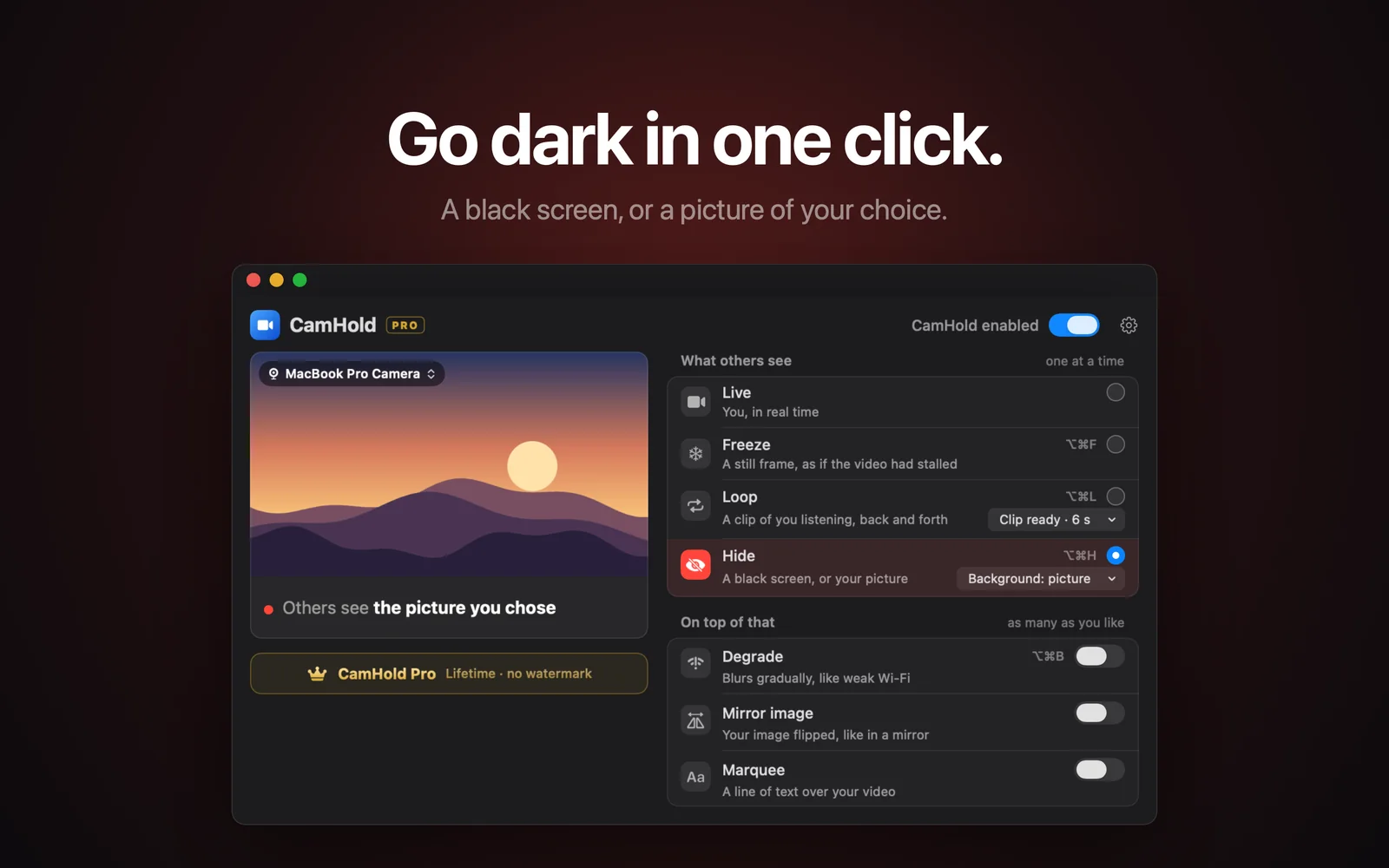
To hide a messy room on a video call you have four options: blur or replace the background in the call app, use the Mac's own video effects, change your camera angle, or, in a pinch, take your picture off the call for a few seconds. The first three are free and cover almost every case. The last one is for when someone walks in mid-meeting.
Blur or replace the background in Zoom, Meet and Teams
All three have this built in. Menu names shift between versions and account types, so treat the steps below as a map and go by what you see on screen.
- Zoom. In the Mac app, click your profile picture in the top-right corner, choose Settings, then Video & effects, then the Backgrounds tab, and click Blur. During a meeting, the arrow next to the Video button has a Blur my background toggle. If Blur is missing, Zoom points to three things: your computer does not meet the virtual background requirements, the app is out of date, or your admin turned virtual backgrounds off (Zoom's page on blur).
- Google Meet. Before you join, there is a Blur button at the bottom right of your self view, and a Backgrounds and effects option under it. That panel offers a slight or a full blur, preset images and your own picture. During a meeting, open it from Video settings, next to the microphone. What you get depends on your account type and on what your Workspace admin allows (Meet help).
- Microsoft Teams. On the pre-join screen, click Effects and avatars and pick Standard blur, Portrait blur or a background. During a meeting, go to More actions, then Video effects and settings. To use your own picture, it has to be a JPG, PNG or BMP file (Teams help).
Keep two limits in mind. The cutout is done in software and it makes mistakes: hair, a raised hand and objects near your body get ragged edges, and a slice of the room can flicker through when you move. Microsoft itself warns that blurring or replacing your background may not prevent sensitive information from being visible. And Google notes that Meet may crop your video for other participants, so part of your background never reaches them anyway.
Portrait and Background, the Mac's own effects
macOS has camera effects that work across call apps, so you set them once instead of per app. While an app is using the camera, click the Video menu in the menu bar (on macOS Ventura it was Control Center › Video Effects).
- Portrait blurs the background, and the arrow next to it opens a slider for the strength. Apple lists the requirement as a Mac laptop with Apple silicon using its built-in camera, or any Mac using an iPhone XR or later through Continuity Camera.
- Background replaces what is behind you with a color, a built-in image or your own photo. It needs macOS Sequoia 15 or later on a Mac with Apple silicon, or an iPhone 12 or later on iOS 18 as the camera.
Apple's support page on video effects has the details. On an Intel Mac most of this is missing, and the blur in Zoom, Meet or Teams is the way to go. I cover the rest of that menu (Studio Light, Center Stage, Reactions) in macOS video effects: Portrait, Studio Light and more.
The surest way to hide a messy room: angle and framing
No software cutout is as reliable as keeping the mess out of the shot.
- Turn your chair or your laptop. A bare corner, a plain wall or a tidy shelf behind you beats any filter.
- Frame tighter. The closer you sit to the camera, the less room shows. Head and shoulders is usually enough.
- Raise the camera a little. At eye level or slightly above, it sees more wall and less floor and bed. A stack of books under the laptop does the job.
- Check the preview before you join. Zoom, Meet and Teams all show your picture before you enter the call. That is the moment to spot what is left in the corner of the frame.
Light matters too. A well-lit face against a dimmer background pulls the eye toward you and lets the rest fade. I wrote up the basics in lighting for video calls.
When the mess shows up mid-call
Some days the usual background is fine and the trouble starts during the call: someone crosses the frame, there is laundry on the rack you forgot about, the dog knocks something over. You want the picture off for a moment without turning the camera off, because a camera that is off turns into your name or profile picture on a still tile, and everyone notices.
CamHold is the virtual camera I make for the Mac, and two of its features fit this.
Hide. A black frame, or a picture you chose, takes the place of the camera. Shortcut: ⌥⌘H. As far as the call app knows, the camera is still on. I explained how this differs from the app's own video button in how to show a picture instead of your camera.
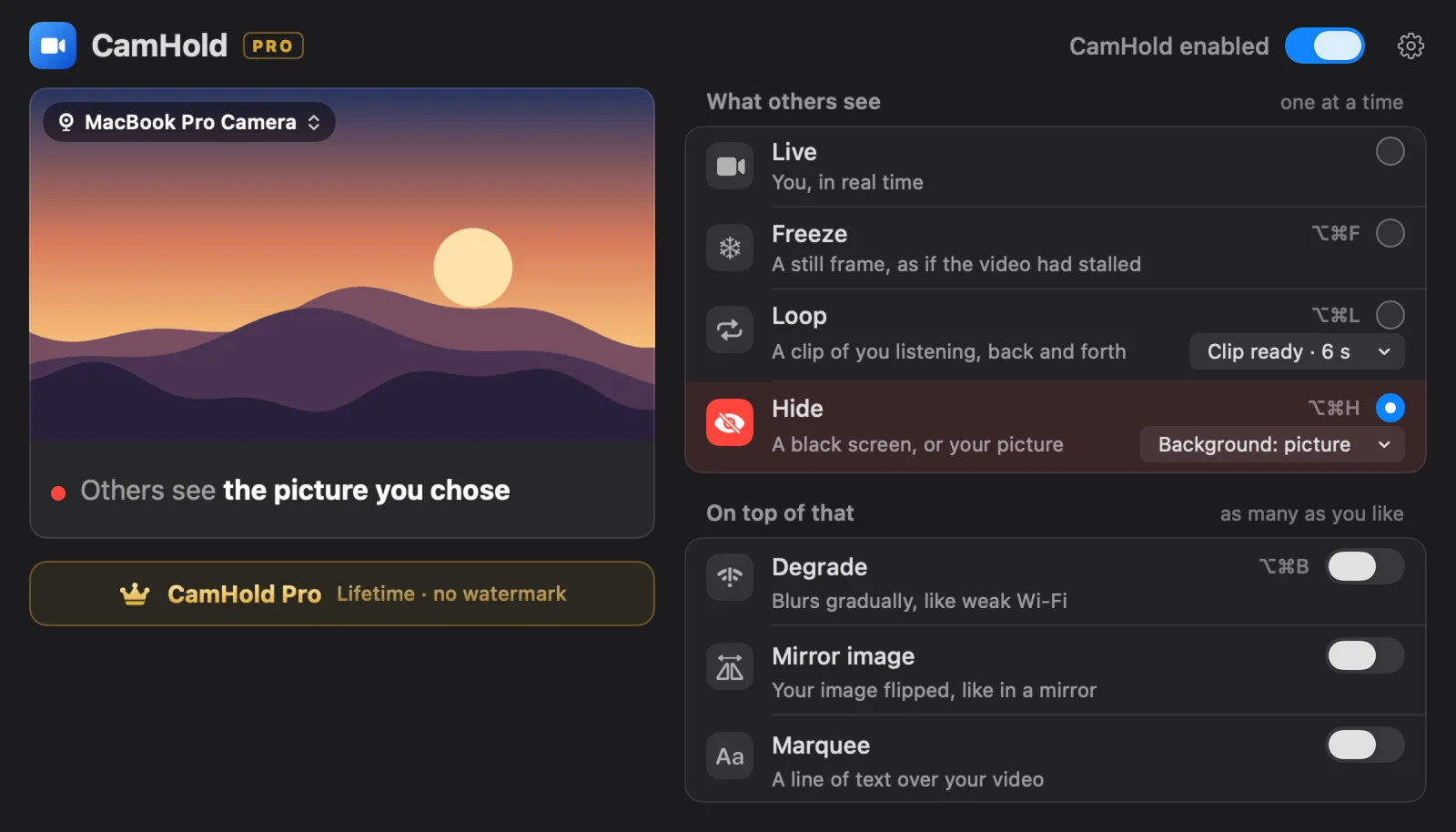
Degrade. It fakes a weak connection: the picture blurs or pixelates over a few seconds, then recovers the same way. Shortcut: ⌥⌘B. At the Strong level the whole room turns into a smear (you included), which looks like a struggling connection. It suits a problem that lasts a few seconds. For anything longer, Hide is more direct. More on the effect in how to fake a bad connection on a video call.
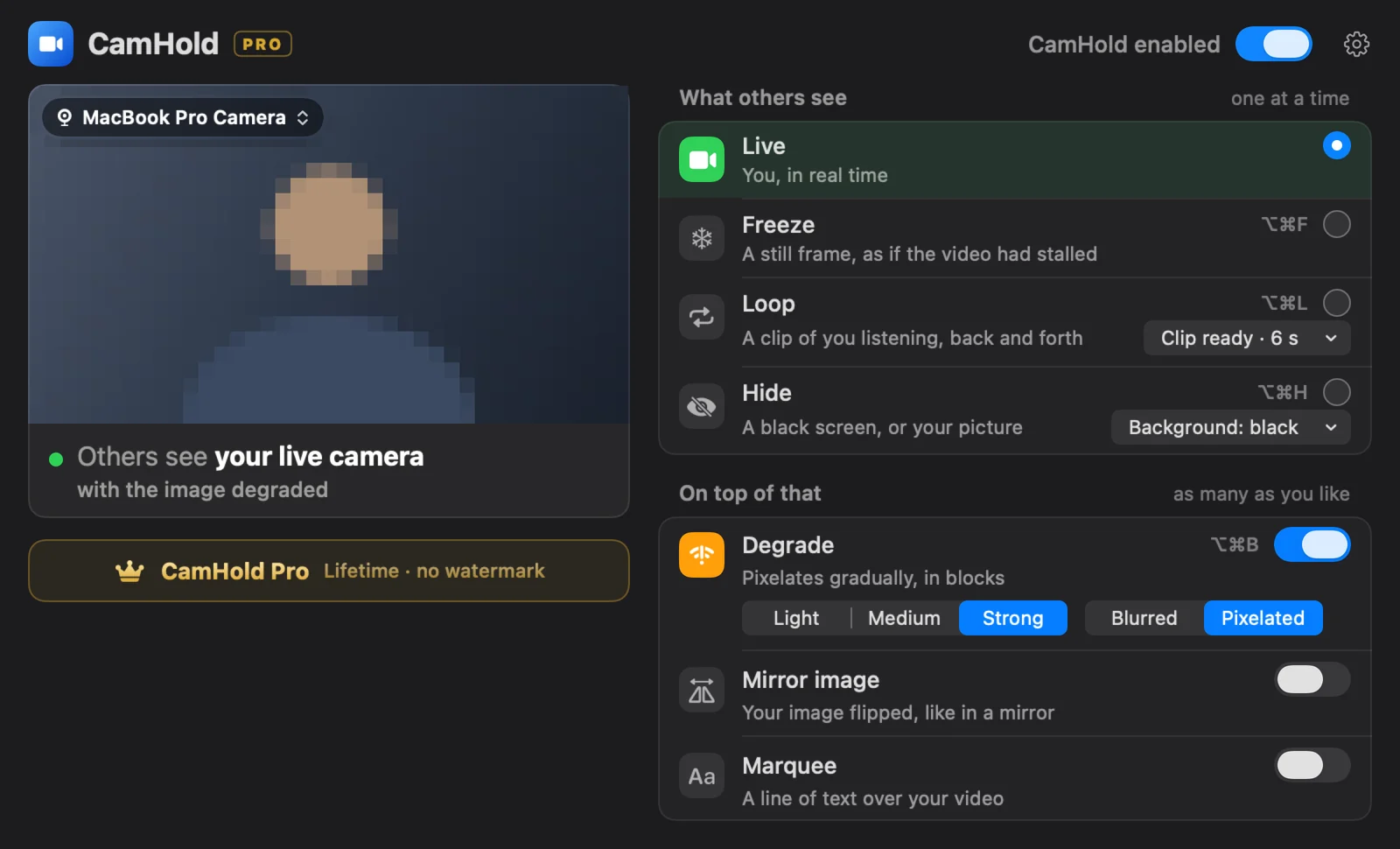
To set it up, install CamHold from the Mac App Store, approve the camera extension when macOS asks, and pick "CamHold" as the camera in Zoom, Meet or Teams. Hide and Degrade both work in the free version, which adds a small "CamHold — free" mark to the video. CamHold only handles video, so if you need to talk to someone in the room, mute in the call app.
Which one to use
| Situation | What to use |
|---|---|
| The room is always messy | Angle and framing, then the app's blur or background |
| You want the same effect in every app | macOS Portrait or Background, if your Mac has them |
| Intel Mac | Blur or background in Zoom, Meet or Teams |
| Someone crossed the frame, for seconds | Degrade |
| You need the picture off for longer | Hide, or freeze your camera if you just need to step out |
Quick answers
Does a virtual background hide everything? Most of the time, but the cutout slips at the edges and when you move fast. If the mess is big, fix the angle too.
Can I use the app's blur together with CamHold? The blur in Zoom, Meet and Teams runs inside the app, on whatever video comes from the camera you picked. For the macOS effects, I cannot say for sure how they behave with a virtual camera on every macOS version. Test your combination in the preview before an important meeting.
Do I need a new Mac for Portrait? Apple says you need a Mac laptop with Apple silicon using its built-in camera, or an iPhone XR or later as the camera. CamHold itself runs on macOS 14 or later, on Intel and Apple silicon.