 CamHold
How to fake a bad connection on a video call
A picture that blurs or breaks into blocks, gets worse gradually and recovers. Here is what a real bad connection looks like on screen, and how to reproduce it on a Mac without turning your camera off.
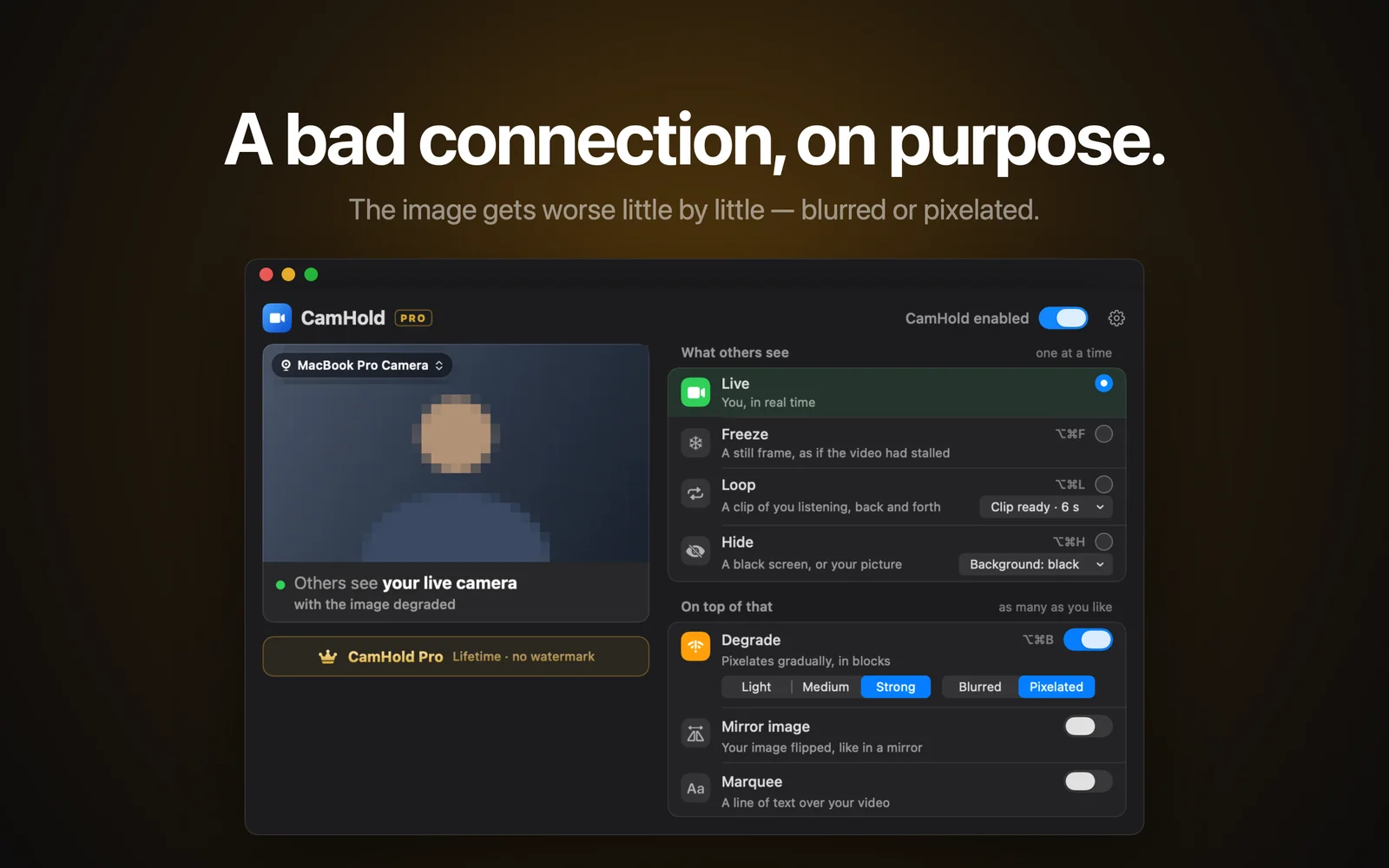
Some days the camera has to be on and you are not at your best. Your hair did not cooperate, the room is a mess, you are eating. Turning the camera off gets noticed. A poor picture does not. Everyone has been in a meeting where someone's video was blurry, and nobody says a word.
What a bad connection really looks like
Before faking it, look at what happens when the internet actually gets worse, because that is what people are used to seeing:
- It degrades gradually. The call app lowers the quality step by step to fit the bandwidth it has. The picture does not go from sharp to awful in one go.
- It either blurs or breaks into blocks. Depending on the app and the compression, you get a general smear or big squares, especially when someone moves.
- Sometimes it freezes. The picture stops for a second or two, then carries on.
- Recovery is gradual too. When the connection comes back, sharpness returns over a few seconds.
An effect that ignores this, like a blur that snaps on and off, looks like an effect. One that follows it looks like Wi-Fi.
CamHold's Degrade
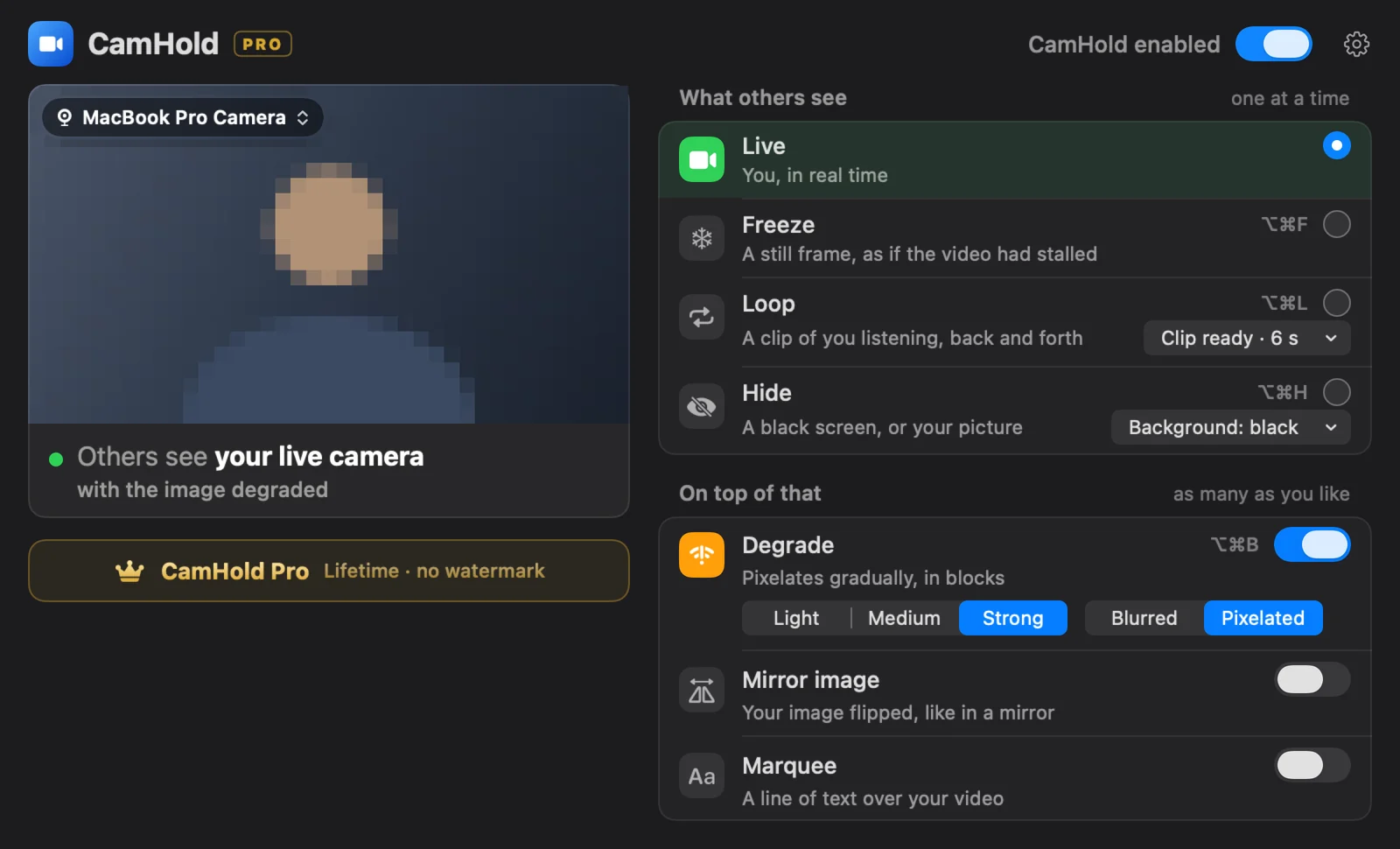
CamHold has an effect called Degrade that follows exactly that pattern. Switch it on with ⌥⌘B and the picture gets worse little by little over a few seconds. Switch it off and it recovers the same way.
- Two styles. Blurred, which smears like weak Wi-Fi, and Pixelated, which breaks the picture into blocks.
- Three levels. Light, Medium and Strong.
- It stacks with the modes. You can degrade the live camera, a frozen frame or the looping clip.
How to keep it from looking like an effect
Start with Light. Most of the time, Light is enough for nobody to notice any detail, and it is the most believable. Strong is for when you want to practically disappear without turning the camera off.
Add a short freeze. Degrading and now and then freezing for two or three seconds with ⌥⌘F looks a lot like a genuinely unstable connection.
Remember the audio. CamHold only touches video. If your picture is terrible and your voice is crystal clear, someone paying attention may find it odd. On a real bad connection, video usually suffers before audio, so a poor picture with a good voice is normal for a while. For hours on end, maybe less so.
Do not use it to disappear for long. To step away from the camera, Loop is better: the call sees a clip of you listening. Degrade is for when you are still there and just do not want to be seen in high definition.
Which apps does it work with?
Any app that lets you choose a camera: Zoom, Google Meet, Microsoft Teams, FaceTime, Slack, Discord and others. Pick "CamHold" as your camera once. If it is not in the list, the guide to virtual cameras on a Mac has the fix.
Degrade is in the free version, which adds a small "CamHold — free" mark to the video. A one-time purchase removes it.