 CamHold
How to turn off gesture reactions on a Mac (balloons, hearts)
Balloons, hearts or fireworks showed up after a hand gesture? See where to turn off Reactions in the Mac Video menu, app by app, and which Macs have it.
You gave a thumbs up, or a peace sign, and balloons floated up over your face in the middle of a meeting. That is the Reactions feature in macOS: it recognizes hand gestures on camera and draws the effect into the video everyone else receives. To turn off gesture reactions on a Mac, click the Video button in the menu bar during the call and uncheck Reactions. The part that trips people up is that macOS remembers this choice separately for each app.
How to turn off gesture reactions on a Mac
- Join the call with your camera on, in whatever you use: Zoom, Teams, FaceTime, or the browser running Google Meet.
- In the menu bar, near the top-right corner, click the Video button. It is a green camera icon that only shows up while an app is using the camera.
- If the menu lists more than one app at the top, click the name of the app you are in the call with.
- Click Reactions. When the icon next to it is no longer green, the feature is off.
The switch lives in that menu because macOS itself draws the balloons. Digging through Zoom or Teams settings will not help: neither has an option for this effect.
The setting is per app
Turning Reactions off during a FaceTime call does not turn it off in Zoom, and Teams has its own switch in the same menu. That is why several university IT help pages warn that you may have to repeat the steps after joining a Zoom meeting: the first change was made for a different app.
Two practical consequences:
- Google Meet: Meet runs in the browser, so the Video menu shows Chrome, Safari or Edge. Turn it off for the browser you use for meetings.
- More than one camera: Ecamm, which makes video software for the Mac, says to repeat the process for each compatible camera by clicking its name in the same menu. If you switch between the Mac's camera and your iPhone, check both.
Once it is off, it stays off for later calls in that app until you turn it back on. Some apps now start with Reactions off, because Apple lets developers choose the default. In that case macOS may show a notice saying the app turned the effects off and inviting you to turn them on. If you do not want balloons, ignore it.
Which Macs and macOS versions have Reactions
According to Apple's support page, Reactions need macOS Sonoma 14 or later, plus one of these:
- a Mac with Apple silicon, using the Mac's own camera;
- a Mac using an iPhone 12 or later as its webcam through Continuity Camera.
In practice, an Intel Mac using its built-in webcam does not have the feature, so there is nothing to turn off. But if that same Mac uses an iPhone as its camera, Reactions show up. I covered that setup in how to use your iPhone as a webcam on a Mac.
The path has not changed in the releases after Sonoma: Apple's FaceTime guide for current macOS still points to the Video button in the menu bar for video effects.
Which gesture triggers which effect
The list explains why it happens by accident: a thumbs up to agree with someone is enough. Per Apple, the gesture has to be made away from your face and held for a moment until the effect appears.
| Gesture | Effect |
|---|---|
| Two hands forming a heart | Red hearts |
| Peace sign | Balloons |
| One thumb up | Thumbs-up emoji |
| One thumb down | Thumbs-down emoji |
| Both thumbs down | Stormy rain |
| Two peace signs | Confetti |
| Both thumbs up | Fireworks |
| Horns sign on each hand | Laser beams |
Zoom's gesture recognition is a separate thing
Zoom has its own feature that turns a raised hand or a thumbs up into a Zoom reaction: the small emoji that shows in the corner of your video tile. It does not throw balloons or fireworks, and its option sits with the Reactions button in Zoom's meeting controls, under the name hand gesture recognition. If what you see is Zoom's emoji, change it there. If it is a 3D effect filling your picture, it is the Mac's Video menu. On company accounts, an admin can lock Zoom's option.
Keep Reactions, but without gestures
In the same Video menu, click the arrow next to Reactions and pick an effect from a button. That way you can drop confetti on purpose when you want to, and a thumbs up in a serious meeting stays a thumbs up. The other effects in that menu, like Portrait and Studio Light, are covered in macOS video effects in calls.
What about a virtual camera?
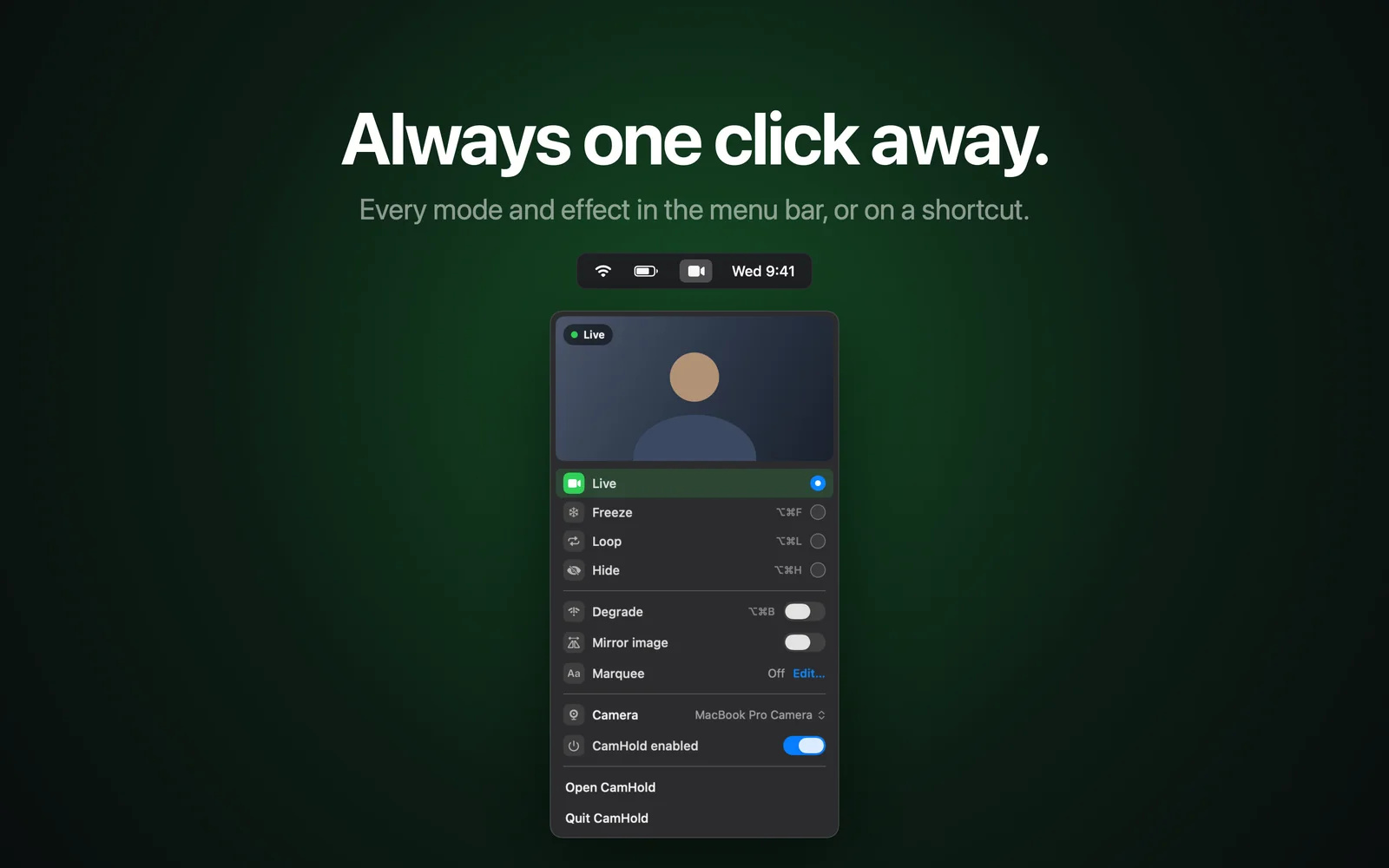
When you pick a virtual camera in the call app, such as CamHold, the virtual camera I make, the call app receives its picture, and the virtual camera's app is the one using the real Mac camera. So the Video menu may list a different app or camera than you expect. If an effect still shows up, open the menu during the call and check each entry listed at the top. For how the picture travels, see virtual cameras on a Mac.
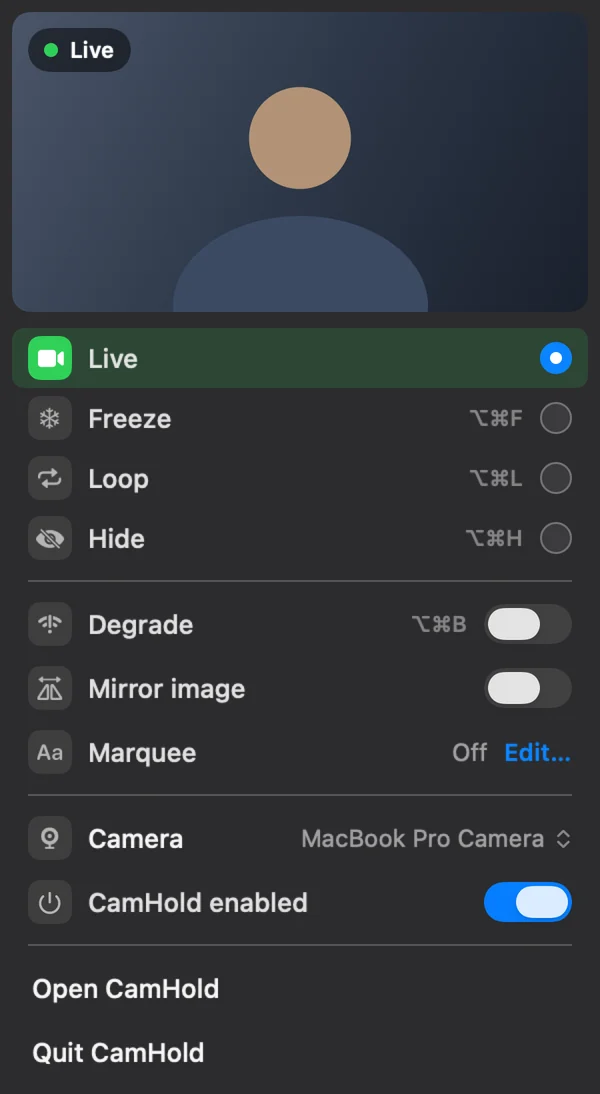
And if what you really wanted was a picture that reacts to nothing, not gestures and not you leaving your chair, that is in how to freeze your camera on Zoom, Google Meet and Teams.
Quick answers
Do other people see the effect? Yes. It is drawn into the video leaving your Mac, so everyone in the call sees it, in any app.
Does turning it off stop others from sending balloons? No. Each person turns it on or off on their own device. Your setting only covers your video.
Reactions is missing from the Video menu. Why? The usual causes are an Intel Mac using its built-in webcam, or a macOS version older than Sonoma 14.
The Video button is gone from the menu bar. It only appears while an app is using the camera. Check that your camera is on in the call.