 CamHold
Best virtual camera apps for Mac in 2026, by use case
OBS, Camo, Continuity Camera and CamHold: which virtual camera app to use on a Mac to stream, turn your iPhone into a webcam, or freeze yourself in a call.
The best virtual camera apps for Mac each solve a different problem. For scenes and streaming, OBS. For using a phone as a webcam, Camo, or Apple's built-in Continuity Camera. For freezing, looping or hiding your picture in a call, CamHold, which is the app I make, so read that section knowing it.
A virtual camera shows up in Zoom, Meet or Teams as one more webcam. What differs between apps is what happens to the picture before it reaches the call. If you want the mechanics, I wrote about virtual cameras on a Mac.
The best virtual camera apps for Mac, by use case
| You want | What usually fits |
|---|---|
| Scenes, multiple sources, live streaming | OBS Studio |
| Your phone or a better camera as a webcam | Camo or Continuity Camera |
| Freeze, loop or hide your picture in a call | CamHold and similar apps |
| Blur or replace your background | The call app itself, nothing to install |
OBS Studio: scenes and streaming
OBS is free and open source. The current release needs macOS 13 or later, with separate installers for Intel and Apple silicon Macs. You build scenes out of window captures, images, text, browser sources, webcams and capture cards, and switch between them with transitions. There is an audio mixer with filters like noise suppression, a Studio Mode for previewing a scene before it goes live, and hotkeys for nearly everything.
The virtual camera is built in. OBS's documentation says OBS 30 and later on macOS 13 or later includes a virtual camera that works with all Mac apps. The first time, macOS blocks the extension until you approve it: on macOS 15 and later under System Settings › General › Login Items & Extensions › Camera Extensions, on macOS 13 and 14 in the Security section of Privacy & Security.
Pros: free, can compose almost any picture you want, the obvious pick for streaming and recording. Limits: it takes a while to learn. To hold your picture for a minute in a meeting, it is far more tool than you need. Setup, and what to do when it does not show up in a call, is in OBS Virtual Camera on a Mac.
Camo: your phone as a webcam
Camo, from Reincubate, takes a phone, webcam, DSLR, action cam or even Continuity Camera as its video source. Camo Studio runs on macOS 12.3 or later and Windows 10 or later, and the phone app is available for iPhone and Android. Its site says the virtual camera works in more than 40 apps, including Zoom, Meet, Teams, Slack and Discord. It has a scene editor for text and logos, background blur or replacement, and lighting correction.
Pros: a phone camera is usually much better than a laptop's, and you get a lot of control over the image. It works with Android phones, which Apple's option does not. Limits: the free version tops out at 720p. Camo Pro, which goes up to 4K, is a monthly or yearly subscription, with a lifetime license for people who would rather not subscribe. Camo's pricing page does not list the amounts, so check at checkout.
Continuity Camera: your iPhone, nothing to install
If you have an iPhone, you may not need another app at all. Apple's requirements: iPhone XR or later on iOS 16 or later, a Mac on macOS Ventura 13 or later, both signed in to the same Apple Account with two-factor authentication, and Bluetooth and Wi-Fi turned on. It works wirelessly or over USB. Setup and options are in how to use your iPhone as a webcam on a Mac.
Pros: free, built in, and the iPhone's picture beats the built-in camera by a wide margin. Limits: iPhone only, and it does not freeze, loop or hide anything. It is a source: you can pick the iPhone as the camera inside OBS, Camo or CamHold.
CamHold: freeze, loop and hide
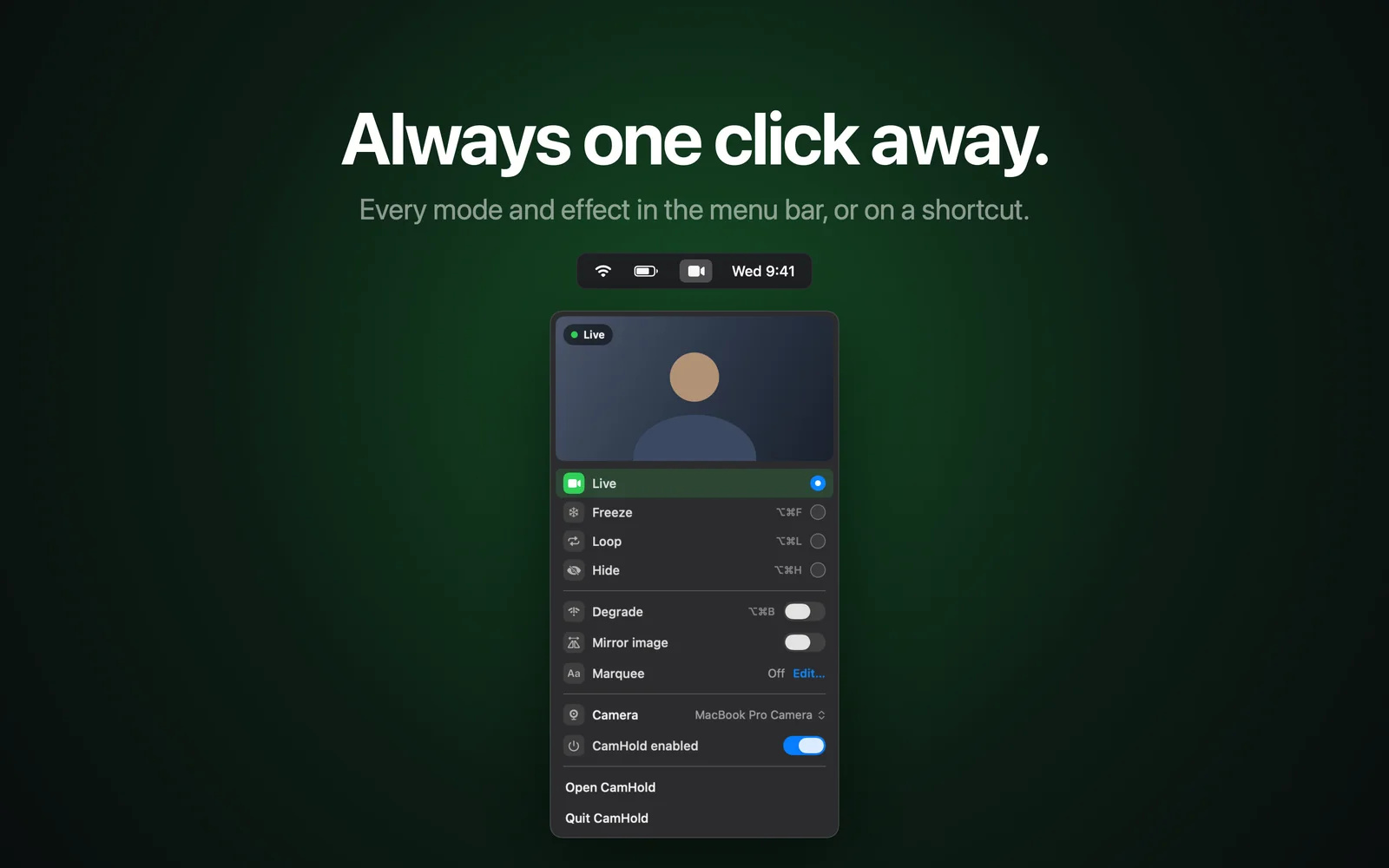
CamHold is a virtual camera for Mac (macOS 14 or later, Apple silicon and Intel), available only on the Mac App Store and free to download. You pick "CamHold" as the camera once in Zoom, Meet, Teams, FaceTime or any app that lets you choose a camera. It has four modes, one at a time: Live; Freeze, which holds the last frame like stalled video; Loop, a clip of you up to 8 seconds long played back and forth; and Hide, black or a picture you choose. Effects go on top, such as Degrade, which fakes a weak connection, and Mirror image. Global shortcuts work whatever app is in front: ⌥⌘F to freeze, ⌥⌘L to loop.
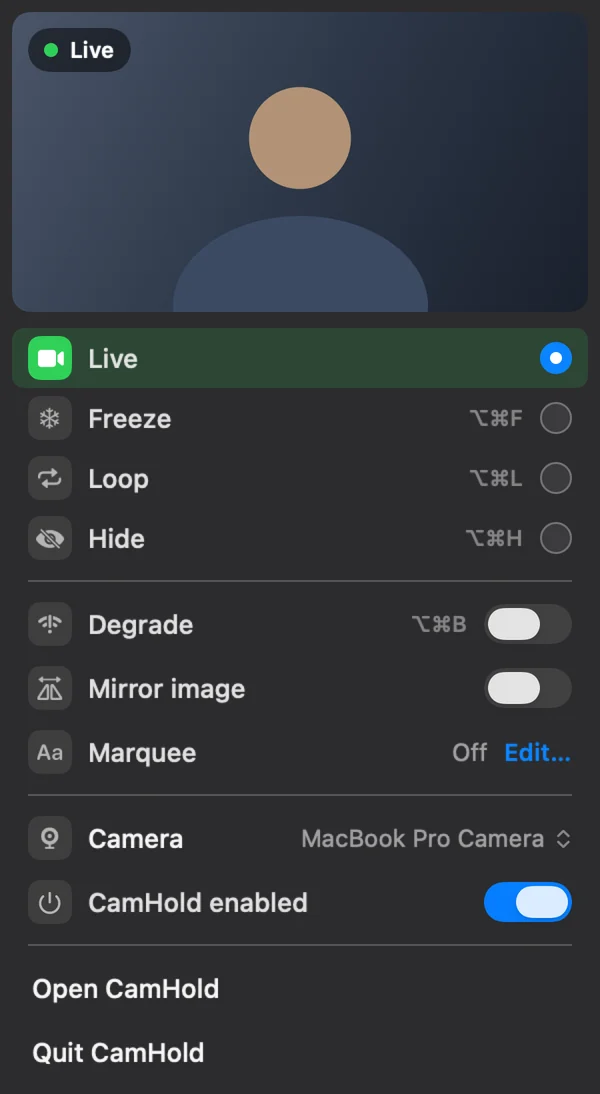
The free version has every mode and adds a small "CamHold — free" mark to the video. Pro is a one-time, lifetime purchase that removes the mark and unlocks Marquee, a note you type and let scroll across the picture. No subscription.
Pros: simple, light, no account and no network requests at all. Live video is processed on the Mac and never recorded; the only video kept is the Loop clip, and only when you record one. Limits: no scenes, no streaming, and it does not improve your camera's image. It only handles video, so you mute in the call app. Day-to-day use is in how to freeze your camera on Zoom, Meet and Teams.
Other apps that freeze or loop
From each app's own site or App Store page, checked October 2026:
- FrostCam: Mac App Store, free with a watermark, freezes and loops a 3 to 10 second clip. Pro is $14.99 and Pro+ $24.99, one-time. macOS 13 or later.
- CamLoop: sold on its own site and in Setapp, not the Mac App Store. Free plan with one clip up to 10 seconds; Pro is $49 once or $4.99 a month, with a 7-day trial. Also simulates lag. macOS 14 or later.
- FreezingCam: sold on its own site, $49 a year or $9.99 a month, with a 7-day trial on the yearly plan. Freezes, loops and stutters.
- Faux Pause: Mac App Store, free Freeze up to 30 minutes a day, plus a $4.99 one-time Pro unlock. Also has Bad Connection and Full Loop. macOS 13 or later.
The side-by-side comparison, including where the others beat CamHold, is in CamHold vs FrostCam vs CamLoop vs FreezingCam.
When you do not need a virtual camera
To blur a messy room or swap your background, Zoom, Meet and Teams already do it in their own video settings. macOS has its own effects too, such as Portrait and Studio Light, which apply in any call app on Macs that support them. A virtual camera earns its place when you want something those cannot do: compose scenes, change the video source, or hold the picture.
How to choose
- Your picture looks bad: start with Continuity Camera if you have an iPhone. On Android, or if you want more controls, Camo.
- You stream or record: OBS.
- You need to step away from the camera for a few minutes without drawing attention: an app built for that, CamHold or one of the list above, does it with a shortcut.
You can combine them, for example the iPhone as the source and CamHold on top. To the call app, each virtual camera is just one more name in the camera list, so switching between them takes a click.