 CamHold
Camera in Slack huddles on a Mac: turn on, switch, freeze
How to turn on your camera in a Slack huddle, choose which webcam Slack uses, fix a camera it can't find, and hold your picture still or hidden on a Mac.
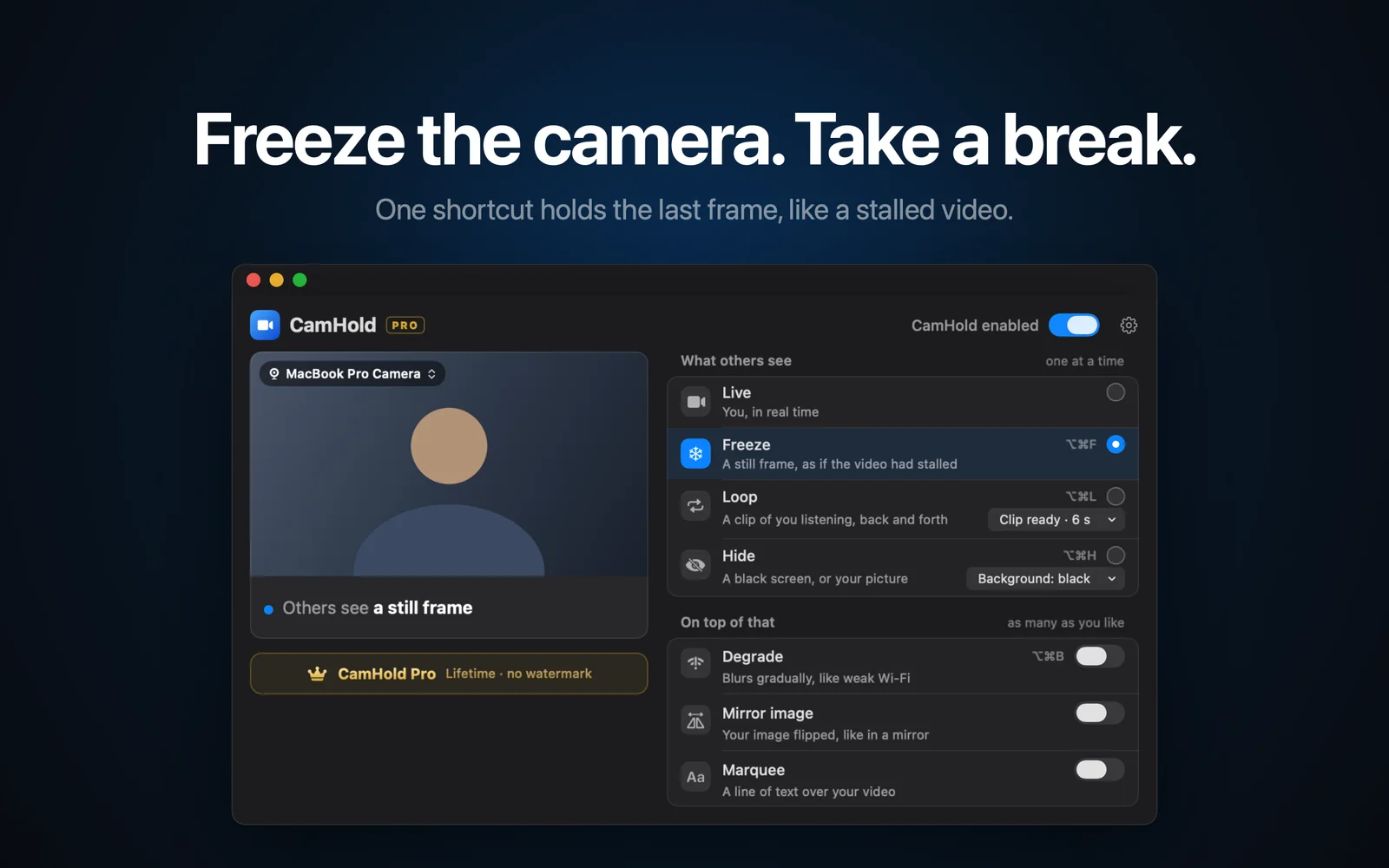
To turn on your camera in a Slack huddle on a Mac, join the huddle and click the camera icon at the bottom of the huddle window. Slack uses whichever camera is set under Preferences › Audio & video, and that is where you switch it. There is no button to freeze your picture in Slack. For that you need a virtual camera.
How to turn on your camera in a Slack huddle
- Open the channel or DM and click the headphones icon to start or join the huddle.
- Click the camera icon at the bottom of the huddle window. The same icon turns video off again.
The huddle window has a menu for more actions: the gear icon when the window is expanded, or the three dots when it sits small in the sidebar. From there you can manage video and microphone settings, preview your video and change your background. Slack has been reworking this toolbar, so if something has moved, look for "video" in that menu.
If nobody else can join, check your plan. On Slack's free plan a huddle holds two people at most. Paid plans allow up to 50, with up to 25 cameras on at once.
Choose which camera Slack uses
The default camera lives in Preferences:
- Click your profile picture in the sidebar.
- Select Preferences.
- Select Audio & video.
- Under Camera, open the drop-down and pick your webcam.
The same screen has two boxes worth knowing about for when you join a huddle: "Blur your video background when your camera is on" and "Show a preview before joining". The preview is handy if you want to check your picture before anyone else sees it.
If you use an external webcam, plug it in before the huddle starts. Slack's help notes that if you connect it after the huddle has started, video won't display. I go through the rest of the setup in how to use an external webcam on a Mac.
When Slack can't find your camera
Try these in order:
- Quit and reopen Slack. It is the first fix Slack itself suggests. If that does nothing, restart the Mac.
- Check the permission. In System Settings › Privacy & Security › Camera, Slack has to be switched on. If it already is, turn it off and on again. I cover every screen, browsers included, in Mac camera permissions.
- Try a browser. Slack suggests testing the huddle in Google Chrome. If the camera works there, the problem is the desktop app, not the webcam.
Freeze or hide your picture in a huddle
First, what Slack already does for free. If the problem is the room behind you, background blur or a new background takes care of it. If you are stepping out and don't mind people noticing, turning the camera off is the simplest move.
What's left is the huddle that stays open all morning, where you need to answer the door or grab a coffee without a dark tile turning into a topic. A still frame for a few seconds tends to pass for a shaky connection.
Slack lets you pick your camera, and a virtual camera shows up in that list as one more webcam. CamHold is the virtual camera for Mac that I make. For how this works under the hood, see virtual cameras on a Mac.
1. Install CamHold and approve the extension. Get it from the Mac App Store and open it. macOS asks you once to approve the camera extension, and the app shows you where to click before the prompt appears. It needs macOS 14 or later.
2. Pick "CamHold" as your camera in Slack. Go to Preferences › Audio & video › Camera and select CamHold. If it isn't listed, quit Slack completely (⌘Q) and open it again.
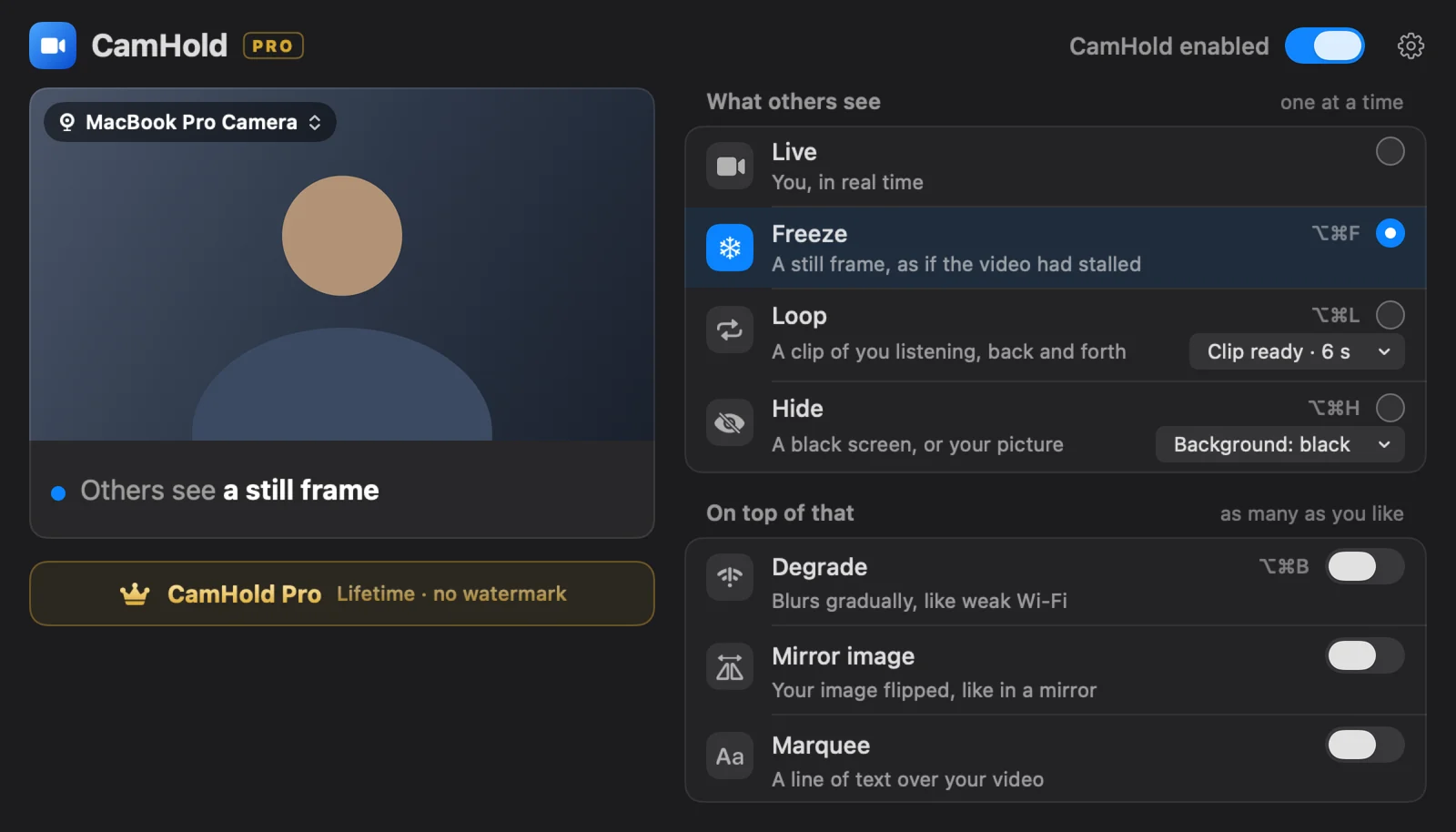
3. Control the picture. One mode at a time:
| Mode | What others see |
|---|---|
| Live | You, as normal |
| Freeze | The last frame, like stalled video |
| Loop | A short clip of you listening, played back and forth |
| Hide | Black, or a picture you choose |
The shortcuts are ⌥⌘F for Freeze, ⌥⌘L for Loop and ⌥⌘H for Hide. They work whatever app is in front, so you don't have to dig out the CamHold window mid-huddle. The menu bar dropdown switches modes too.
Before you get up
Slack still has your microphone. CamHold only touches video. Audio goes straight from your mic to the huddle, so mute in Slack.
Pick your frame. The frozen frame is the last one before the shortcut. Look at the screen, hold still for half a second, then press.
Freeze is for seconds. The exact same picture for several minutes starts to look odd. For a longer break, Loop keeps the picture moving, and I explain how to record a clip that looks natural in how to loop a video of yourself on Zoom. Zoom, Meet and Teams work the same way, covered in how to freeze your camera on Zoom, Google Meet and Teams.
Sometimes a message is better. In a quick huddle with your team, "back in two minutes" in the chat usually beats any trick.
Quick answers
Is CamHold free? The free version has every mode and adds a small "CamHold — free" mark to the video. CamHold Pro is a one-time purchase that removes the mark and unlocks Marquee. There is no subscription.
Do others get a notification? No. To Slack, CamHold is just another camera.
Does CamHold record my video? No. Live video is processed on your Mac and never recorded. The only video it keeps is the Loop clip, recorded only when you ask, and it never leaves your Mac.
Does it work with Slack in a browser? CamHold shows up to the browser like any webcam. The browser needs camera permission in macOS and for the Slack site. If CamHold is missing from the list, quit the whole browser and reopen it.