 CamHold
Bad internet on a video call: fixes that actually work
Video freezing on Zoom, Meet or Teams? Test your connection, switch from Wi-Fi to a cable, move the router, stop background uploads and lower video quality.
Bad internet on a video call almost always gets fixed in the same order: confirm the problem really is your connection, take Wi-Fi out of the path, stop whatever is eating bandwidth, and if that still is not enough, send and receive lower quality video. Most of it takes a few minutes and none of it costs money.
1. Make sure it is your connection
If only one person looks frozen, the problem is probably theirs. Google's Workspace help says it plainly: when every viewer gets poor video from the same participant, it is likely a sender-side issue. Microsoft makes the same point. If everyone complains about your picture, or everyone looks frozen to you, the problem is on your end.
During the meeting, the call apps show you what is going on:
- Google Meet: open More options and choose Troubleshooting & help. It shows how stable your network is and how loaded your computer is, with suggestions. When Meet detects a problem, a red dot appears on the More options button.
- Microsoft Teams: More actions › Settings › Call health. The numbers that matter are roundtrip time (Microsoft calls under 200 ms typical) and received packet loss (under 2%). Above that, it is the network.
- Zoom: with a meeting open, the app's settings have a statistics section with the network, audio and video numbers for the call in progress.
Outside a call, any speed test works as long as you look at upload, because upload carries your video. Zoom recommends 1.2 Mbps up and down for 720p in a one-on-one call, and 2.6 Mbps up and 1.8 Mbps down for 720p in a group call. Upload below that is your bottleneck.
Your Mac has a better test than a speed check. On any Mac running macOS Monterey or later, open Terminal and type networkQuality. It measures download, upload and responsiveness: how many round trips the connection completes per minute while it is busy, rated Low, Medium or High. Good speed with low responsiveness means the line can carry a lot but slows down when it is loaded, which is exactly what hurts a video call. The test uses data on your plan.
2. Use a cable instead of Wi-Fi
Google's Meet help suggests a wired Ethernet connection when you have one, and it is the fastest test there is: if the call improves on a cable, Wi-Fi was the problem. On a Mac without an Ethernet port, a USB-C to Ethernet adapter does the job.
A cable takes interference, walls and your neighbor's network on the same channel out of the picture. If a cable is not an option, there is still plenty to gain on Wi-Fi.
3. Get more out of your Wi-Fi
- Move closer to the router. Microsoft suggests getting closer, cutting down the walls and ceilings between the router and your computer, or adding a repeater. One concrete wall costs more than a few extra feet of distance.
- Pick the right band. Google recommends 5 GHz over the more heavily used 2.4 GHz band. The catch is that 5 GHz has less range and goes through walls worse, and Microsoft notes that the right band depends on your home's layout. Near the router, use 5 GHz; two rooms away, try both. To see which one you are on, hold Option and click the Wi-Fi icon in the menu bar: your Mac shows the channel and band.
- Get the router off the floor and out of the cabinet. Somewhere high and open, away from the microwave, covers far more of the house.
- Turn off your VPN if you can. Google explains that a VPN routes your video through an extra stop on the network and can delay it. If work requires one, ask IT whether calls can bypass it.
- Restart the router. It sounds like folklore, but it is cheap and sometimes it works.
4. Stop everything else using the network
A call competes with everything else online in the house. Before an important meeting:
- Pause cloud backups and syncing: iCloud Photos, Google Drive, Dropbox, Time Machine to a network drive.
- Stop video streaming on other screens, like the TV and phones.
- Check for updates downloading on your Mac or other devices.
- If other people share the connection, ask them to hold big downloads until later.
Upload is the weak spot. Many plans have far less upload than download, and a single running backup can take nearly all of it.
Sometimes it is not the network at all: a Mac with its CPU maxed out drags video quality down too. Closing heavy tabs and apps helps, and Meet's troubleshooting panel shows whether system load is high.
5. Lower the video quality in the app
When the network cannot give you more, trade sharpness for a call that keeps moving.
| App | What to change |
|---|---|
| Zoom | In the app's video settings, turn off HD video. Zoom says HD uses more CPU and bandwidth and suggests disabling it if you have network or performance problems. |
| Google Meet | In the browser, Settings › Video. Set Send resolution to Standard definition (360p). Receive resolution goes down to 360p with a single feed, and even Audio only, which uses the least data. |
| Microsoft Teams | Teams has an option to turn off incoming video, which stops other people's video from downloading. Where it sits has moved between versions; look through the meeting's view options. |
If none of that is enough, turn your camera off and stay on audio. To do it without hunting for the button, the keyboard shortcuts for Zoom, Meet and Teams on a Mac help. If you would rather show a photo than a black tile, there is a guide on showing a picture instead of your camera. And if your company has a mandatory camera-on policy, a bad connection is one of the easiest reasons to explain to your manager.
A side note about the opposite case
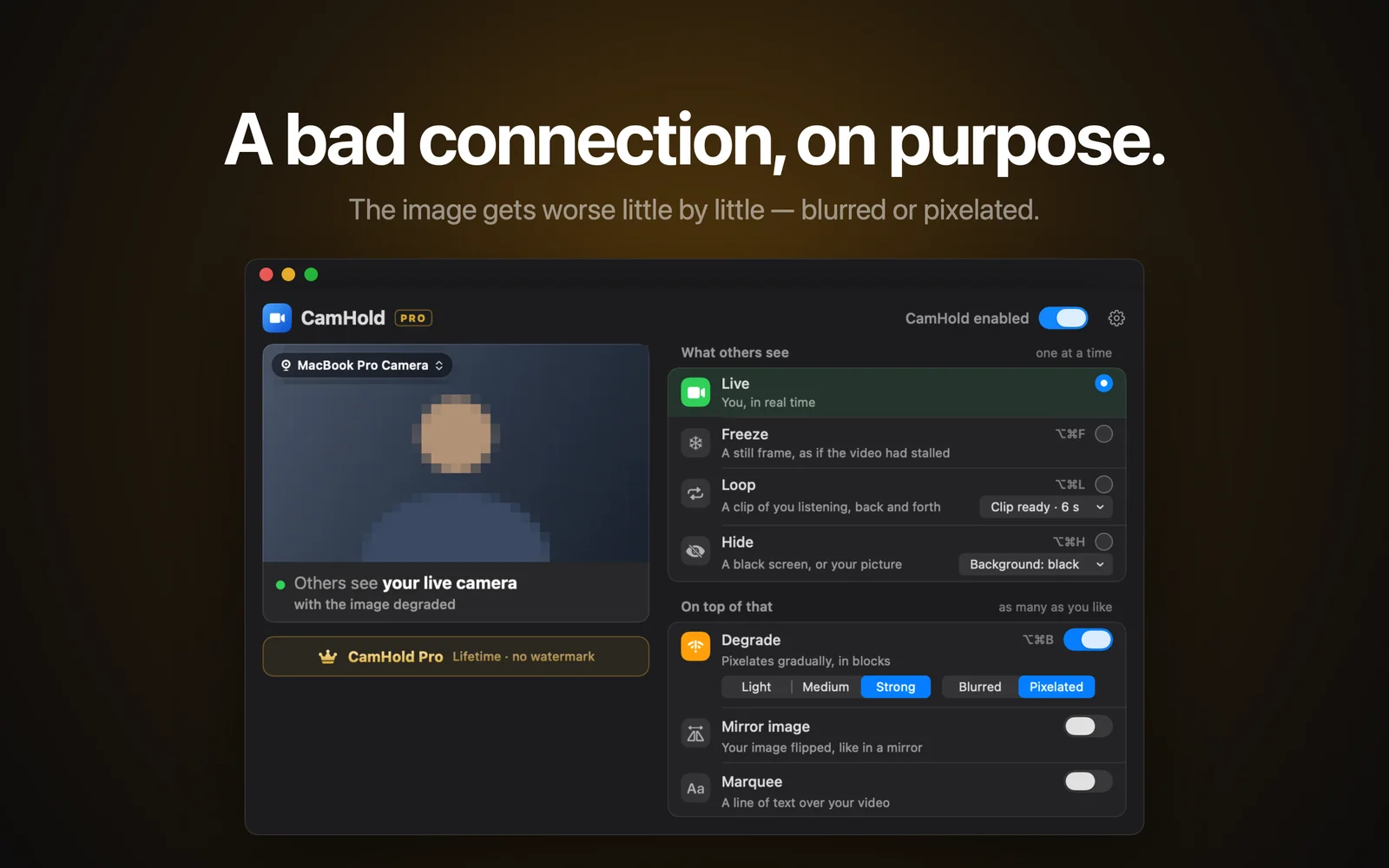
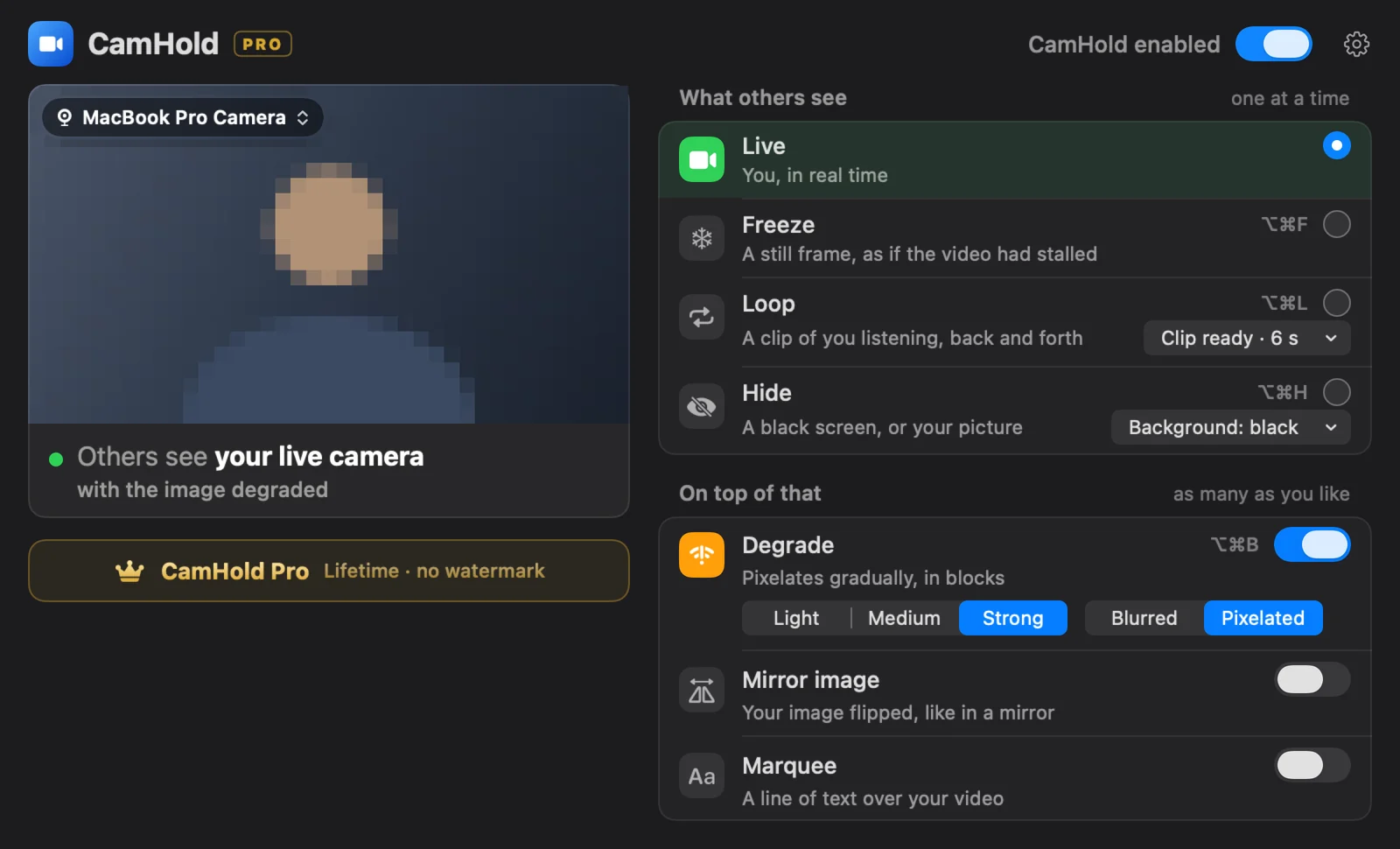
Some people want the reverse: to look like their connection is bad, so they can fade out of a meeting without explaining. That is a different topic, and I wrote about it in how to fake a bad connection on a video call. CamHold, the virtual camera I make for the Mac, has a Degrade effect for that. It does nothing for you here: CamHold only changes the picture and does not improve your internet.
Quick answers about bad internet on a video call
Why does audio hold up longer than video? Voice needs far less bandwidth. Zoom puts audio at 60 to 80 kbps, against 1.2 Mbps for 720p video. If even the audio breaks up, the connection is in bad shape.
Does a 1080p webcam make it worse? Not by itself. The app decides what resolution to send. What costs bandwidth is actually sending 1080p: Zoom asks for 3.8 Mbps up for that. On a weak connection, keep sending at 720p or lower.
Can I use my phone as a hotspot? As a test, yes: if the call gets better on 4G or 5G, the problem is your home or office network. Just watch your data allowance.