 CamHold
How to freeze your camera on FaceTime on a Mac, not just pause it
FaceTime can only pause your camera. Here is what Mute Video does, how to pick a camera in FaceTime's Video menu, and how to hold a still frame instead.
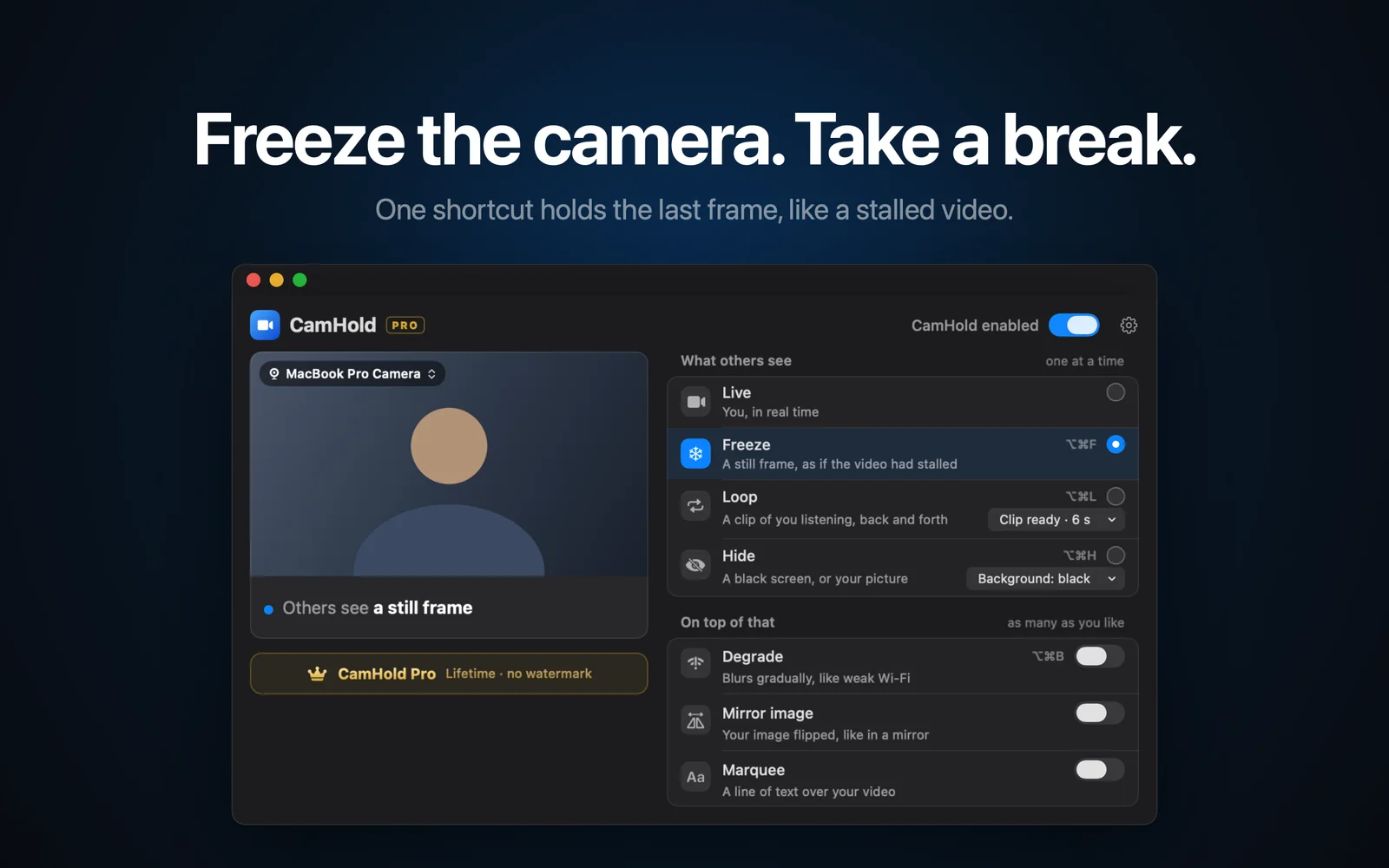
FaceTime on a Mac has no way to freeze your camera. What it has is the Mute Video button, which turns your camera off for a while and leaves the audio alone. To actually freeze your camera on FaceTime, with the picture stuck on the last frame and the call carrying on as normal, FaceTime has to get its video from a virtual camera, which you pick in the Video menu.
Here are both: the free option built into FaceTime, and how to hold a still picture.
Pause your camera with Mute Video
During a call, click the Mute Video button among the call controls. Your camera turns off temporarily and everyone can still hear each other. Click the same button to turn it back on. Apple covers this in Pause your camera during a FaceTime video call.
That page does not say what the other people see while your video is paused, and it may depend on the device they are on. If it matters, make a test call with someone first.
If you just need to be off screen for a minute and do not care who notices, this button does the job for free. It does not hold the picture, though: everyone on the call can tell your video went off.
Pause, freeze or loop
| Option | What others see | Good for |
|---|---|---|
| Mute Video (FaceTime) | Your video goes away; Apple does not say what replaces it | Leaving the screen when it is fine that people notice |
| Freeze (CamHold) | Your last frame, still, like video that stalled | A few seconds, up to a minute |
| Loop (CamHold) | A short clip of you, moving | Several minutes |
| Hide (CamHold) | Black, or a picture you choose | When showing nothing is better |
Pick a camera in FaceTime's Video menu
This is where any camera other than the built-in one comes in. With FaceTime open, click Video in the menu bar. From there you choose a specific camera or leave it on Automatic Camera Selection.
With automatic selection, FaceTime decides for you based on whether an iPhone or another external camera is connected, which camera you used most recently, and settings you chose before. If no devices are listed, it uses the built-in camera. When you want a virtual camera, pick it by name so FaceTime does not switch to your iPhone on its own.
A virtual camera installed on your Mac shows up in that menu like any other. I explained how that works, and what to do when one is missing, in virtual cameras on a Mac. If you use your iPhone as a webcam, it is listed there too; the setup is in how to use your iPhone as a webcam on a Mac.
How to freeze your camera on FaceTime with CamHold
CamHold is the virtual camera I make for the Mac. It runs on macOS 14 or later, on Apple Silicon and Intel, and it is only on the Mac App Store. It is free to download; the free version puts a small "CamHold — free" mark on the video.
1. Install it and approve the extension. The first time, macOS asks you to approve the camera extension. On macOS 15 or later that is in System Settings › General › Login Items & Extensions › Camera Extensions. On macOS 14 you get a blocked-extension notice, then click Allow in Privacy & Security. CamHold also needs camera access under System Settings › Privacy & Security › Camera. The app's setup guide explains each prompt before it shows up.
2. Choose CamHold in FaceTime's Video menu. CamHold takes your real camera as its source and hands the video to FaceTime. If it is not in the list, quit FaceTime and open it again.
3. Freeze with ⌥⌘F. The shortcut is global, so it works with FaceTime in front. You can also use CamHold's menu bar dropdown, which shows a live preview of what is going out, or the Freeze control in Control Center on macOS 26. Press ⌥⌘F again to go back to live.
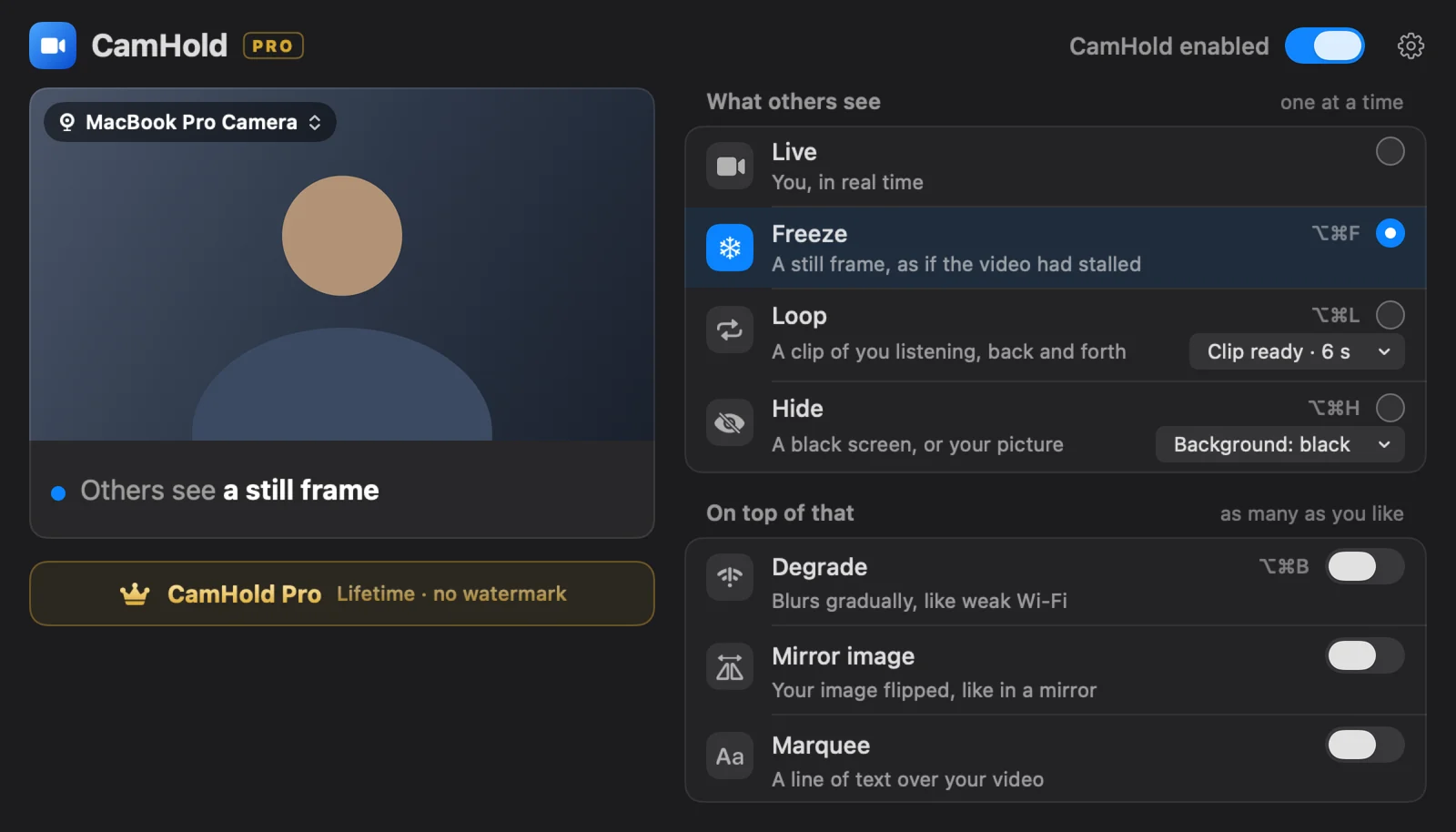
The frame that stays is the last one before the shortcut. Look at the screen, hold still for half a second, then press. Freeze draws the frame once and holds it, so it barely touches the CPU during the call.
For longer, use Loop
A still picture that lasts many minutes starts to look odd. Loop plays a short clip of you, up to 8 seconds, back and forth, with a smooth transition in and out. Recording starts after a 3 second countdown and has no audio. Press ⌥⌘L with no clip saved and CamHold records one on the spot. Tips for a clip that looks natural are in how to loop a video of yourself on Zoom, and they apply to FaceTime too.
Your microphone stays on
CamHold only handles video. Sound goes straight from your microphone to FaceTime, so mute yourself in FaceTime before you get up. The post on stepping away from a Zoom meeting unnoticed has a checklist for coming back that works the same on FaceTime. If you also take calls in other apps, it is the same idea, covered in how to freeze your camera on Zoom, Meet and Teams.
Quick answers
Can I freeze my camera on FaceTime without installing anything? I could not find a freeze option in Apple's help. What exists is pausing with Mute Video.
Does the other person get a notice? FaceTime gets CamHold's video the same way it gets video from any camera, so there is nothing for it to flag.
Does it work if the other person is on an iPhone? Yes. CamHold runs on your Mac; the person on the other end receives the video as usual, on any device.
Do I have to pay? Not to freeze. CamHold Pro is a one-time, lifetime purchase that removes the mark and unlocks Marquee. There is no subscription.
Does CamHold record my call? No. Live video is processed on your Mac and never recorded. The only video kept is the Loop clip, recorded only when you ask, and it never leaves your Mac.