 CamHold
How to freeze your camera on Discord on a Mac (app and browser)
Discord has no freeze button. Here is where to pick your camera in the app and the browser, and how to hold a still frame or loop a clip on a Mac.
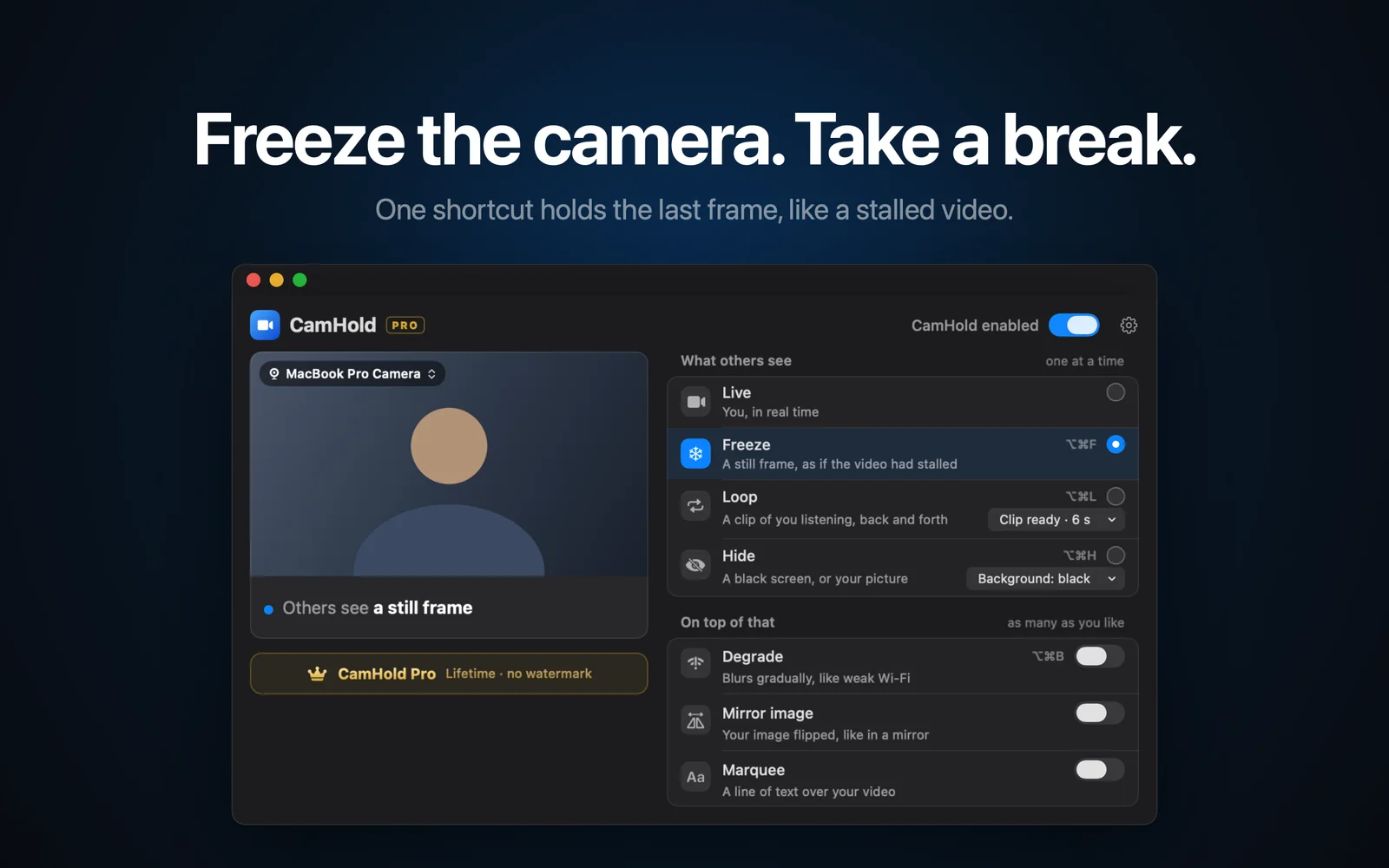
Discord lets you turn your camera on and off, but it has no button to freeze the picture. To freeze your camera on Discord on a Mac, you give Discord a camera you control: a virtual camera, picked in its voice and video settings. Turning the camera off is the built-in option, but then your avatar replaces the video and everyone can see you left. A still frame tends to pass for a weak connection.
Where to pick your camera in Discord
In the desktop app, the cog at the bottom left, next to your username, opens User Settings. The Voice & Video section has a camera dropdown and a Test Video button, so you can check the picture before joining a call. Whatever you choose there is your default camera.
During a call, the buttons in the call panel have a small arrow next to them, and it opens options that include the camera you are using, without leaving the call. Discord's help describes that menu for the desktop app. Names and positions shift between versions, so if something looks different on your screen, look for the voice and video part of the settings.
Discord in the browser
Discord also runs in a browser, and its help lists Chrome, Firefox, Edge, Opera and Safari as supported. You pick the camera in the same Voice & Video settings, with one difference: the browser asks for camera permission for the site, and you need to click Allow. A virtual camera shows up in the browser's list like any webcam.
Google Meet works the same way, so what I wrote about freezing your camera in Google Meet applies here too.
If the camera does not show up
- macOS permission. The Discord app has to be switched on in System Settings › Privacy & Security › Camera. In a browser, it is the browser that needs the permission. My guide to Mac camera permissions walks through each screen.
- Quit and reopen. Apps usually look for cameras only when they launch. Quit Discord fully with ⌘Q; closing the window is not enough. In a browser, quit the whole browser.
- Test in another app. If the camera works in FaceTime and not in Discord, the problem is on Discord's side.
- Video stuttering on its own. If the picture is choppy, Discord's help suggests turning off hardware acceleration in the advanced part of the video settings.
How to freeze your camera on Discord with CamHold
CamHold is the virtual camera I make for the Mac. To Discord, it is one more webcam in the list. It needs macOS 14 or later, and the free version has every mode, with a small "CamHold — free" mark on the video. If virtual cameras are new to you, I explained how they work in virtual cameras on a Mac.
1. Install it and approve the extension. Get CamHold from the Mac App Store and open it. macOS asks once to approve the camera extension, and the app shows where to click before the prompt appears. It also needs camera permission under Privacy & Security, since it is the app reading your real webcam.
2. Pick "CamHold" as your camera in Discord. User Settings, Voice & Video, camera dropdown. You can test it right there. If it is missing, quit Discord with ⌘Q and reopen it. If it still does not show up in the app, try Discord in the browser.
3. Freeze with ⌥⌘F. The shortcut works whatever app is in front, Discord included. Press it again to go back to live. You can also click Freeze in the menu bar.
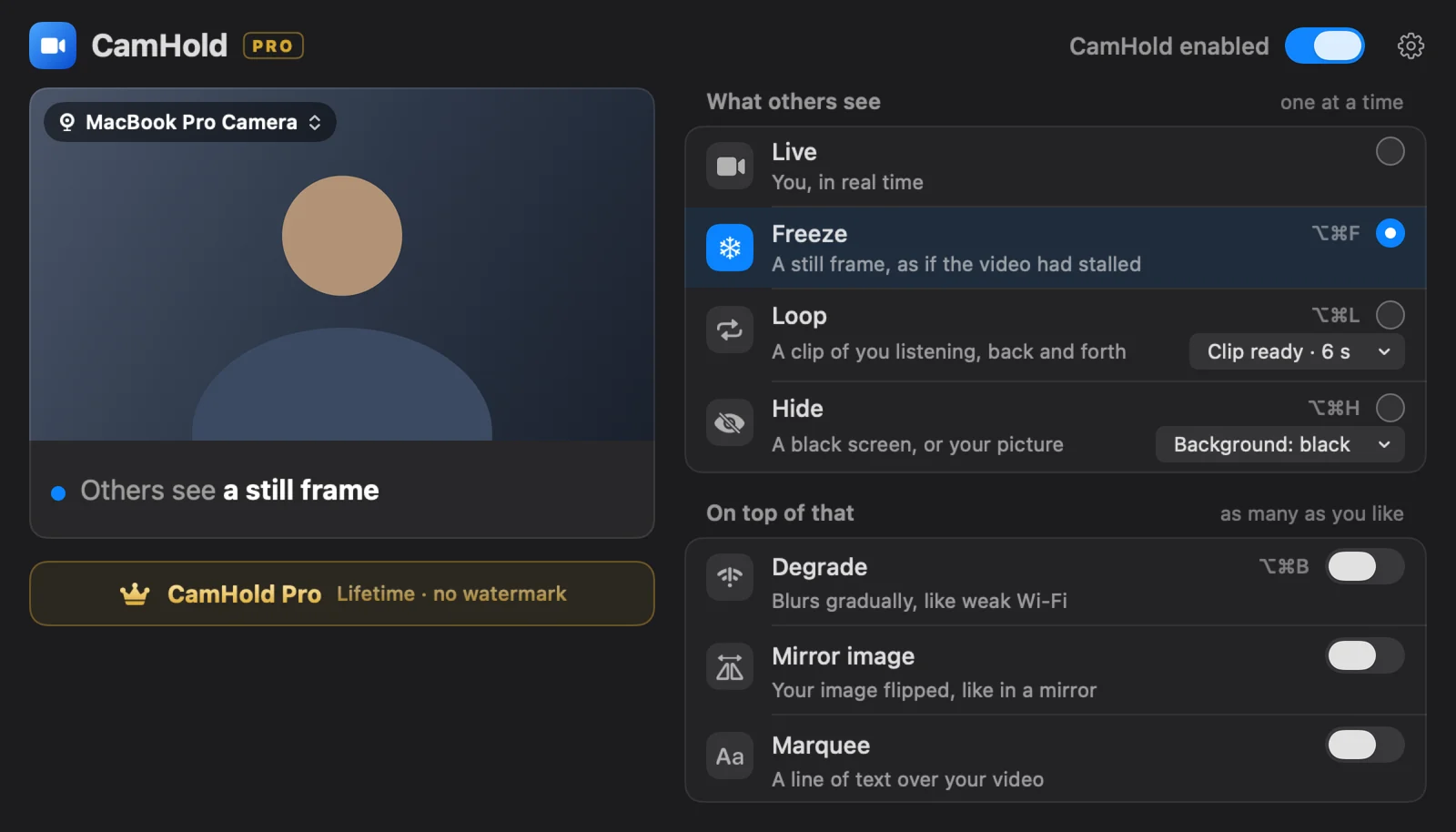
The frozen frame is the last one before the shortcut. Look at the screen, hold still for half a second, then press.
Freeze for seconds, Loop for minutes
Freeze is for short breaks: answering the door, grabbing water. For a few seconds, a still picture reads as bad internet. Ten minutes in exactly the same pose does not.
Loop is for longer ones. CamHold plays a clip of you listening, up to 8 seconds, back and forth with a smooth transition in and out, so the picture keeps moving. Press Loop with no clip and it records one on the spot after a 3 second countdown. The clip has no audio. The shortcut is ⌥⌘L, and ⇧⌥⌘L records a new clip. I explain how to record one that looks natural in how to loop a video of yourself on Zoom; the same advice works on Discord.
Before you step away
- The microphone is separate. CamHold only touches video. Audio goes straight from your mic to Discord, so mute in Discord before you get up.
- Say something when it fits. In a call with friends or your server, a quick "brb" in chat works better than any still frame.
Quick answers
Do others get notified? No. Discord treats CamHold like any other camera. On the free version, though, everyone sees the "CamHold — free" mark on your video.
Can I do this for free? Turning the camera off is what Discord itself offers. If you want a still picture without paying and do not mind the setup, OBS has a free virtual camera and can show a photo of you; I wrote about the OBS Virtual Camera on a Mac. CamHold is also free to freeze and loop. The one-time Pro purchase, no subscription, removes the mark and unlocks Marquee.
Does it work with screen sharing? CamHold only handles the camera. I have not tested it with Discord's screen sharing, so I will not promise anything there.
What about privacy? CamHold has no account, no analytics and makes no network requests. Live video is processed on the Mac and never recorded. The only video kept is the Loop clip, recorded only when you ask, and it never leaves the Mac.